

Forwarding to AWS (IoT)
To connect an Edge to AWS IoT Core, the device must be registered in AWS and the Edge must be configured with a certificate. The certificate is used by the gateway endpoint to authenticate itself with AWS.
A Thing is the logical representation of the Edge device in AWS IoT Core. The Thing name is used to identify the device within AWS and must exactly match the Hostname configured on the Edge (visible under System → Settings → Device).
- Log in to the AWS Console and navigate to AWS IoT Core.
- Under Manage → Things, click Create things and select Create a single thing.
- Enter the Edge Hostname as the Thing name. Optionally select or create a Thing Type to categorize the device.
- On the certificate step, choose Auto-generate a new certificate (recommended). After creation, download all files immediately — the private key cannot be downloaded again after this step. Save:
*-certificate.pem.crt(device certificate),*-private.pem.key(private key), andAmazonRootCA1.pem(AWS root CA — download link shown in the creation dialog). - Attach an IoT policy to the certificate. The policy must grant at minimum:
iot:Connect,iot:Publish,iot:Subscribe, andiot:Receive. If no suitable policy exists, create one under Security → Policies first.
The certificate files downloaded from AWS are not in the format required by the Edge gateway endpoint. A .pfx file must be created from:
- The private key (
...-private.pem.key) - The device certificate (
...-certificate.pem.crt) - The AWS root certificate (
AmazonRootCA1.pem)
On Linux (WSL)
Navigate to the directory containing the downloaded certificate files and run:
openssl pkcs12 -export -in certificate.pem.crt -inkey private.pem.key -out THINGNAME_certificate.pfx -certfile AmazonRootCA1.pemYou will be prompted for an export password. This password must be provided to the Edge during certificate setup — store it securely alongside the certificate files.
On Windows (PowerShell)
The certificate and private key files must share the same base name with .crt and .key extensions respectively. Then run:
certutil -mergepfx <certificate-name>.crt <result-name>.pfxThe gateway endpoint connects the Edge to AWS IoT Core over MQTT with TLS authentication. Before configuring it in the Edge, locate the device data endpoint in the AWS Console.
Find the AWS IoT endpoint URL
In the AWS Console, navigate to AWS IoT Core → Settings. The Device data endpoint field shows the hostname used for device connections — it takes the form xxxxxxxxxxxxxxx-ats.iot.<region>.amazonaws.com.
Configure the endpoint in the Edge
- In the Edge UI, navigate to System → Settings → Gateway.
- The page lists the configured gateway endpoint and its current connection status.
- Click the endpoint to open its configuration.
- Under Endpoint, enter the AWS IoT device data endpoint URL.
- Under Credentials, upload the
.pfxcertificate file and enter the export password set during the conversion step. - Click Save. The connection status updates automatically — a green indicator confirms a successful connection to AWS IoT Core.
Gateway forwarding is configured on a per-variable basis. Each variable that should be forwarded to AWS must have a gateway_aggregation parameter set. Variables without this parameter are not forwarded, regardless of whether they are being recorded locally.
Aggregation controls how the Edge summarizes recorded values before sending them to AWS IoT Core. Using an aggregation interval (e.g. 1m) reduces the number of MQTT messages sent to AWS, which directly affects data transfer volume and AWS IoT message costs. When an interval is set, the Edge computes the average of all sampled values within that period and publishes a single message per interval. Setting the value to 0 forwards every recorded sample individually without aggregation — use this only when raw sample fidelity is required, as it significantly increases message volume.
To include a measured variable in gateway forwarding, open the variable edit dialog and add a parameter with the identifier gateway_aggregation.
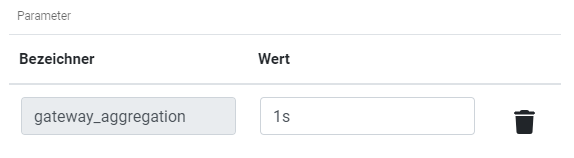
Set the aggregation interval as a string literal:
15s— 15 seconds1m— 1 minute2h— 2 hours
To forward raw (unaggregated) values, set the value to 0.

Once all variables are marked, click Retrieve variables in the gateway dispatcher to trigger the automated import.

The marked variables are then configured in the dispatcher with their respective aggregation intervals.