Quickstart
Get up and running with Hub in minutes.
Navigate to the Hub URL provided by your administrator. Hub runs entirely in the browser — no installation required. We recommend using a current version of Chrome, Firefox, Edge, or Safari.
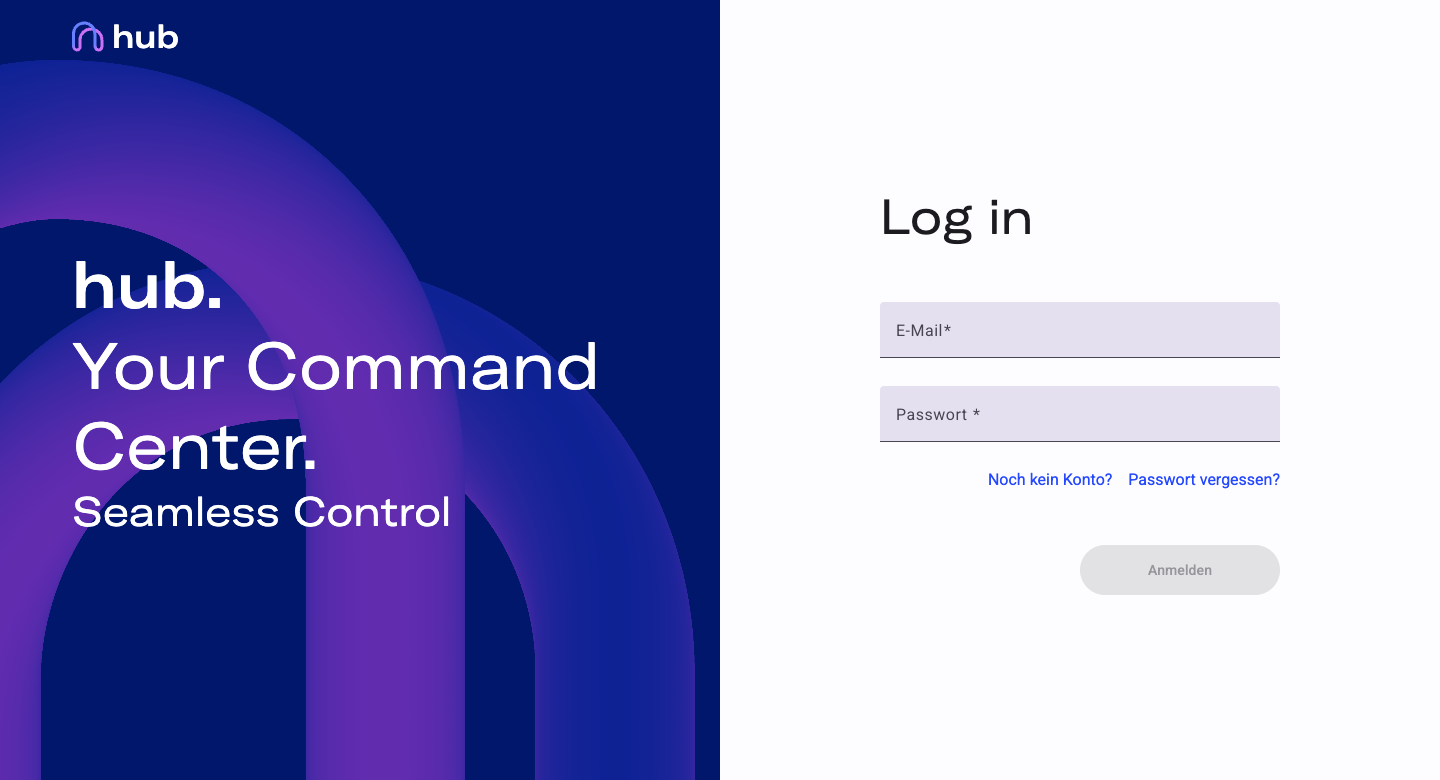
Hub uses invitation-only access — there is no self-registration. Your administrator creates your account and sends you your login credentials (email address and password) by email. Enter your email and password on the login page and click Sign in.
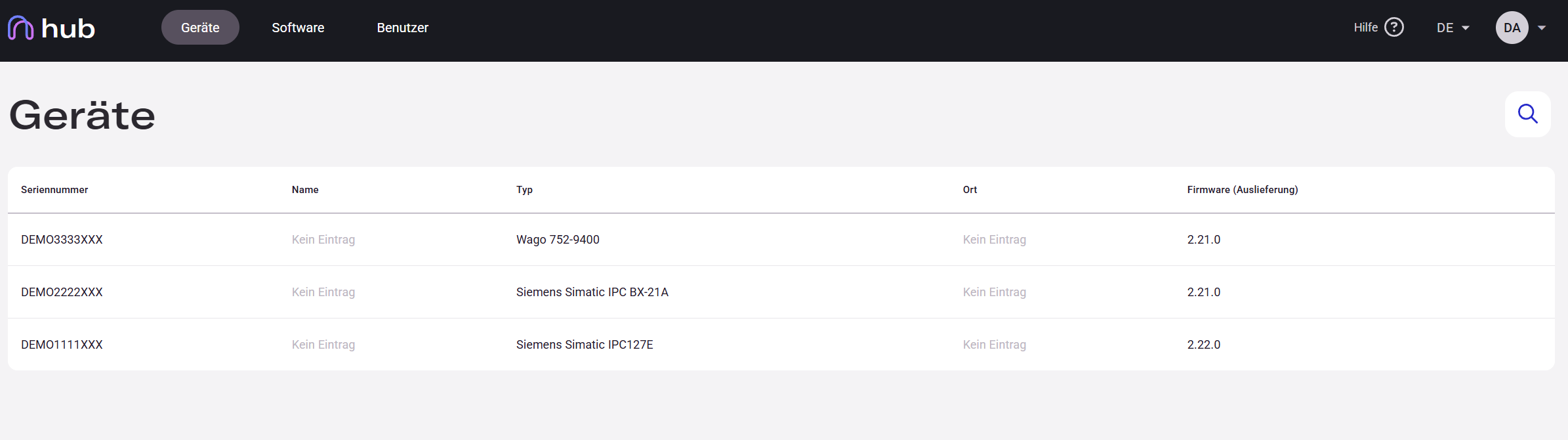
After logging in, you land directly on the Devices page — the central view in Hub. Here you can see all Edge devices registered in your organization, including their serial number, name, type, location, and installed firmware version.
Click any row to open the device detail panel on the right, where you can view and edit device information.
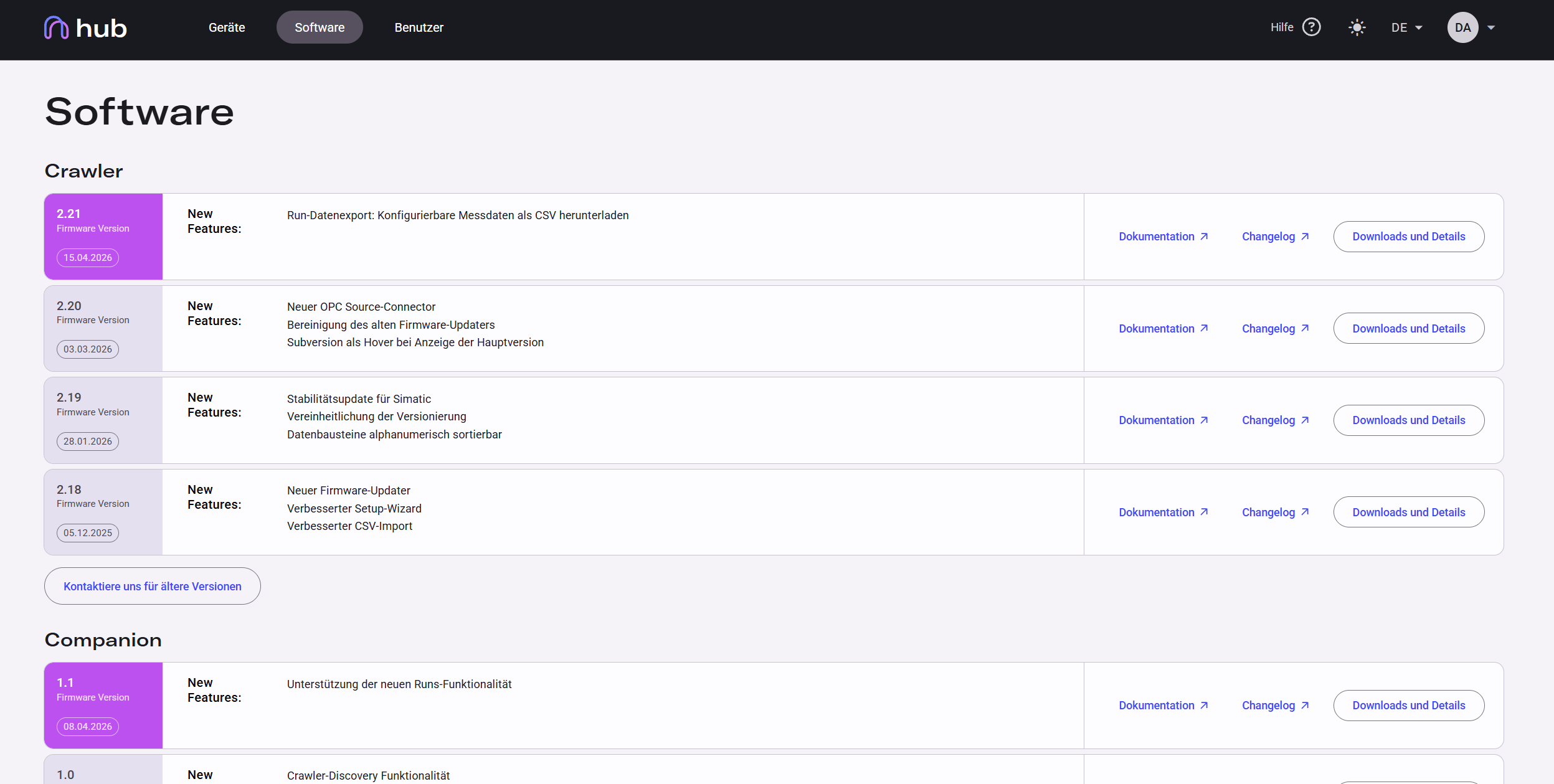
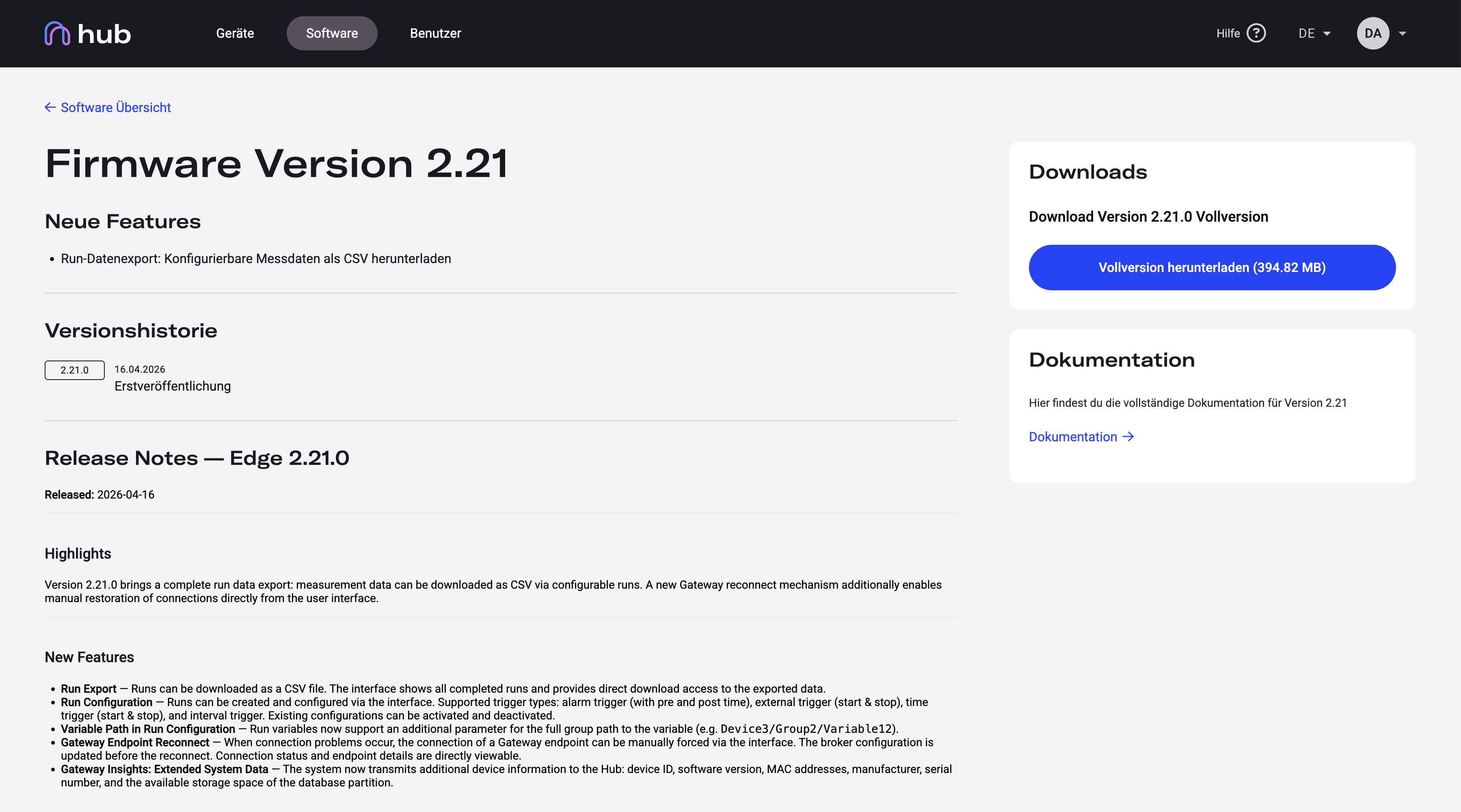
Navigate to Software in the top navigation bar to browse current firmware and Companion App releases. Versions are listed newest-first.
Click any version entry to open its detail page. Each detail page contains:
- Highlights — a summary of the most important changes in this release
- Release Notes — the full list of new features, improvements, and bug fixes
- Downloads — full version and patch files available for download
- Version history — a chronological list of all releases within this major version
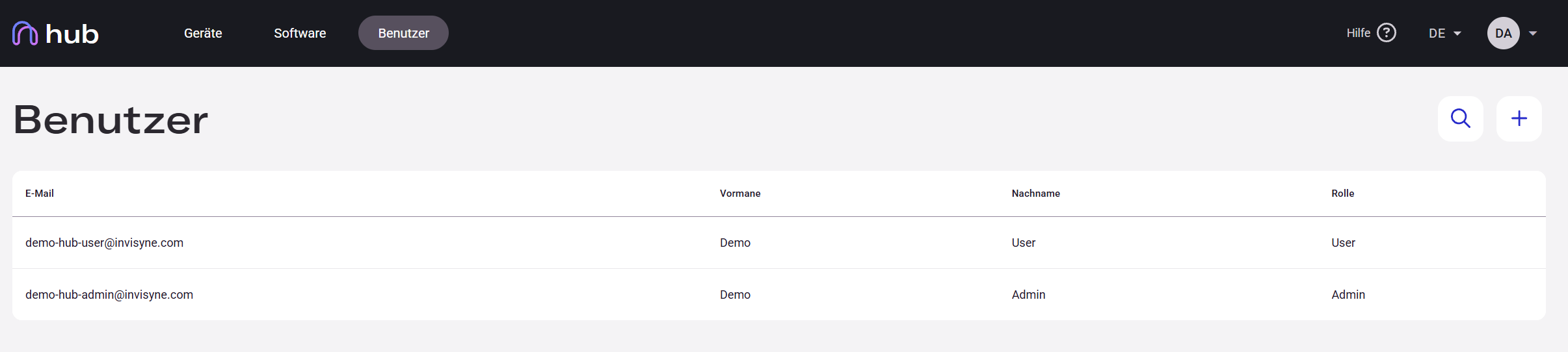
Navigate to Users in the top navigation bar to manage who has access to your Hub organization. This area is visible to Admins only.
From here you can create new user accounts, assign roles (Admin or User), and manage existing accounts.
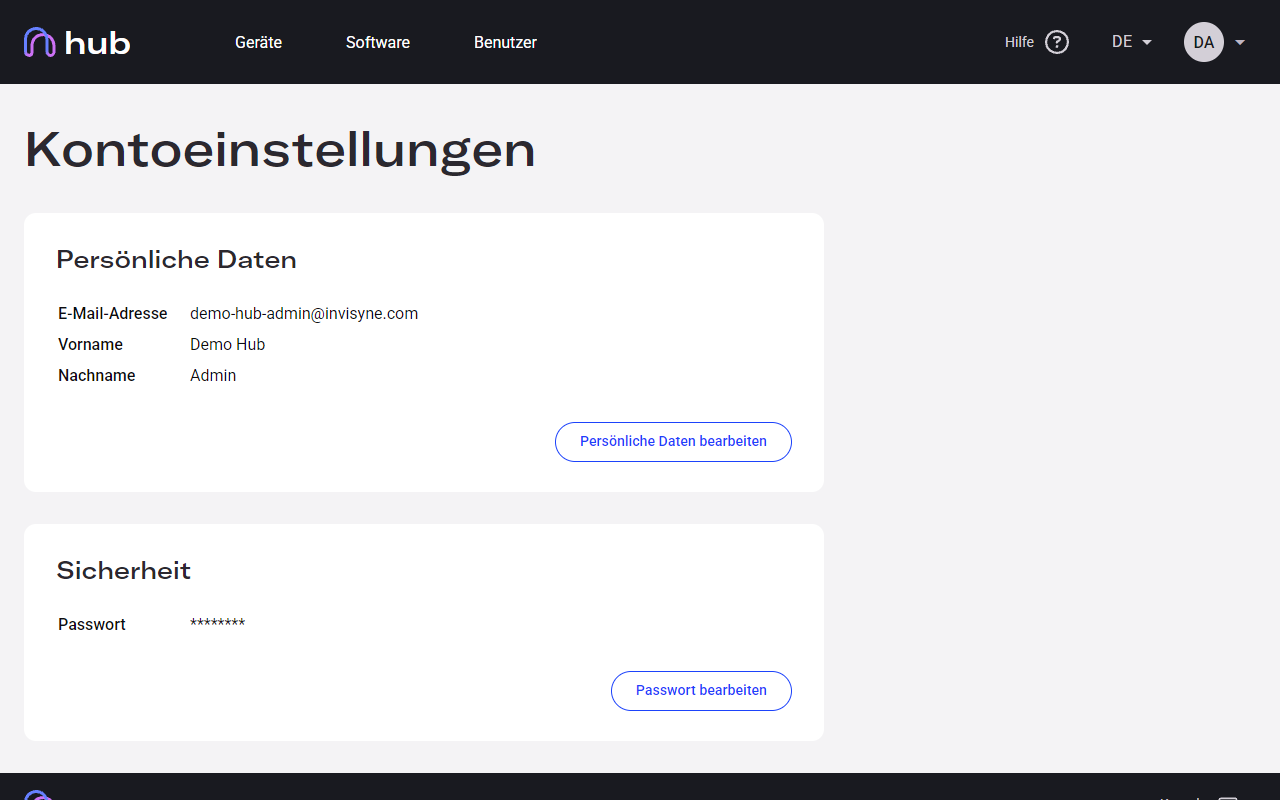
Click your profile icon in the top-right corner and select Account Settings to update your password, change the interface language, or edit your personal information.
For a full overview of all guides, visit the How-To Guides page.