



Crawler.Companion is a Windows desktop application for managing Edge devices on the local network. It covers the full device lifecycle — from discovering and configuring devices that have no IP address yet, to adjusting network settings, installing firmware updates, and exporting data across an entire fleet.
Companion is particularly useful in closed networks without internet access, where devices cannot be managed through Hub. In these environments, Companion provides all configuration and management capabilities entirely over the local network.
Crawler.Companion
Initial configuration of Edge devices on the local network.
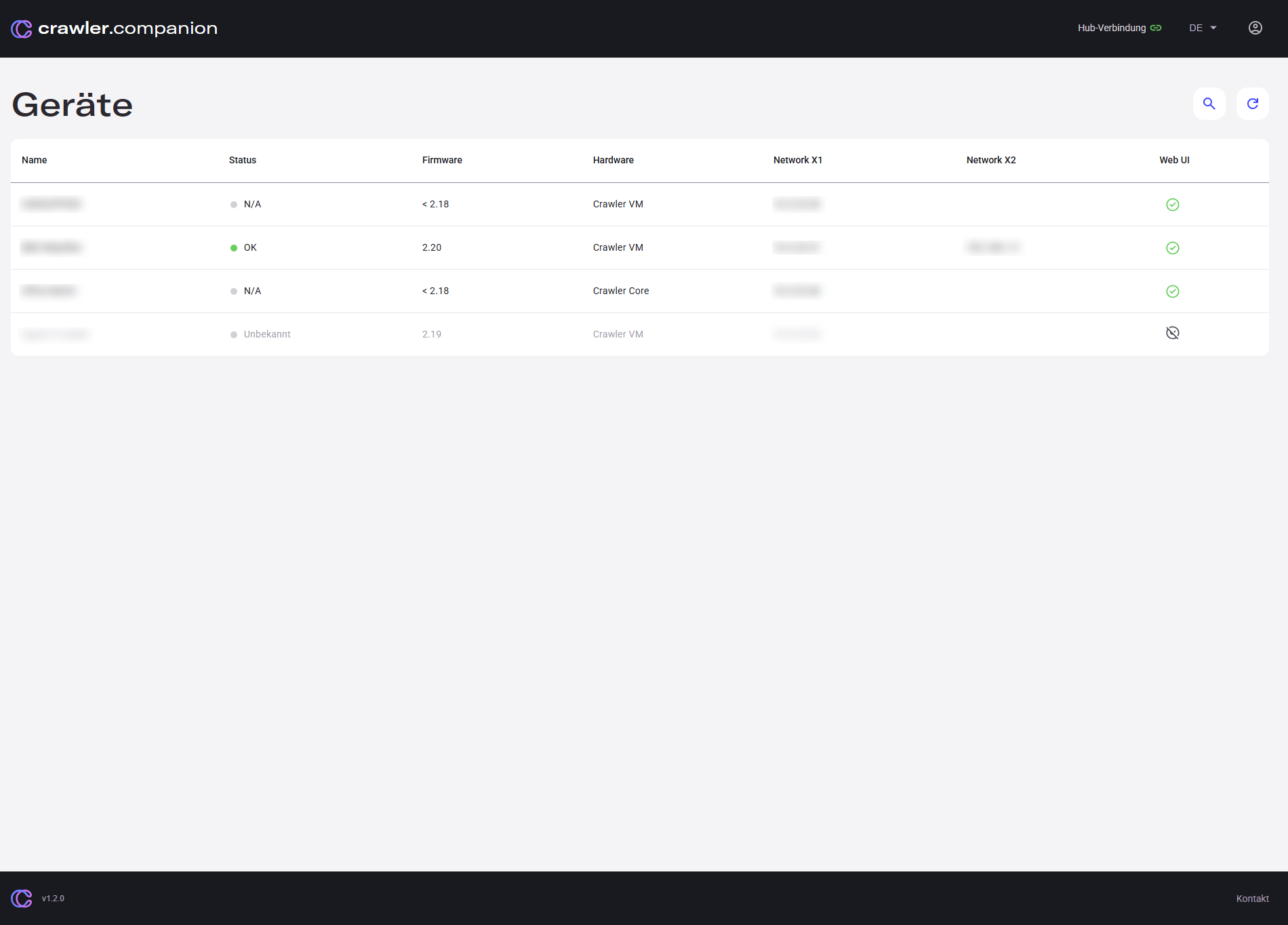
The device list shows all Edge devices in the local network — including devices that are already configured as well as new devices that have not yet been set up. Unconfigured devices can be assigned their first network configuration directly from here.
Functional Scope
Section titled “Functional Scope”Finds all Edge devices in the local network — including unconfigured devices with no known IP address.
Assigns a first network configuration to newly discovered Edge devices.
Adjust and export network settings for multiple devices without accessing each device’s web interface individually.
Install firmware updates on Edge devices directly from Companion.
Export data from Edge devices — especially useful in closed local networks.
Manage multiple Edge devices simultaneously instead of accessing each web interface individually.
Safety Notes
Section titled “Safety Notes”Incorrect network settings can make devices unreachable. Only edit these if you are familiar with IP addresses and subnet masks.
Ensure stable power supply to the Edge device before installing updates.
Your PC must be in the same local network as the Edge devices.