

Scatter
Initially, the scatter plot is empty.
Drag and drop or double-click signals from the signal list into the x/y or color signal fields to add them to the plot — this works the same way as with a Time Series plot (see Signal List).
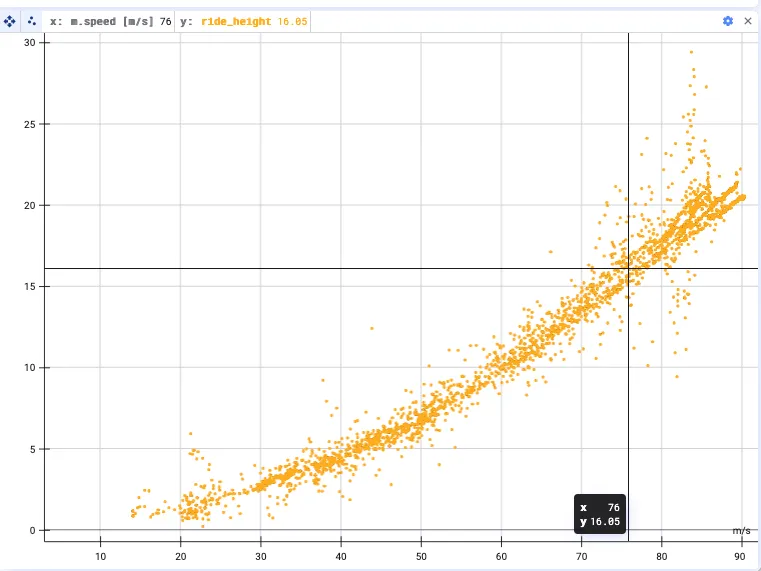
After adding some signals, the plot looks something like this:
Settings
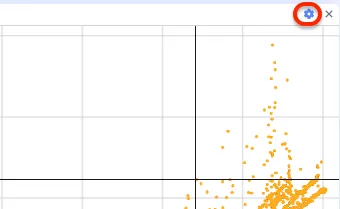
Section titled “Settings”Click the settings wheel for further configuration options.
Resample input signals
Section titled “Resample input signals”You can turn resampling of the input signals on or off, and change the resampling frequency. See Resampling for more details.

Change axes
Section titled “Change axes”Exchange the X and Y axes by clicking the cycle through the signals button.
Alter the limits of the X and Y axes
Section titled “Alter the limits of the X and Y axes”Set the limits of the X and Y axes.

Show subsampling grid
Section titled “Show subsampling grid”Turn on the display of a subsampling grid — useful for large datasets, since these are aggregated along a grid.
Trend line
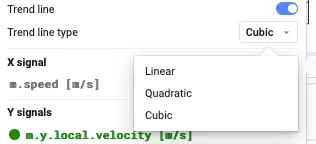
Section titled “Trend line”Apply a trend line, and choose whether you want it to be linear, quadratic, or cubic.
Filters
Section titled “Filters”- Remove outliers — removes data points more than 5 standard deviations away from the mean
- Filter Signals — add conditions on signals to filter out data; you can add multiple filter signals
Add a color signal
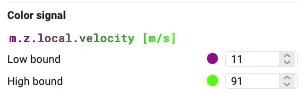
Section titled “Add a color signal”Add a color dimension to the plot by adding a new signal and configuring lower and upper bound colors.
Custom background
Section titled “Custom background”With a custom background you can tailor the axes exactly to your needs.
- Upload a file and align the plot corners so the data fits the image
- Lock plot corner to lock and hide the resize area
More display options
Section titled “More display options”- Bullet size/opacity
- Show axes/grid lines/axis labels
- Show connecting lines — draw a line between subsequent points to follow the trajectory, with adjustable line width and opacity