

Frequency (FFT)
The Frequency plot behaves and looks similar to the Time Series plot.
It uses FFT to plot the selected time range in the frequency domain. Deepview assumes a constant sampling rate and no missing data points — otherwise the plot may not be entirely accurate.
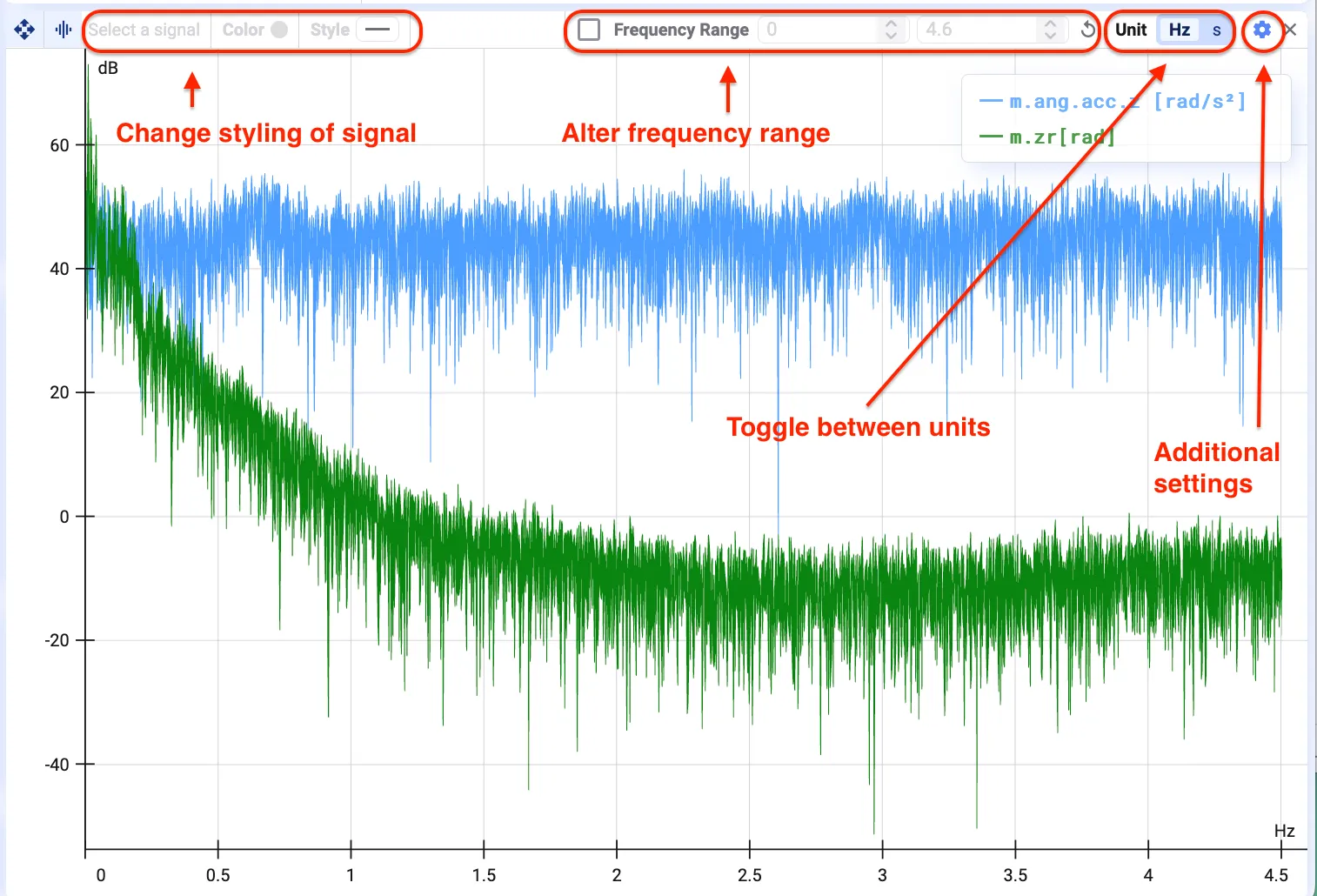
Toolbar
Section titled “Toolbar”Change signal styling
Section titled “Change signal styling”You can change the color or stroke style of the signals in the plot.
Frequency range
Section titled “Frequency range”You can set the frequency range of the plot. You can also zoom in by clicking and dragging with your right mouse button (making a selection), just as in the Time Series plot.
Toggle between units
Section titled “Toggle between units”You can change the unit of the x-axis. Note that this mirrors the plot.
Additional settings
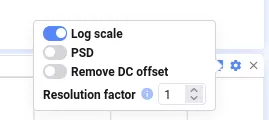
Section titled “Additional settings”Behind the settings wheel, there are three additional settings you can toggle on and off.
Change scale
Section titled “Change scale”Turn this on to change the y-axis scale to logarithmic. The default is a linear scale.
PSD (Power Spectral Density)
Section titled “PSD (Power Spectral Density)”Turn this on to show the plot as a power spectral density plot — useful for analyzing random or noisy signals where energy is spread out over many frequencies.
The default display of the FFT plot is amplitude.
Remove DC offset
Section titled “Remove DC offset”Remove the direct current (DC) component, or the signal’s zero-frequency component, from the plot.
Resolution factor
Section titled “Resolution factor”This value sets the number of neighboring points averaged together in one frequency bin. Increase it to average neighboring frequency bins together, smoothing the frequency domain.