Chain
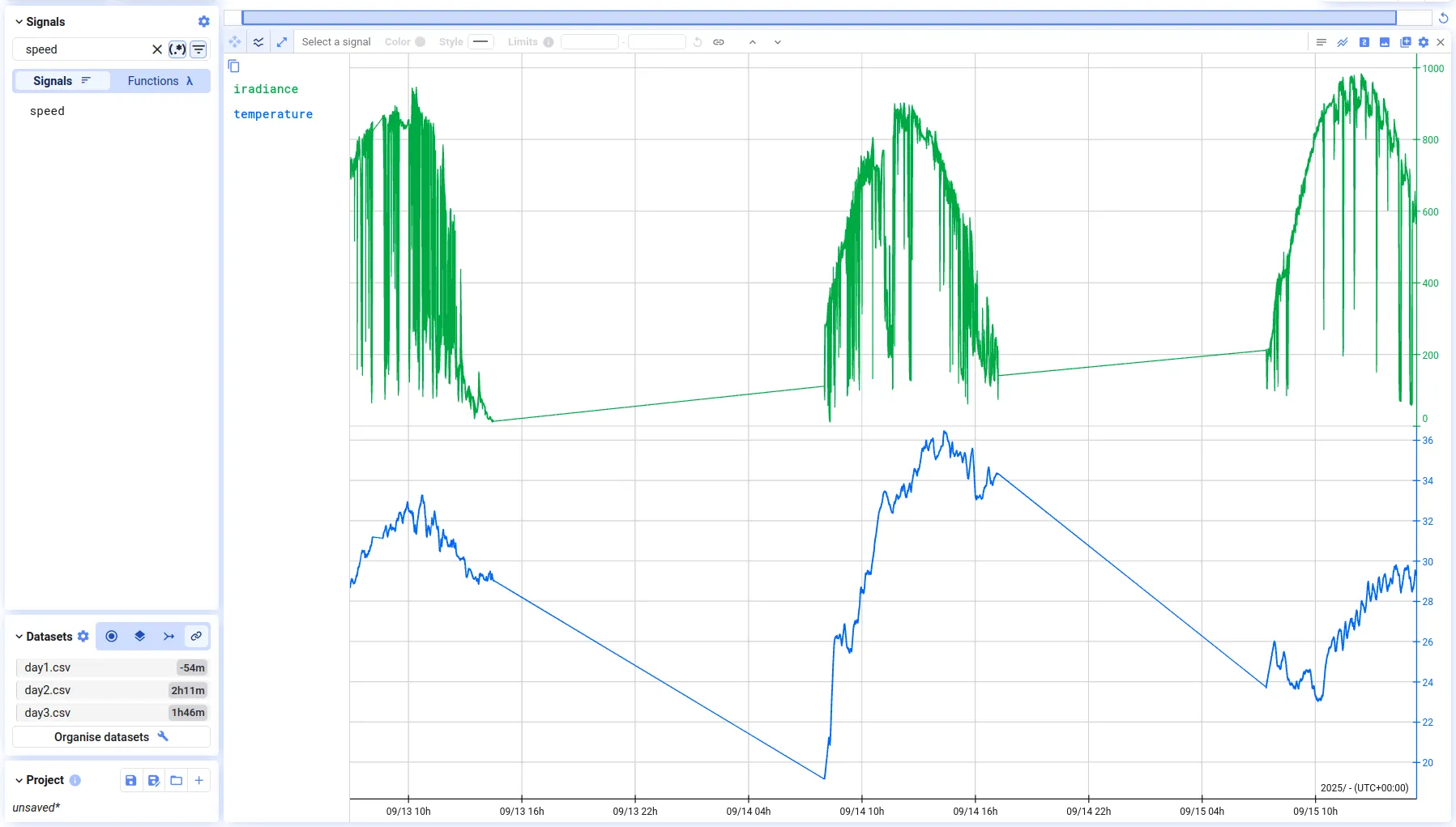
If you have several consecutive recordings — for example, a recording split into multiple files, or several runs of the same test — Chain places them end-to-end on the time axis so they appear as one continuous timeline.
Enable chain
Section titled “Enable chain”Choose Chain in the dialog when visualizing multiple data sets, or switch to it at any time from the Datasets dialog (bottom-left of the tab). Your data sets are now placed end-to-end, so you can scroll through them as a single uninterrupted measurement.
Select and order data sets
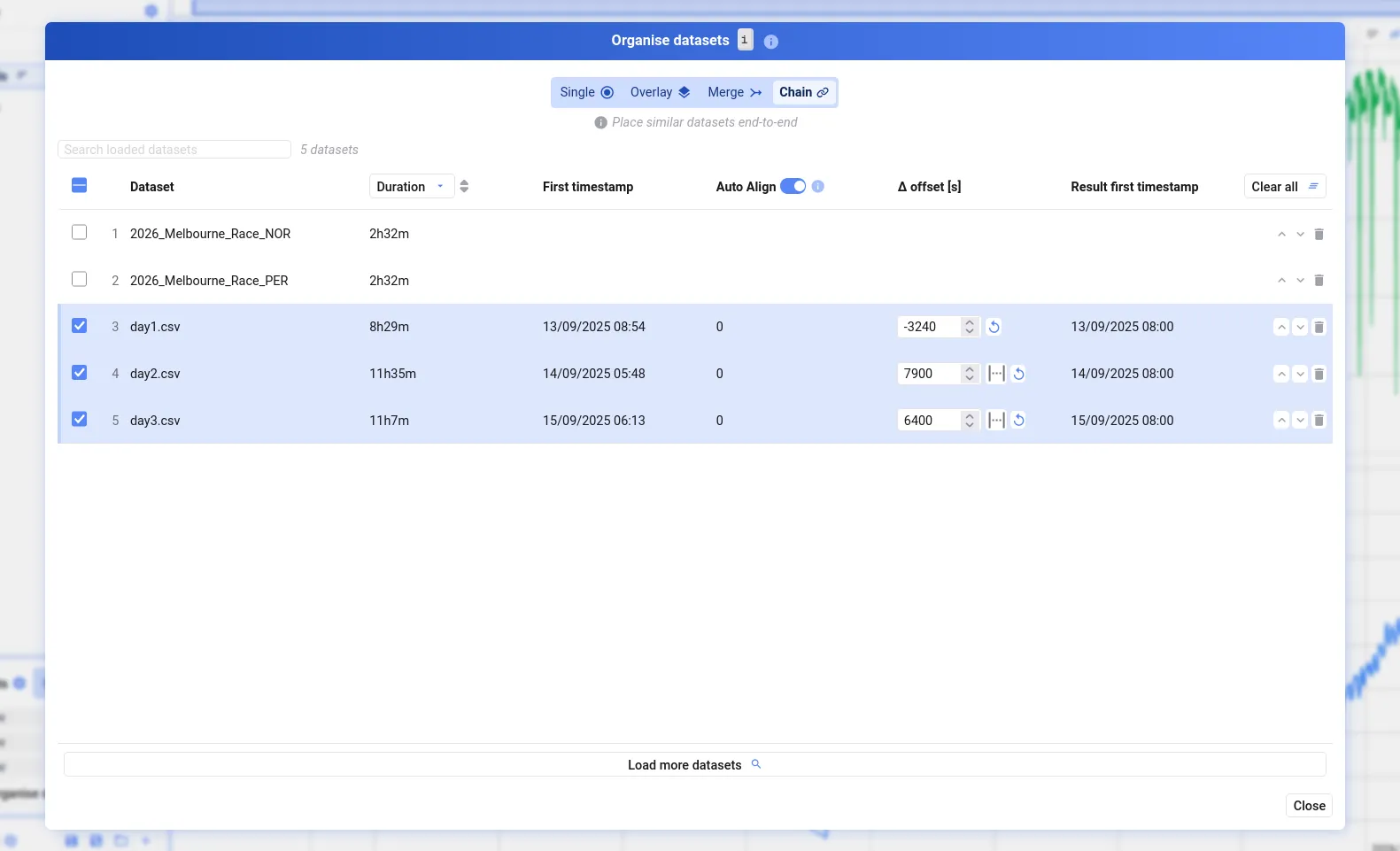
Section titled “Select and order data sets”Open Organise datasets (button in the Datasets dialog, or press i). In Chain mode, each data set has a checkbox — tick the ones to include, and reorder them with the arrows on the right. Their order determines the order they appear in along the time axis.
Configure the time axis
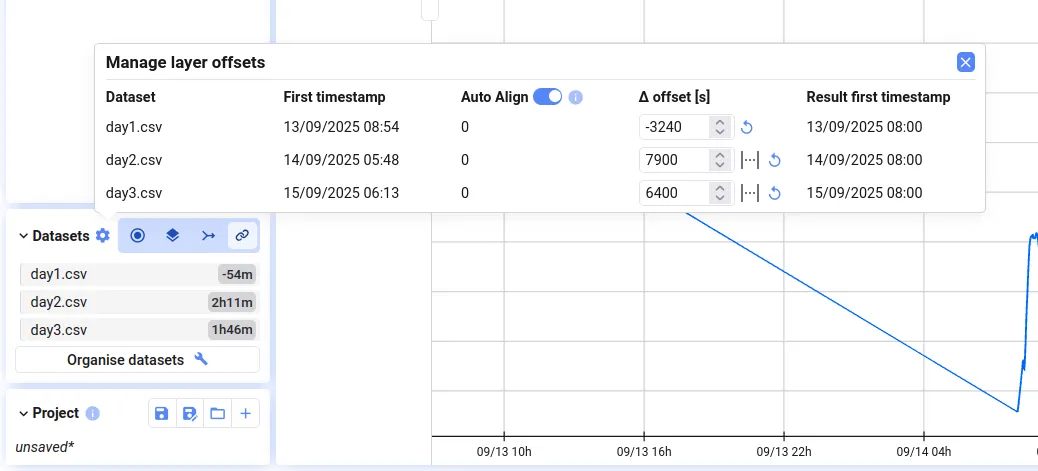
Section titled “Configure the time axis”- First timestamp — the original start time of the data set
- Auto-align — chains relative-timestamp data sets end-to-end automatically; absolute-timestamp data sets keep their original positions
- Delta offset — additional offset in seconds to add or remove a gap between two recordings; you can also use the distance between two cursors to set this visually
- Result first timestamp — the start time of the data set after all offsets are applied
Set offsets via the gear button next to Datasets, or in the Organise datasets dialog.