Installing Updates
Updates are installed on the Edge by uploading an update bundle — a .zip file provided by Invisyne that contains the new firmware and service versions. There is no automatic update mechanism; each update must be uploaded manually.
-
Navigate to the Update page
In the left sidebar, go to System → Settings. On the settings overview, click the Update tile.

-
Check the current version
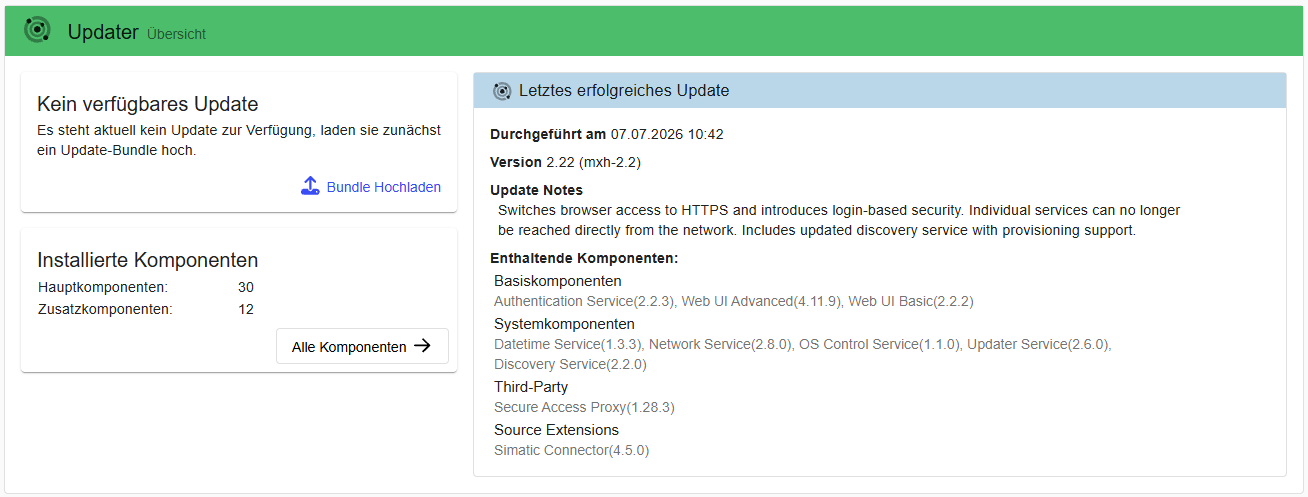
The Update overview shows the currently installed version and a summary of all installed components. If no update bundle has been uploaded yet, the status reads No update available.
-
Upload the update bundle
Click Upload Bundle. In the dialog that appears, click Select Bundle and select the
.zipupdate file provided by Invisyne.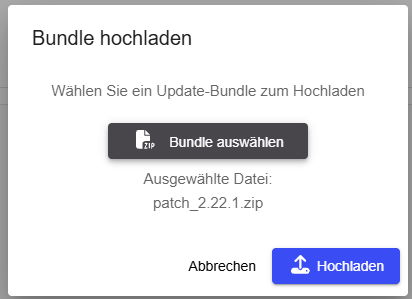
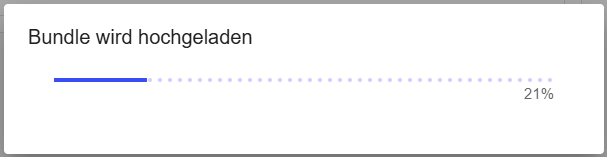
Click Upload to start the upload. A progress bar is shown while the file is being transferred.
-
Review and install the update
Once the upload is complete, the Update overview shows the available update with its release notes and component list. Click Continue to Update to open the update details.
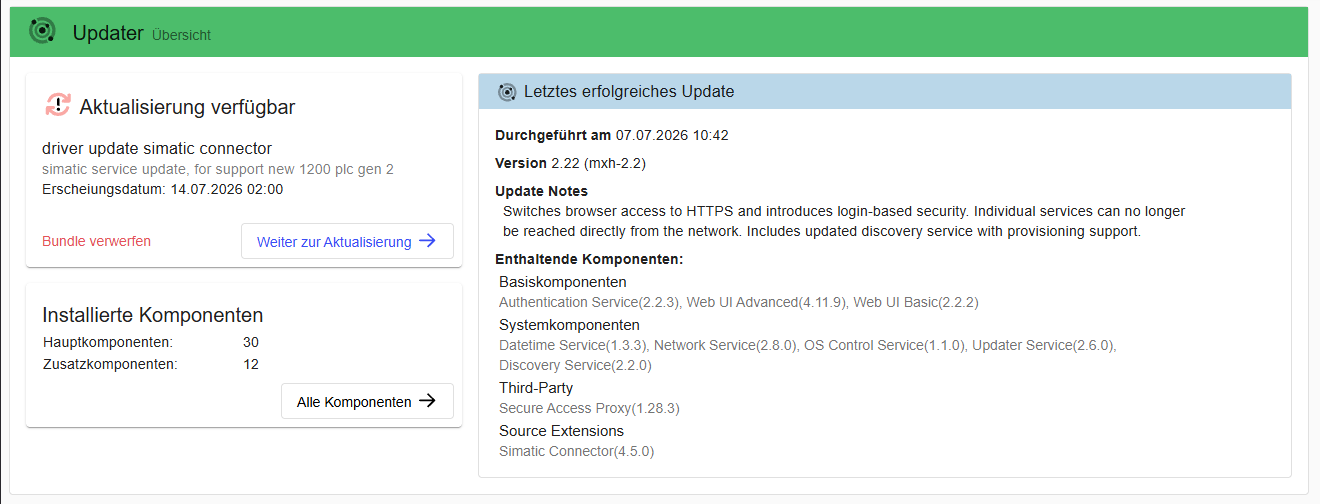
The details page shows the bundle notes and the list of components included in the update. Expand a component entry to see the exact version and description of what will be installed.
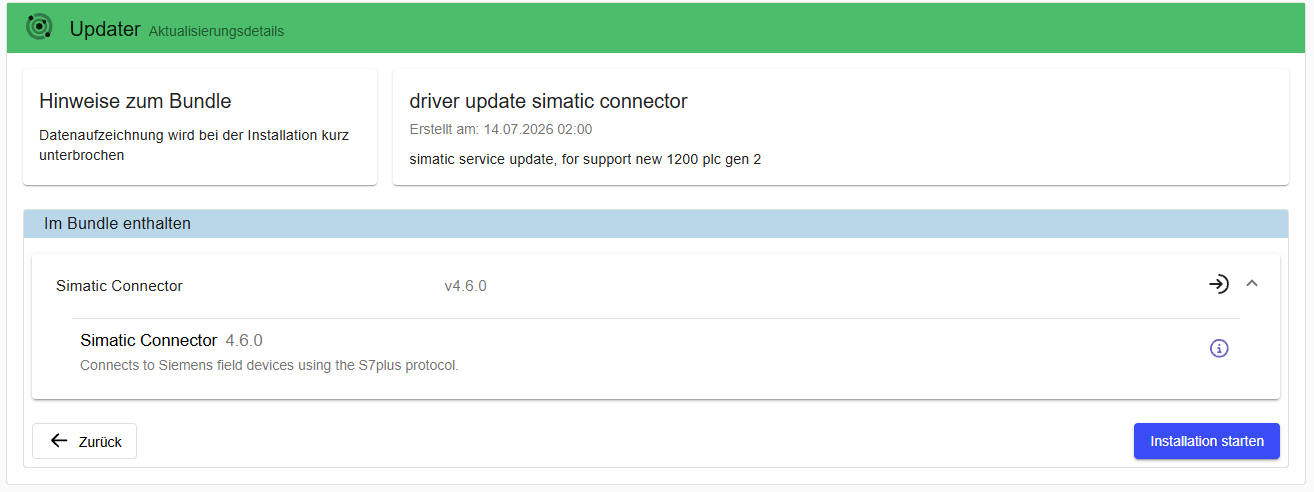
In some cases the overview shows a Restart required warning — this means the device must be restarted before the update can be installed.
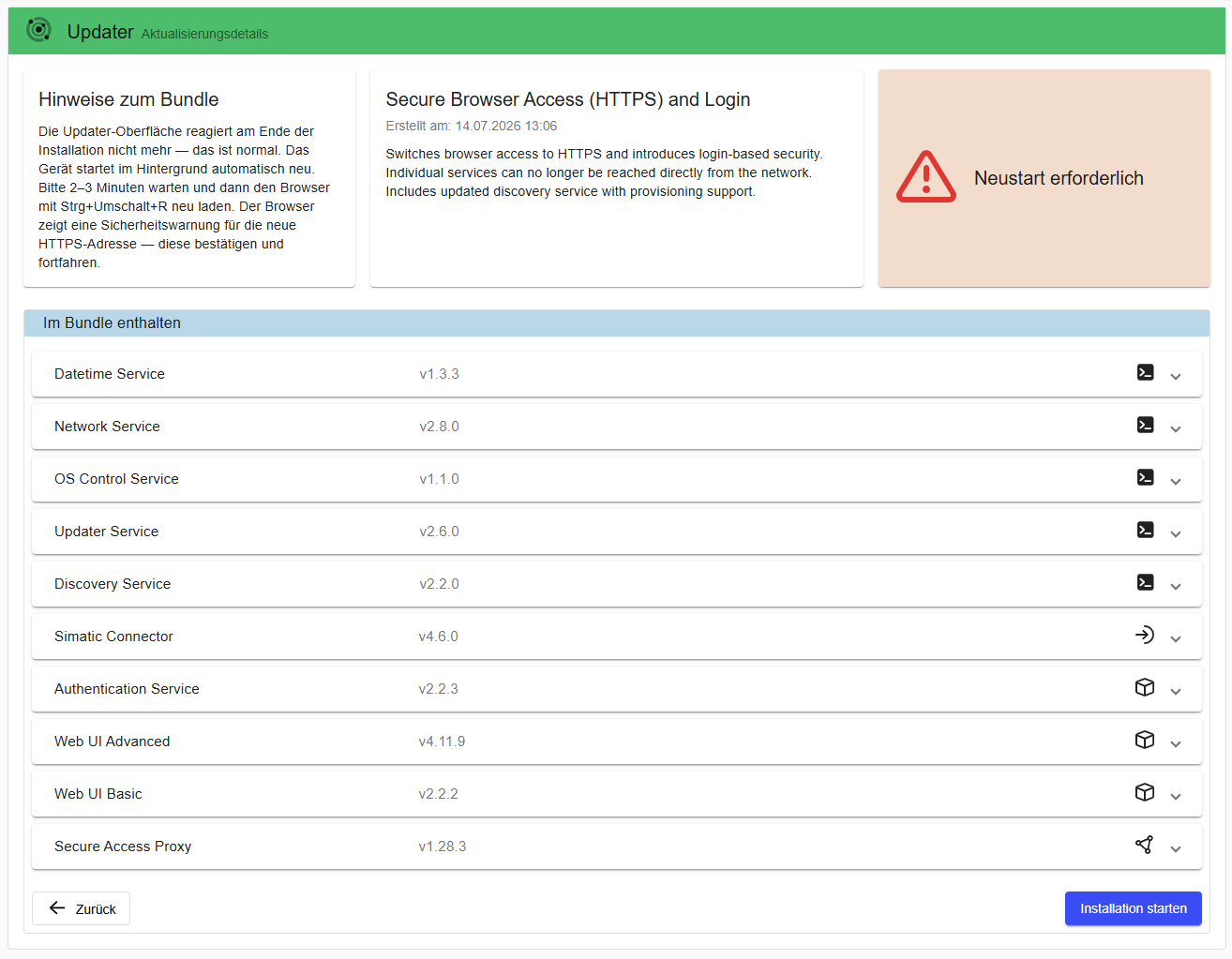
To restart, go to System → Settings and click Restart. This performs a software restart of the Edge services.

After the restart, return to the Update page to continue.
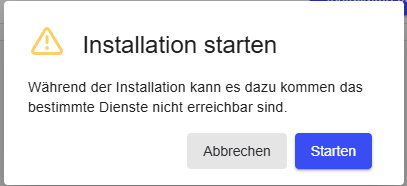
Click Start Installation to begin. A confirmation dialog warns that some services may be temporarily unreachable during the process.
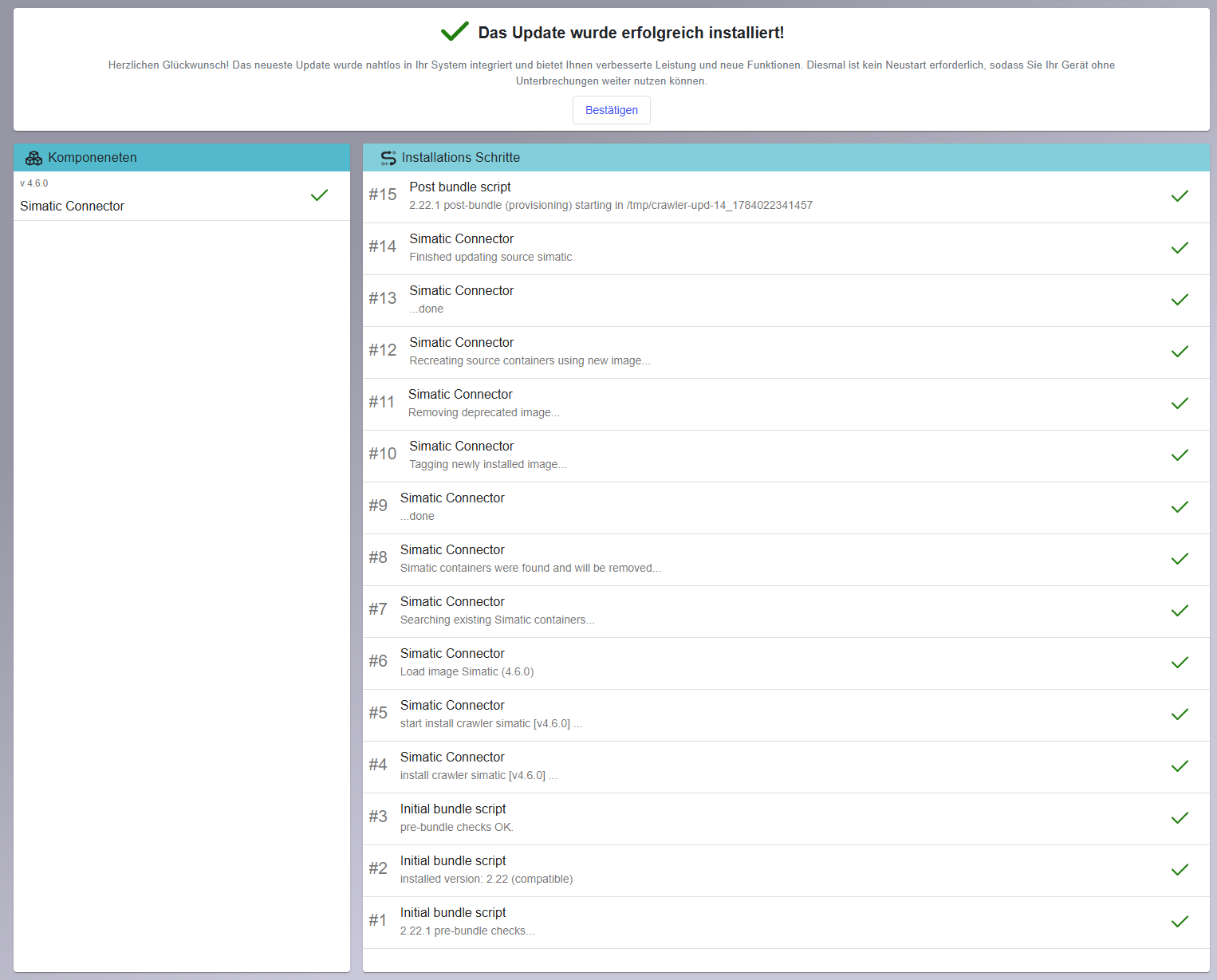
The installation screen shows the progress in real time — components and installation steps are listed as they complete.
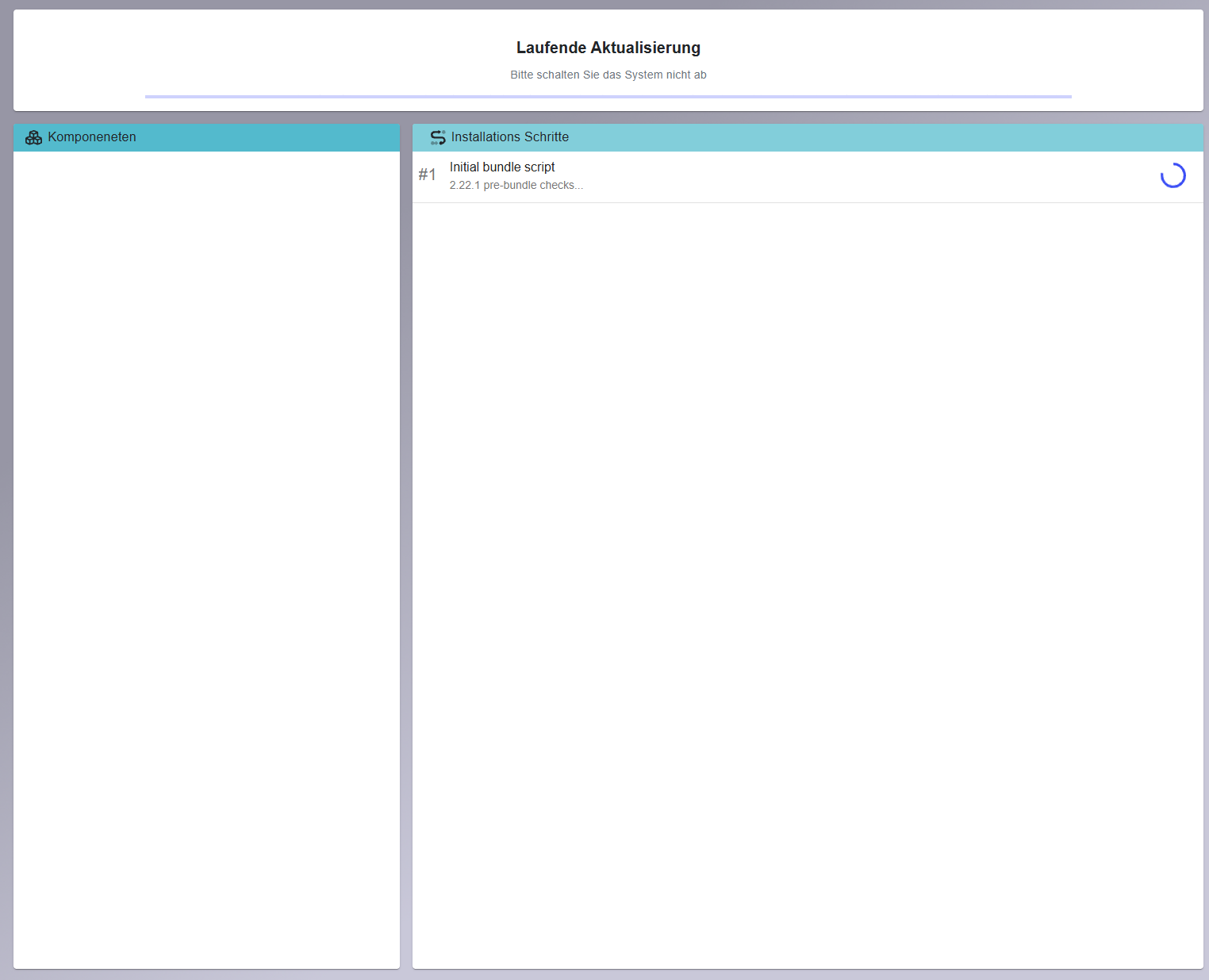
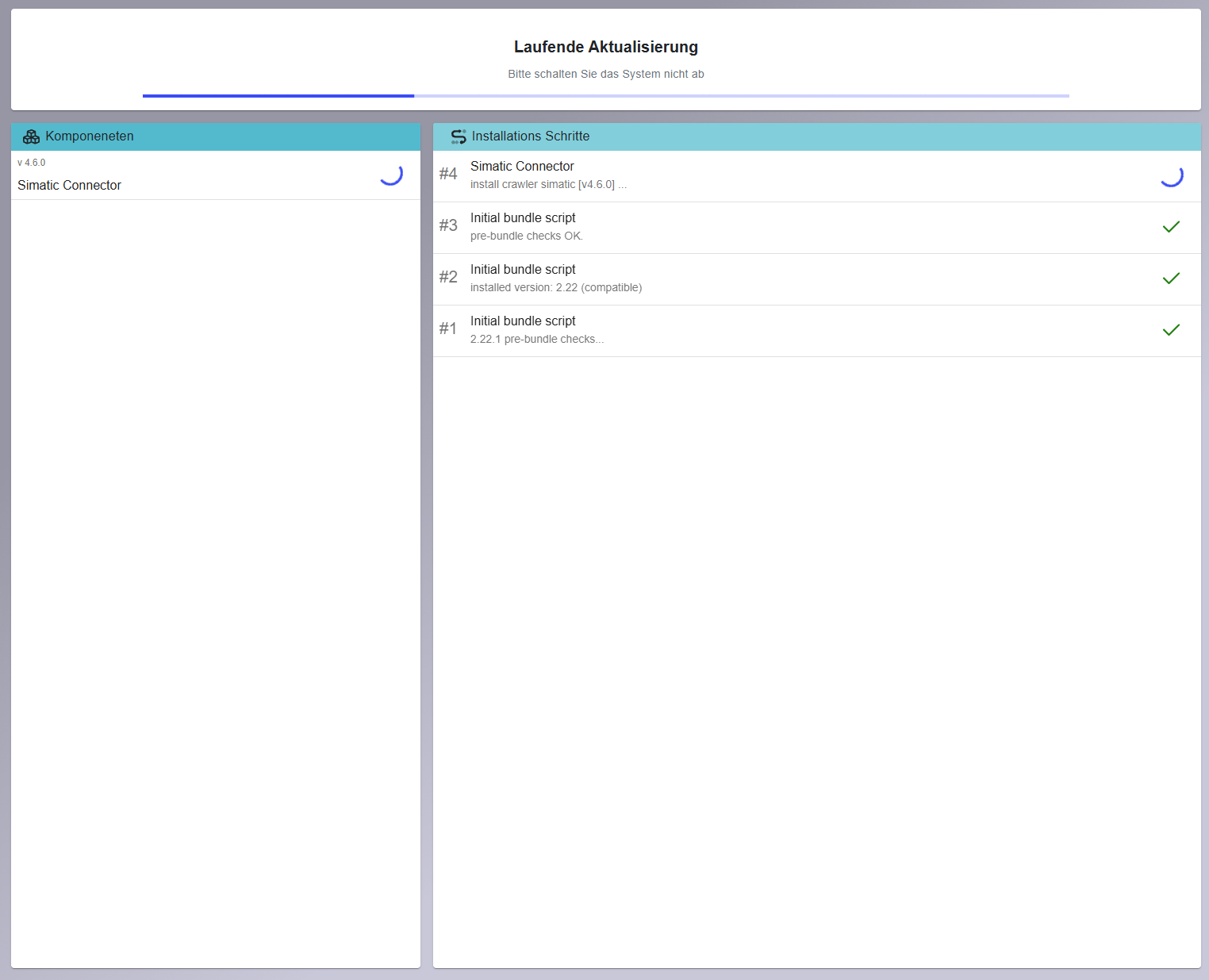
Once all steps are complete, a success screen is shown. Click Confirm to return to the overview.
-
Verify the update
After the restart, the Update overview shows the newly installed version under Last successful update, along with the date and the list of updated components. The new firmware version is also visible in the bottom left corner of the sidebar.
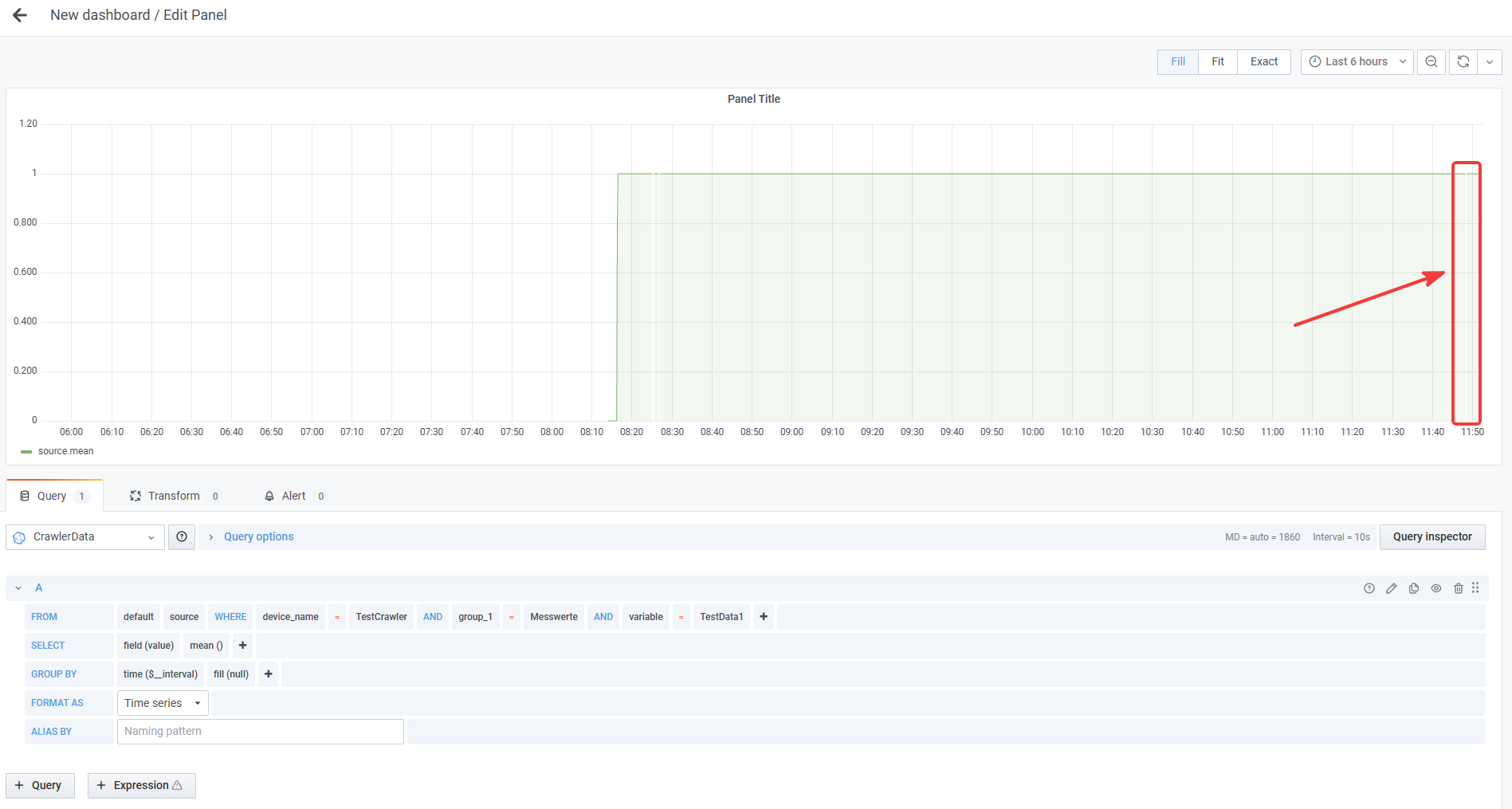
The update can also be confirmed in Grafana: the device restart during the update causes a gap in the recorded data, visible as a white break in the chart.