

Initial Device Setup
When a new Edge device is connected to the network, Crawler.Companion detects it automatically. Before the device can be used, it needs a network address that is reachable from your PC. This guide walks you through setting that up.
Crawler.Companion only detects devices on the same physical network. The PC and the Edge device must be directly connected to the same switch or cable.
The full device setup (Hub connection, sensors, configuration) is done via the Edge web interface using the Setup Wizard — not through Companion. Once the network settings are saved here, follow the Edge Initial Setup guide to complete the process.
-
Open Companion
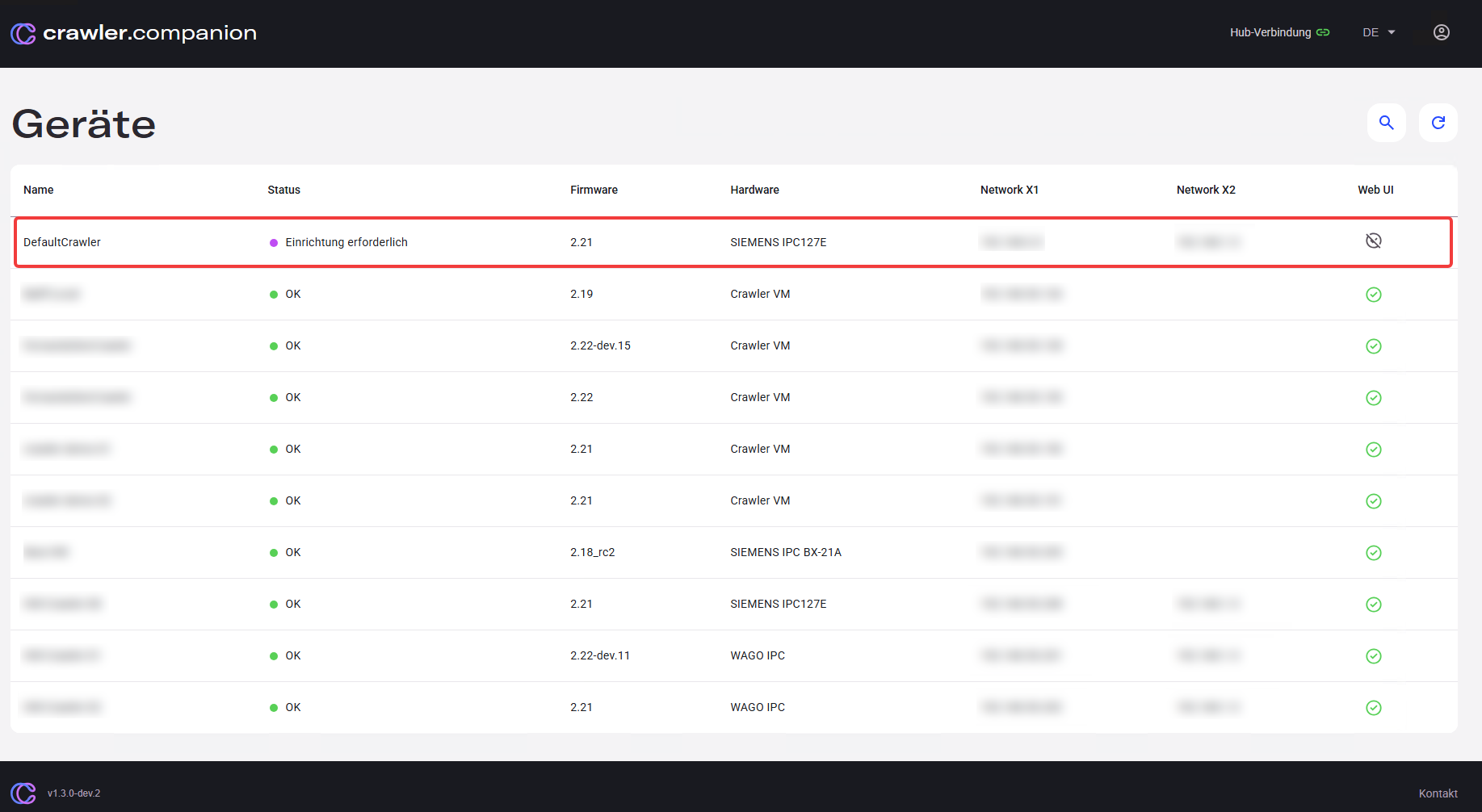
Launch Crawler.Companion. It scans the network automatically. New devices appear in the device list with the status Einrichtung erforderlich.
-
Select the device
Click on the device to open its detail panel.
-
Open the Network Settings tab
Click the Netzwerkeinstellungen tab in the detail panel.
-
Choose an IP mode
Select DHCP (IP assigned automatically by your router) or Statische IP (fixed IP address).
-
Enter network values (Static IP only)
If you selected Statische IP, fill in:
- IP-Adresse — e.g.
192.168.1.50 - Subnetzmaske — e.g.
255.255.255.0 - Gateway — e.g.
192.168.1.1
- IP-Adresse — e.g.
-
Save the configuration
Click Speichern. The device applies the new network settings.
Once the device is reachable at its new address, open the Edge web interface and run the Setup Wizard to complete the initial configuration — see Edge Initial Setup.