Aggregates
Often one graph tells a better story than a thousand data points. Yet sometimes the truth is really in a single number.
Deepview caters to this by making it possible to add aggregates to your project.
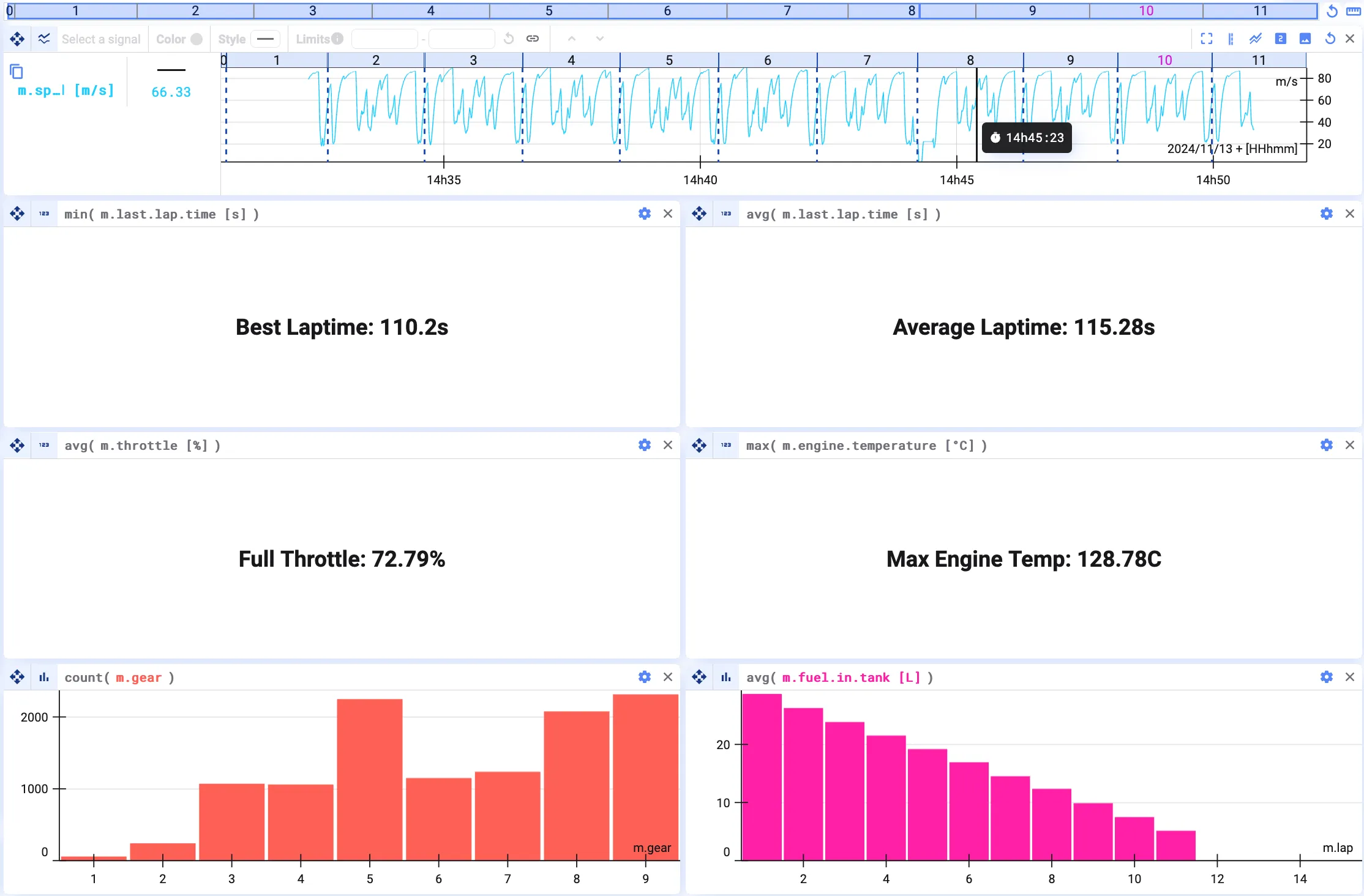
There are three formats in which you can add aggregates to your project:
- Table format — useful to show a set of data along two variables
- Number format — useful to show a single number
- Bar format — similar to the table format but more visual
Get started
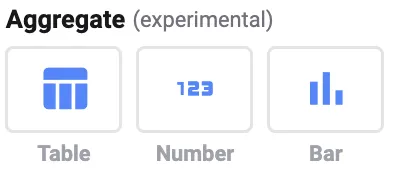
Section titled “Get started”Click Add Plot and select the aggregate format you want to add.
Edit aggregate
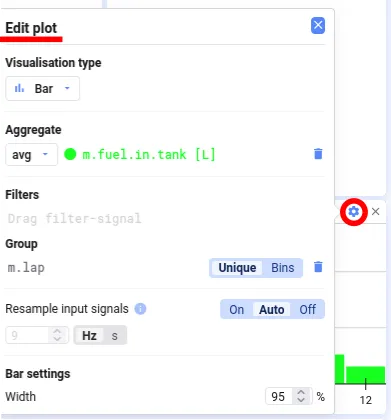
Section titled “Edit aggregate”Whichever aggregate format you chose, click the settings wheel at the top-right of the plot to edit how the aggregate is calculated.
Aggregate method
Section titled “Aggregate method”In the edit screen, you can select the method used to calculate the aggregate. Currently available:
- Average
- Minimum
- Maximum
- Sum
- Count
- First
- Last
There is also Cursor, which is not an aggregate but the value at the current cursor time.
Filter
Section titled “Filter”In the filter section, you can define the conditions under which the metric is calculated.
Setting a filter is optional. If you define multiple filters, they all need to be true — filter1 AND filter2 must both be true for a data point to be included in the aggregate.
Group by
Section titled “Group by”If you want the aggregate to be a table or a bar chart, select a signal to group the calculation by. To add a signal, drag and drop it from the Signal List.
There are two ways to group the data:
- Unique — creates a group for each unique value in the signal; great for discrete or text signals
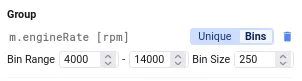
- Bins — manually define the bin range (the range of the signal’s y-axis values to include) and the bin size (the unit by which the range is divided); useful for continuous signals
Consider the following example: group by a signal that counts production cycles, such as m.cycle.

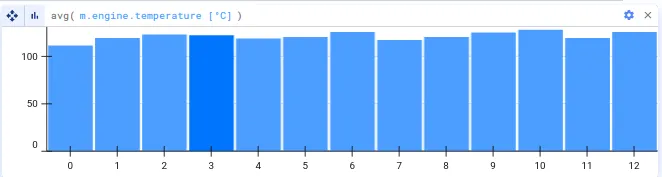
If the aggregate format is a bar chart, and the aggregate is the average of the engine temperature (avg(m.engine.temperature)), you get a bar chart showing the distribution of the average engine temperature per cycle.
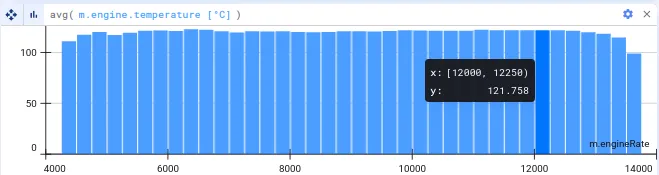
If you want to see the average engine temperature depending on the engine speed, group by the engine speed signal and set the bin limits and width accordingly.
You get the following bar chart.
You can also resample the different input signals, so you can use signals with different time bases together. See Resampling for more details.
Bar settings
Section titled “Bar settings”If you chose a bar chart to visualize your aggregate, you can also set the width of the bars as a share of the available space.
Text data
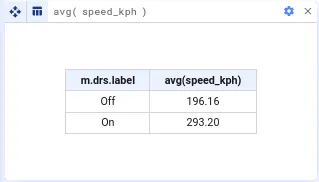
Section titled “Text data”You can use text data to group in bar charts and tables — the values are used as labels in the plot.
Grouped in a table:
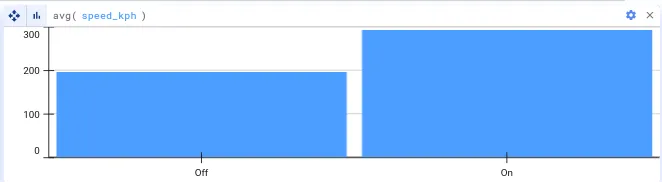
Grouped in a bar chart: