Overlay
Overlay lets you visualize multiple data sets at once to compare them.
Enable multiple layers
Section titled “Enable multiple layers”Click the multiple-layers icon in the datasets dialog (bottom-left of the tab) to show all data sets loaded in the project.
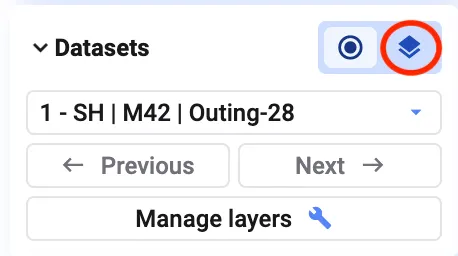
Each data set is then assigned a color.
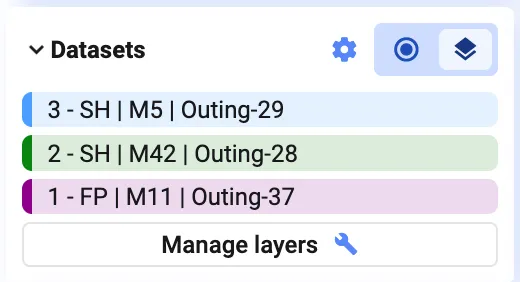
For example, the first data set in blue, the second in green, the third in purple.
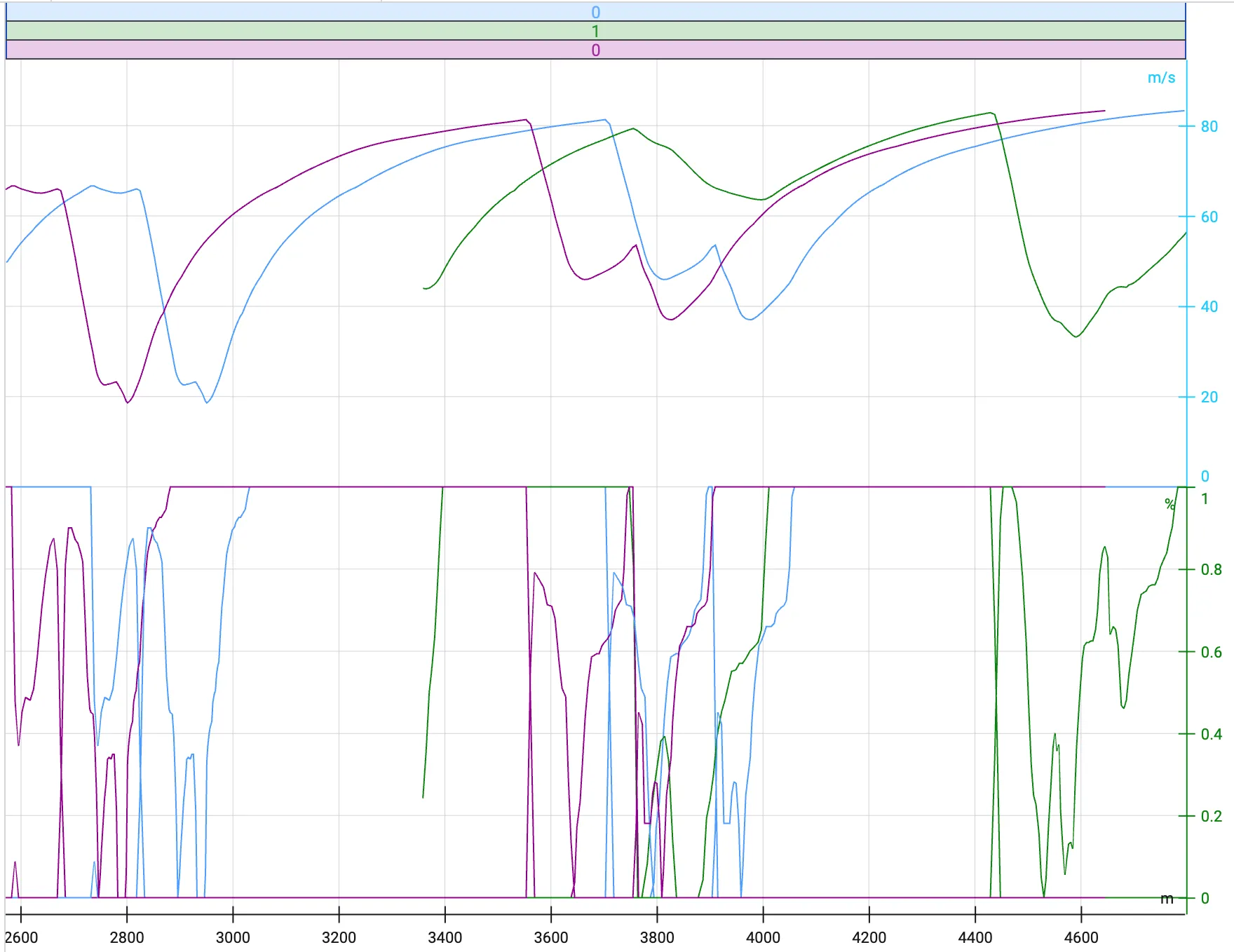
Configure overlay
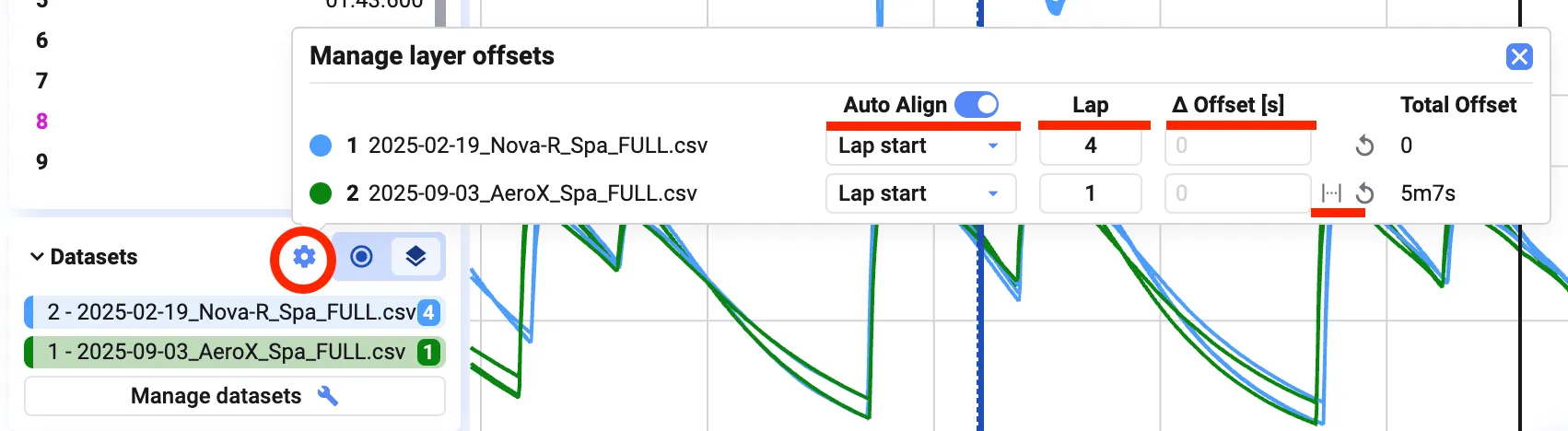
Section titled “Configure overlay”Click the settings wheel in the Datasets dialog to configure how data sets align:
- Adjust dataset alignment so data points match up correctly across data sets
- Compare a specific run by selecting a reference data set
- Set an offset between two data sets to align time or event markers — you can also use the second cursor to set this offset visually (see Cursors)
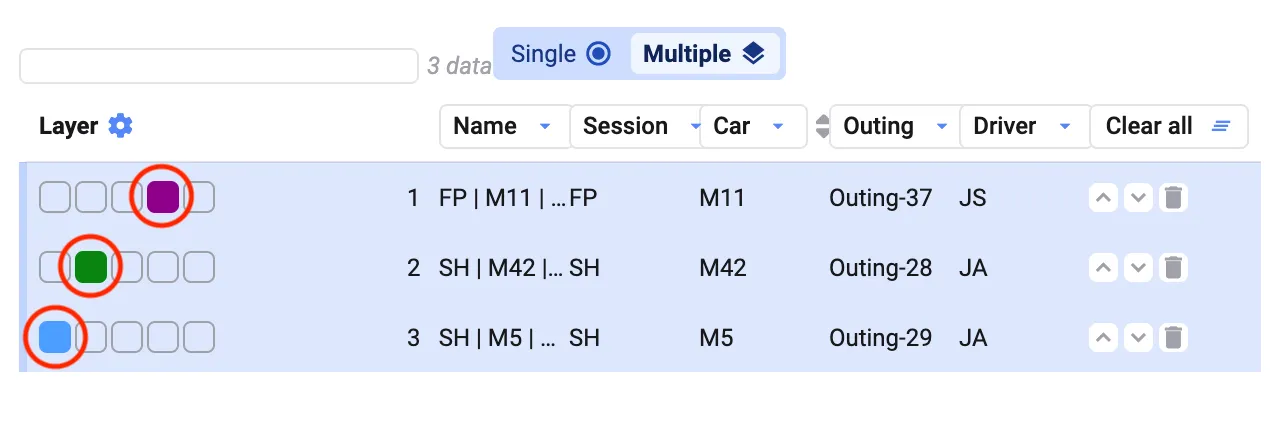
Manage Datasets dialog
Section titled “Manage Datasets dialog”Click Manage Datasets in the Datasets dialog (bottom-left) to customize how data sets or layers are displayed. Click an empty color box next to a data set or layer to assign it a new color, and use the arrows on the right to reorder data sets.