

Reports
With Deepview Reports, you can turn your analysis into polished, shareable PDF documents.
A report is built from a template: a reusable layout you design once and can then generate as a PDF for any matching data set. This makes it easy to produce consistent, clean reports across test runs, experiments, or measurement campaigns.
Key concepts
Section titled “Key concepts”Template
Section titled “Template”A template defines the structure and content of a report. It contains:
- A layout you build with drag-and-drop blocks (text, plots, dividers, etc.)
- A data set metadata filter that scopes which data sets the template applies to
- A reference data set used to preview the report while editing
Templates are versioned: every time you save a change, a new version is recorded, and any previously generated PDFs are flagged as outdated.
Generated report
Section titled “Generated report”A generated report is the PDF output of a template for a specific data set. You can generate, view, download, and delete reports directly from the reports library.
The Reports tab
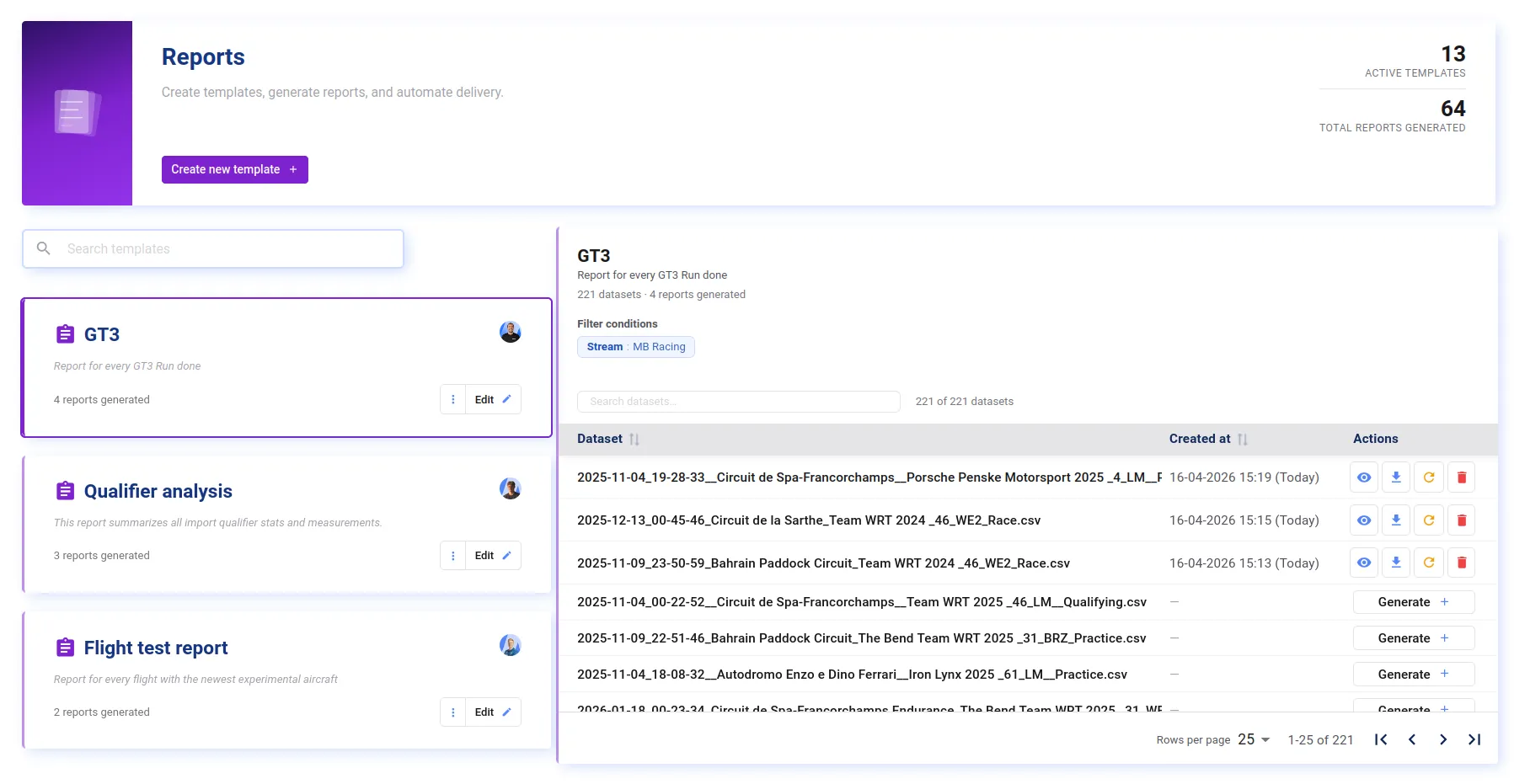
Section titled “The Reports tab”The Reports tab is your starting point. It lists all templates in your workspace and gives you quick access to the reports generated from each one.
From here, you can:
- Search templates by name
- Create a new template
- Duplicate or delete an existing template
- Click a template to open it and manage its generated reports
Creating a template
Section titled “Creating a template”From scratch
Section titled “From scratch”- In the Reports tab, click New report template.
- Select Start Blank.
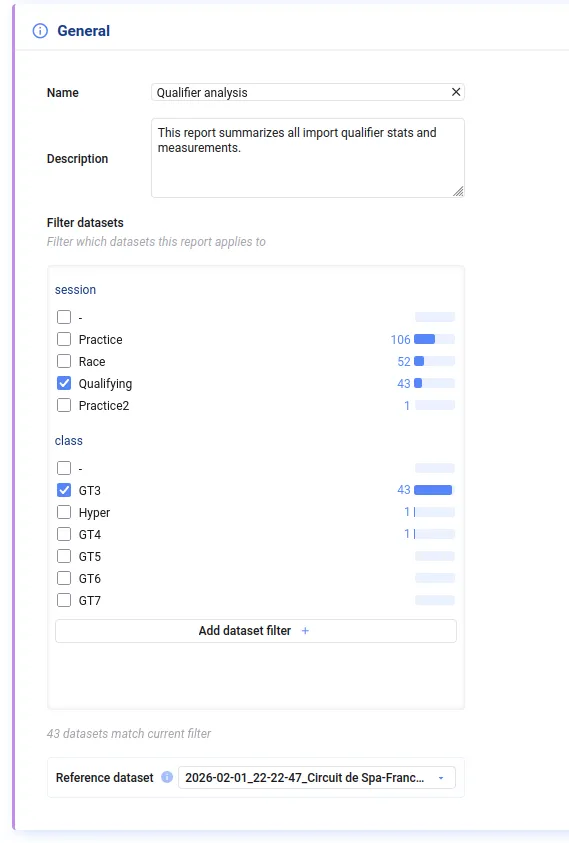
- Give the template a name and optionally a description.
- Set a data set metadata filter to narrow down which data sets this template is meant for.
- Choose a reference data set to preview plots and generate a test PDF while you work on the layout.
- Switch to the Layout tab to build the report.
From a project
Section titled “From a project”- In the Reports tab, click New report template.
- On the right, select a project and a reference data set.
- Select which tabs and plots to include.
- Set a data set metadata filter to narrow down which data sets this template is meant for.
- Check the Layout tab to see what was generated, and adjust the report.
Setting up automations
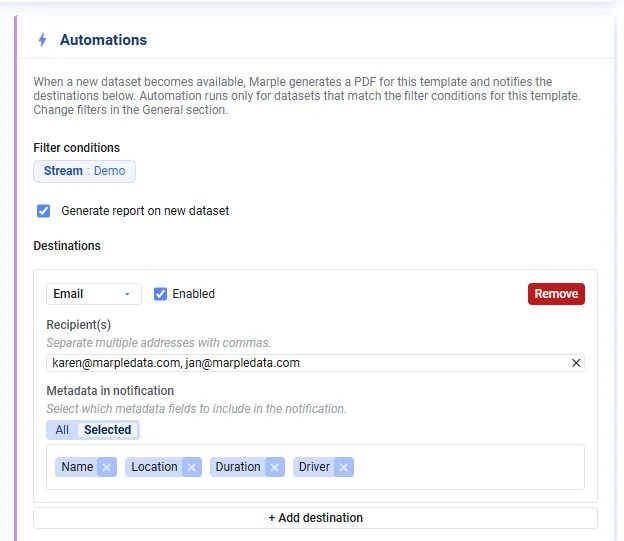
Section titled “Setting up automations”When a new data set is imported that matches a template’s data set metadata filter, Deepview automatically generates a new report based on that template and data set. To turn this off, disable automatic report generation in the template’s general settings.
You can configure one or more destinations to deliver the report to as soon as it’s created. Supported destinations include:
- Slack
- Microsoft Teams
- Custom Webhook
For setup instructions, refer to the installation guides in the Automations block.
Designing the layout
Section titled “Designing the layout”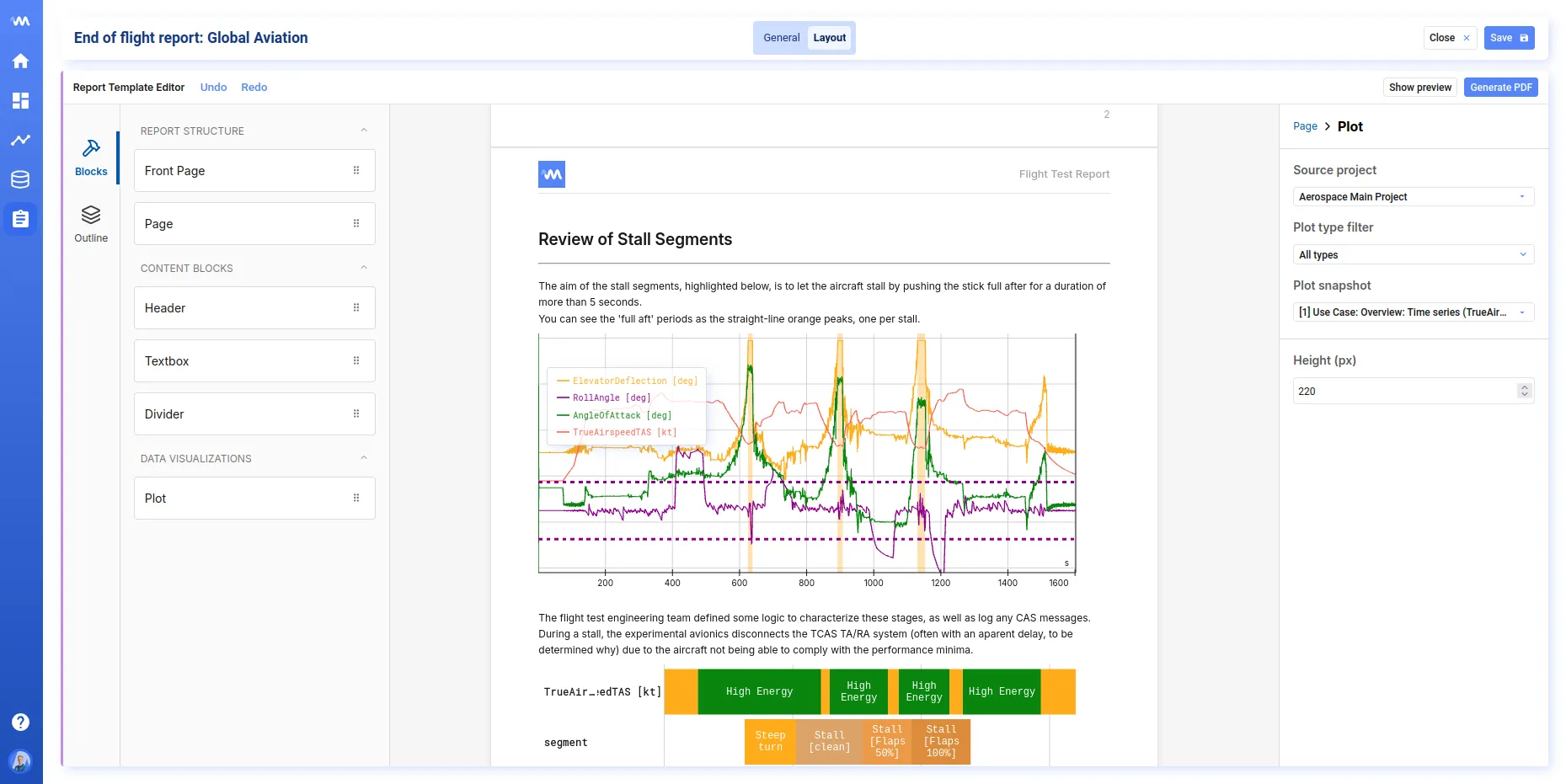
The layout editor is a drag-and-drop canvas. Start by dragging a Front Page or Page block onto the canvas. The Page block accepts child blocks with the actual content of your report.
Available blocks:
| Block | Description |
|---|---|
| Front Page | Cover page with title, subtitle, author, and logo |
| Page | A content page; acts as a container for the blocks below |
| Header | A section heading (h1–h4) |
| Textbox | Free text; each line break becomes a new paragraph |
| Divider | A horizontal separator |
| Plot | A snapshot of a plot from one of your projects |
Embedding plots
Section titled “Embedding plots”The Plot block lets you pull a plot directly from an existing project. Select the project, filter by plot type if needed, and pick the specific plot you want. The block stores a snapshot of that plot — changing or deleting a plot in the project doesn’t affect your template until you sync it. If the snapshot in your report doesn’t match the plot’s current state, you’ll see a warning, which also lets you re-sync the snapshot. This ensures your template doesn’t change unexpectedly.
Metadata placeholders
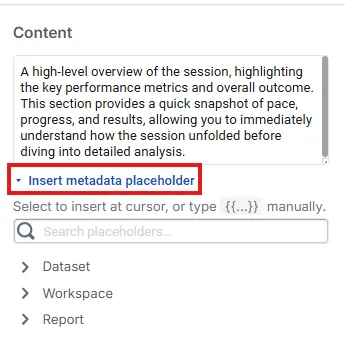
Section titled “Metadata placeholders”In all text components (header, text, title, etc.), you can use metadata from your data set or report.
To insert a metadata placeholder, search for the desired field and click it to add it to your text. The metadata from the data set used for report generation is filled in at generation time.
Generating a PDF
Section titled “Generating a PDF”Once your template is ready:
- Open the template in the Reports tab.
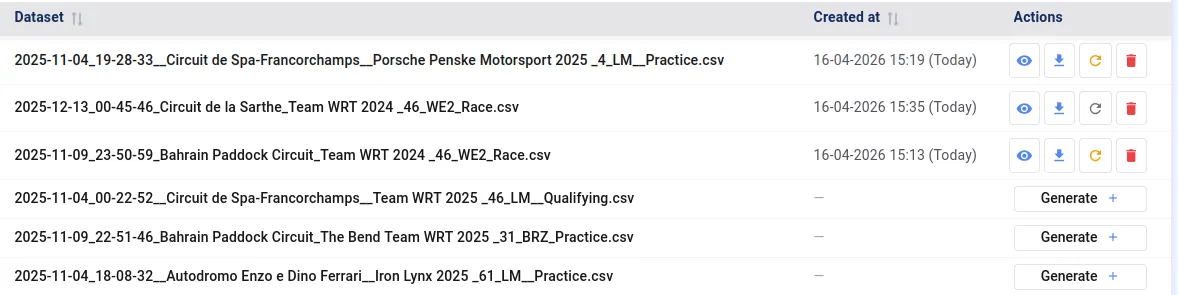
- Select the data set you want to generate a report for.
- Click Generate.
Deepview renders the report server-side and stores the resulting PDF. You can then view, download, or remove it from the same page.
If the template has been updated since a report was generated, it’s flagged with a Refresh indicator so you know a newer version is available.
- Design for reuse. The real power of templates is running the same layout against many data sets — keep the layout general enough to work across test runs, not just one specific measurement.
- Pick a representative reference data set so plots look realistic while you design the layout.
- Check plot snapshots after edits. If you update a project after building a report template, use the sync option on the Plot block to pull in the latest version.