Account Settings
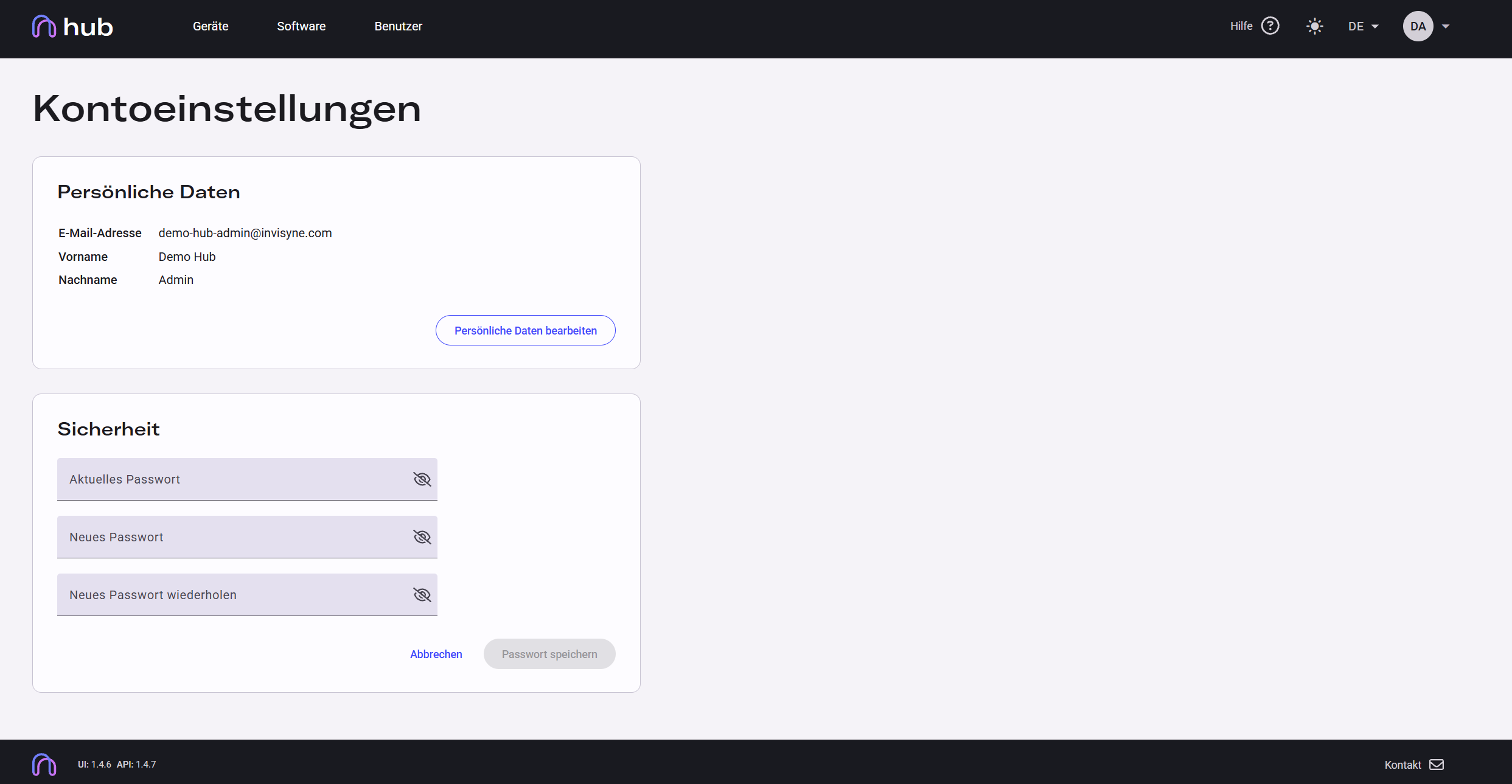
The Account Settings page lets you update your name and password.
Opening Account Settings
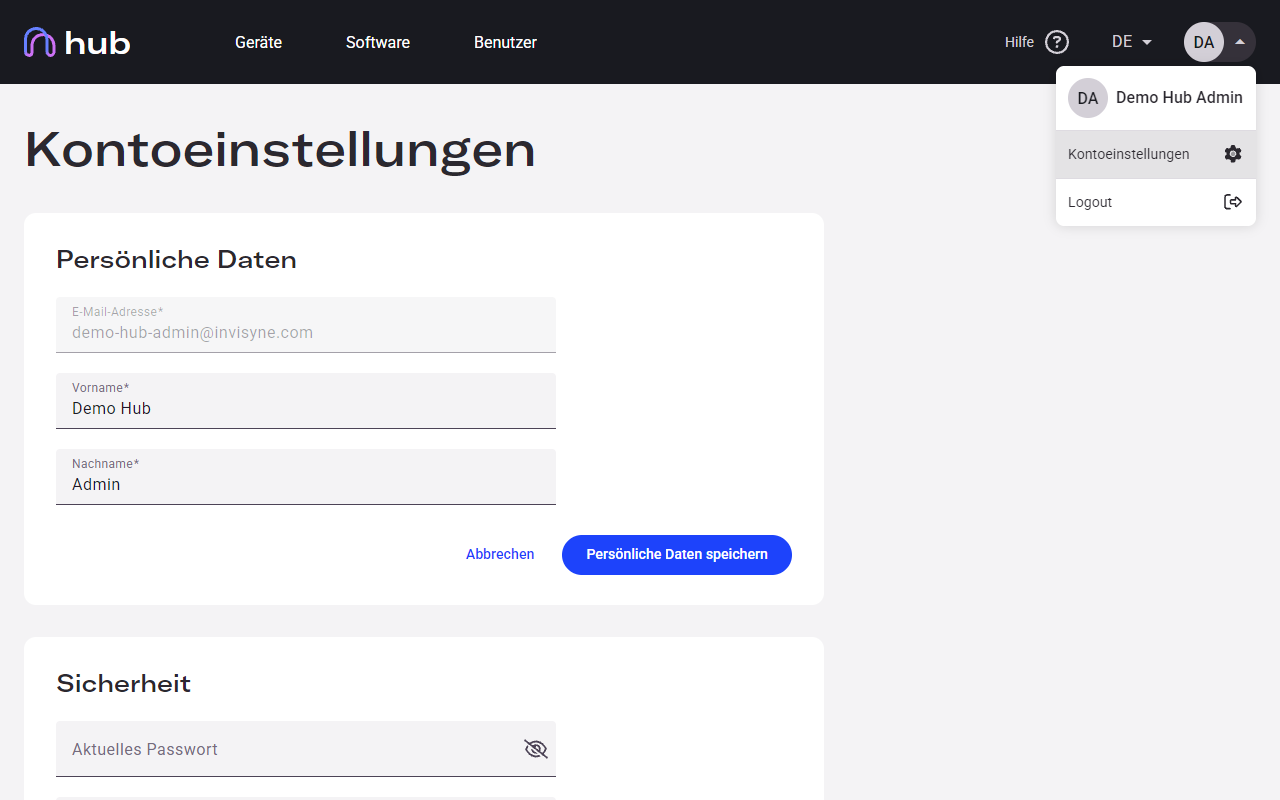
Section titled “Opening Account Settings”Click the initials avatar in the top-right corner of the navigation bar to open the user menu. Select Account Settings to navigate to the settings page.
Overview
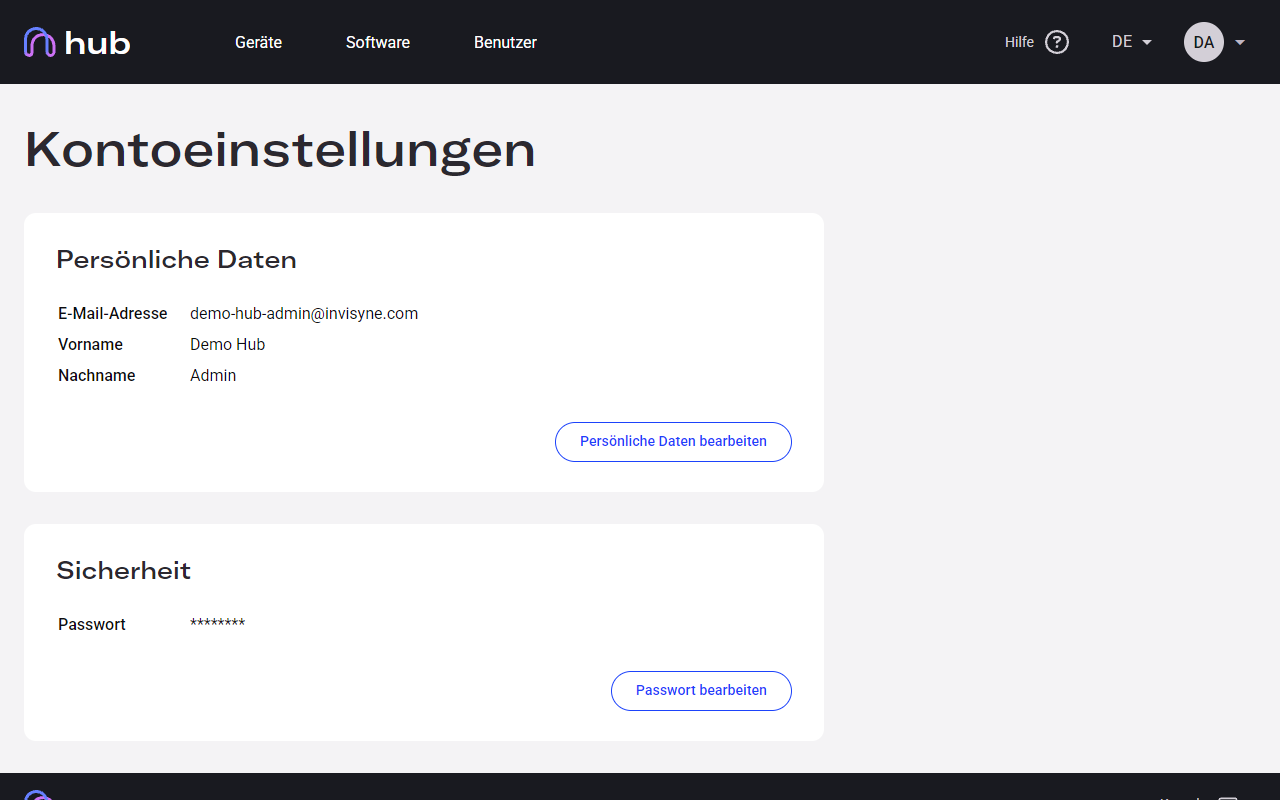
Section titled “Overview”The settings page has two sections — Personal Data and Security.
Personal Data
Section titled “Personal Data”This section shows your current email address, first name, and last name. The email address is display-only and cannot be changed here.
-
Click Edit Personal Data to switch the section into edit mode.
-
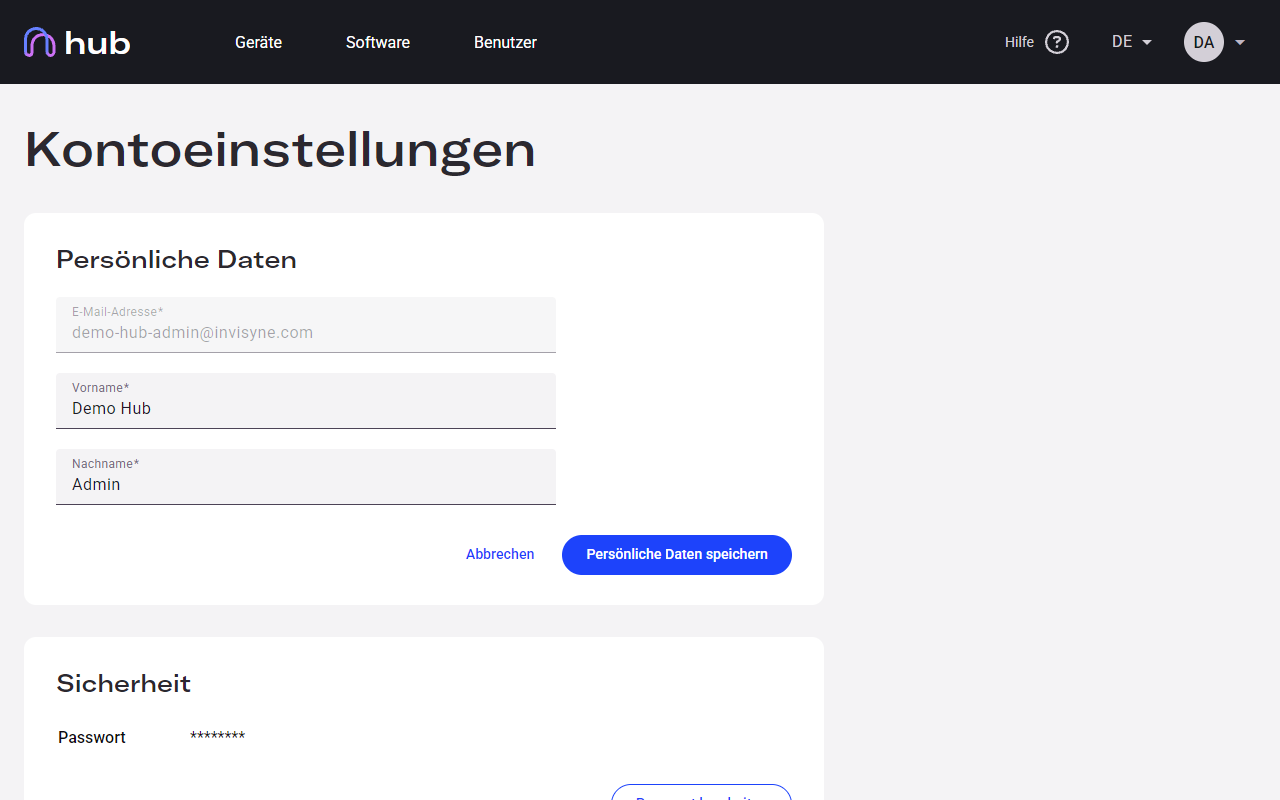
Update your first name and/or last name as needed.
-
Click Save Personal Data to apply your changes, or Cancel to discard them.
Security
Section titled “Security”The Security section lets you set a new password.
-
Click Edit Password to open the password form.
-
Enter your current password, then your new password twice in the fields provided.
-
Click Save Password to save, or Cancel to cancel.