

Quickstart
A brief overview of what you can do with Crawler.Companion.
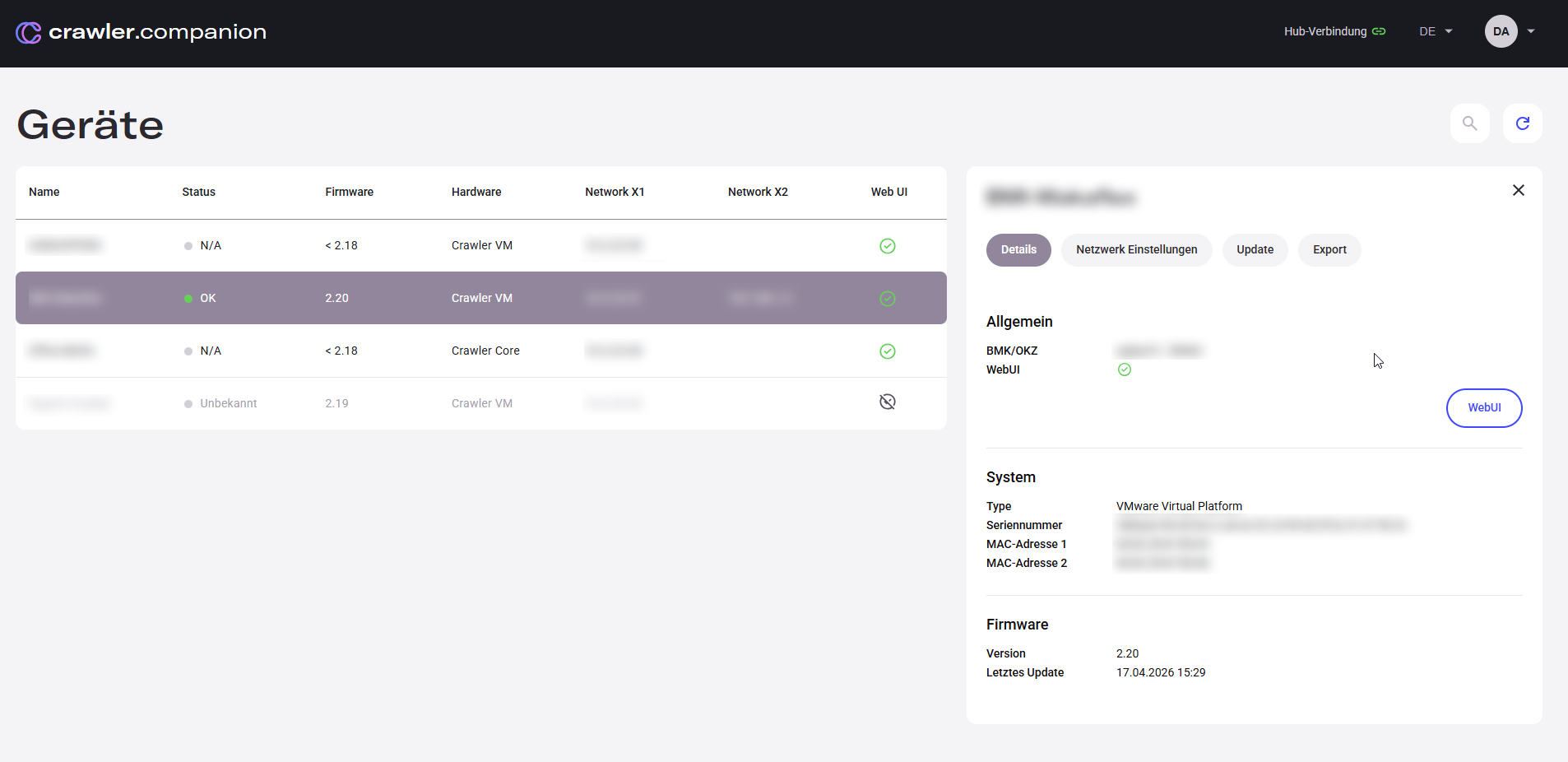
The main view lists all Edge devices found in your local network. Click any device row to open its detail panel, where you can view the device name, hardware type, firmware version, and current network configuration.
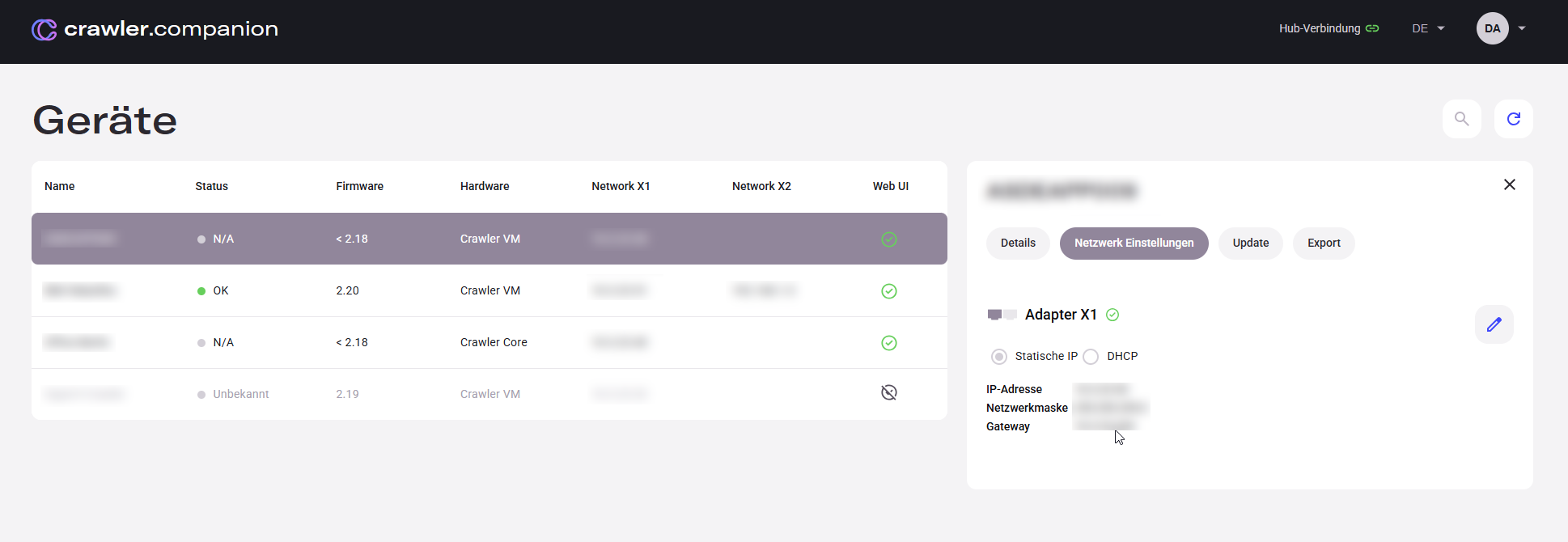
In the device detail panel, navigate to Network Settings to adjust the IP configuration of the selected device. You can switch between DHCP and static IP, and set the IP address, subnet mask, and gateway.
Save your changes — the device will apply the new settings and restart if necessary.
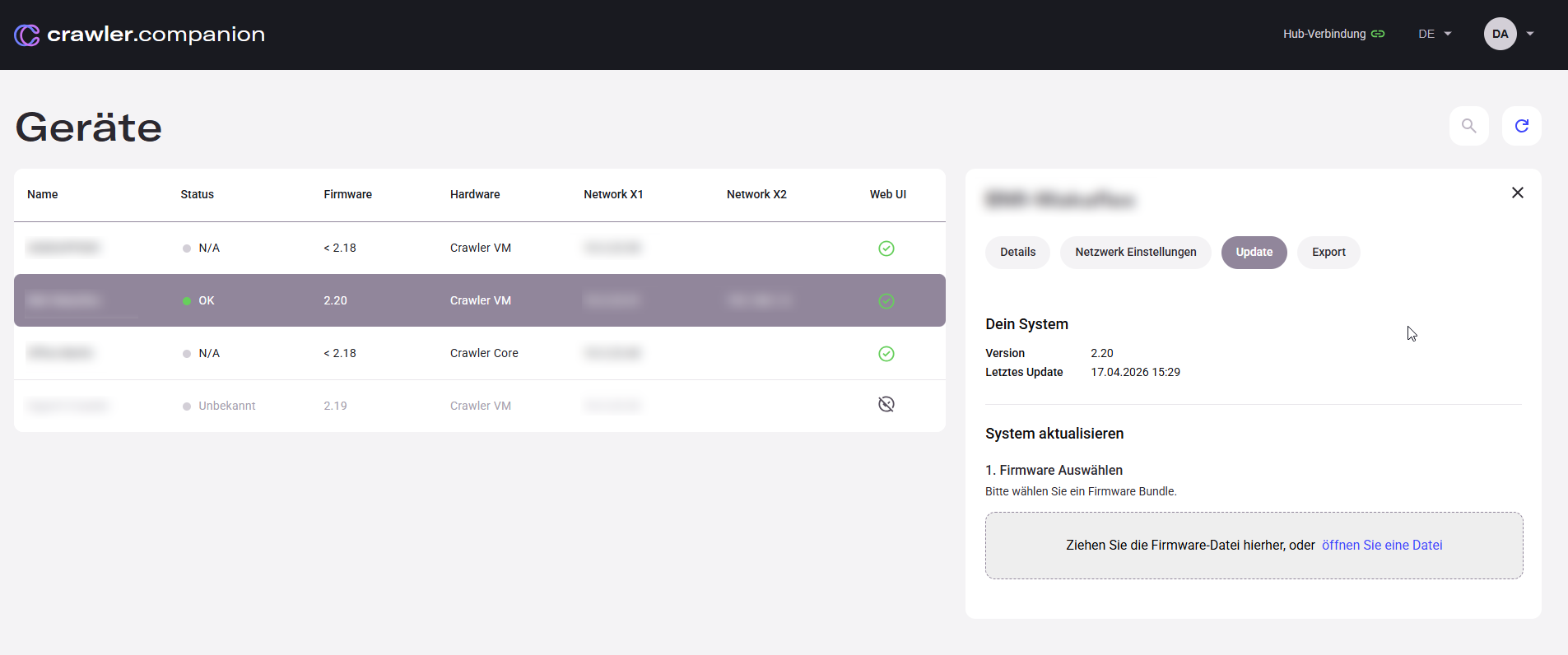
In the device detail panel, navigate to Update to install a new firmware version on the selected device. Select the desired version and start the update.
Companion exports measurement data either by time range or by runs — defined measurement recording sessions stored on the device, each with a clear start and end. Data can be exported as a CSV file or transferred directly to Deepview, a data analysis tool for detailed signal visualization and complex charting.
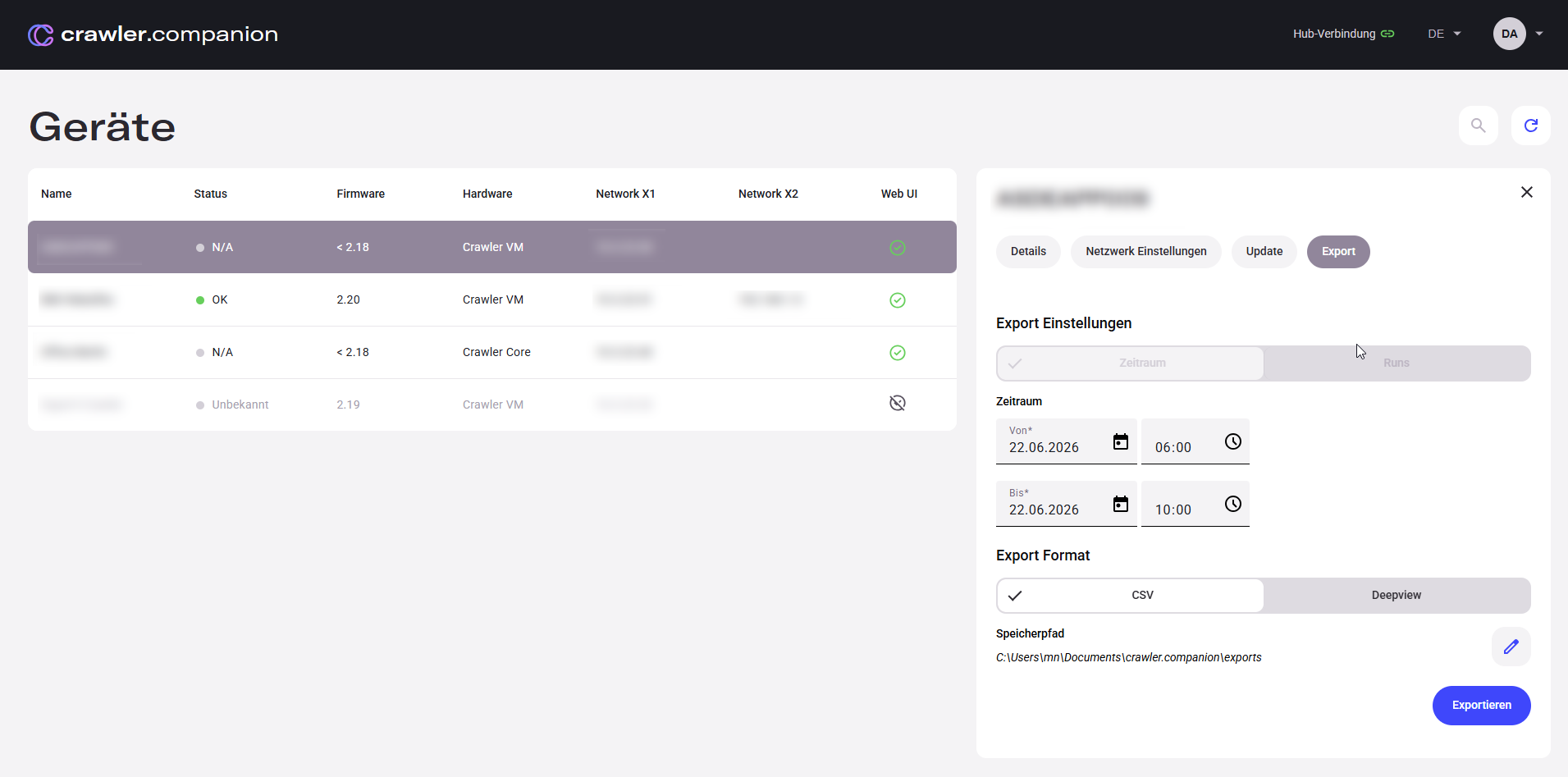
Selection method
Export format