

Visualizing Measured Values
The Edge uses Grafana (version 7.4) as its built-in visualization platform. Grafana is organized into dashboards, each containing one or more panels. Each panel queries a specific measured variable from the Edge’s internal database and renders the values using a selected display type — time-series charts, gauges, stat panels, tables, and more. Dashboards can be organized into folders, making it easy to structure views by field device, production line, or any other grouping.
No login is required to view existing dashboards. Creating, editing, or deleting dashboards and panels requires logging in with an Editor account.
Viewer vs. Editor
No login is required to view previously configured dashboards. To create or edit dashboards and panels, log in with an Editor account by clicking the icon in the lower left area and entering username and password.
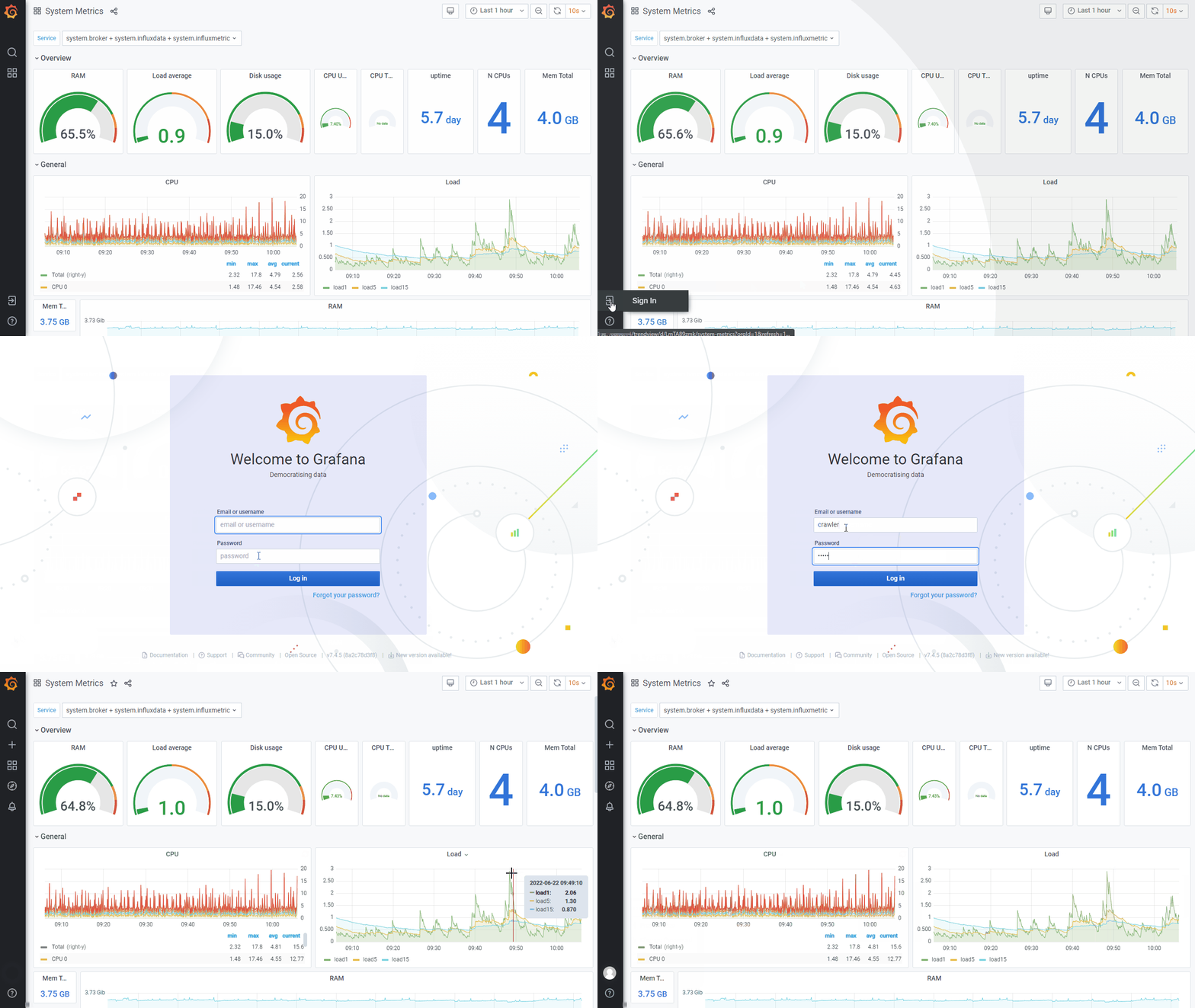
Creating a dashboard
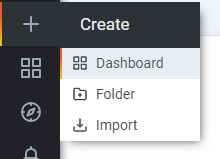
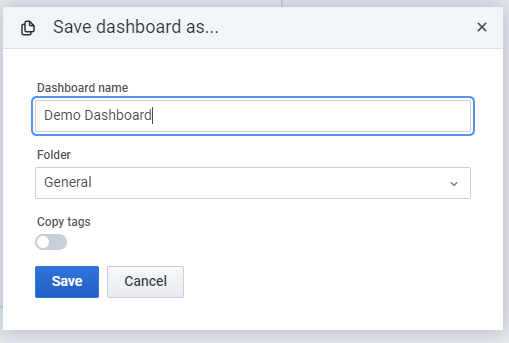
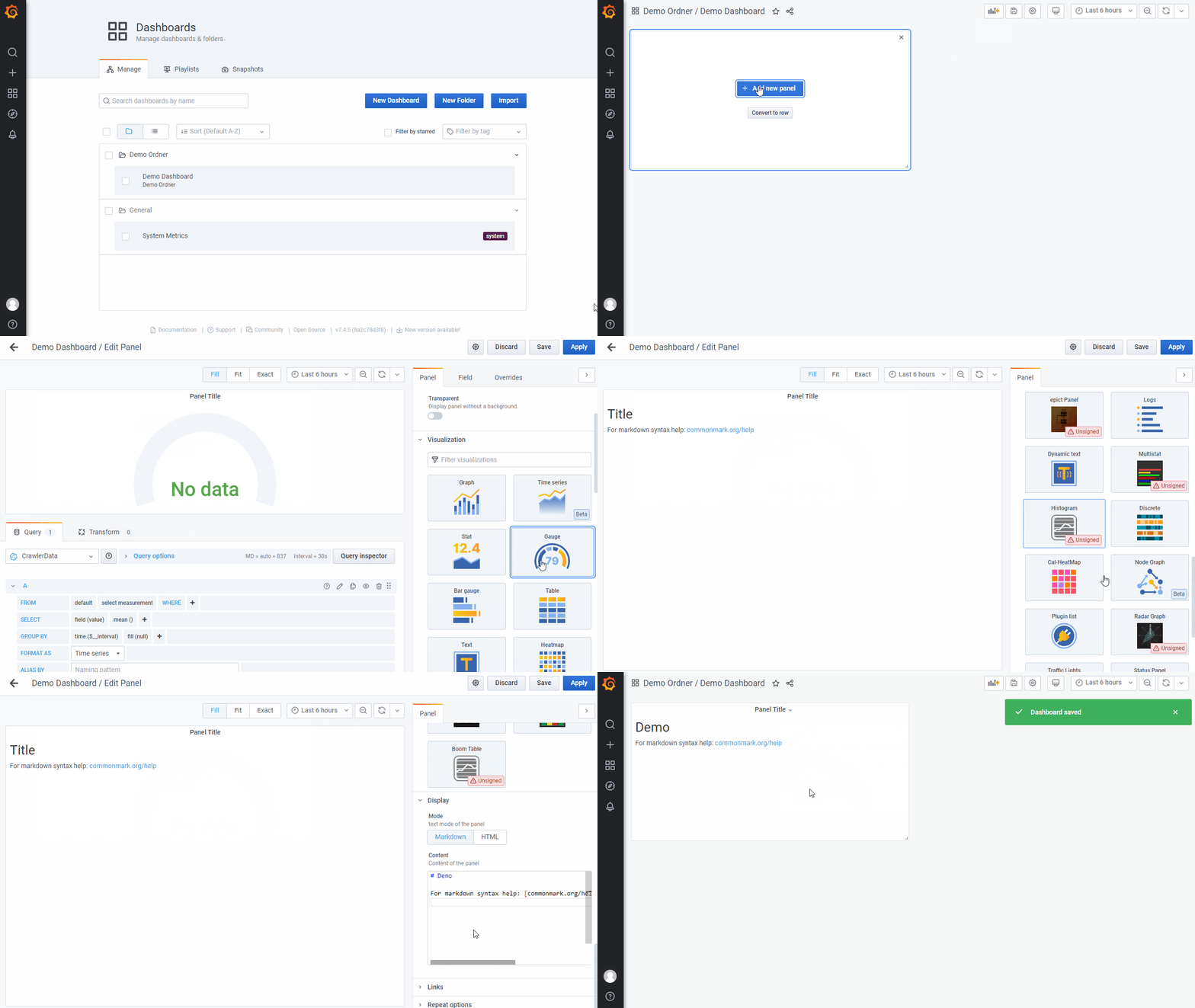
In the left menu bar, click the + symbol and select Dashboard. A new page with a blank panel opens.
Creating folders
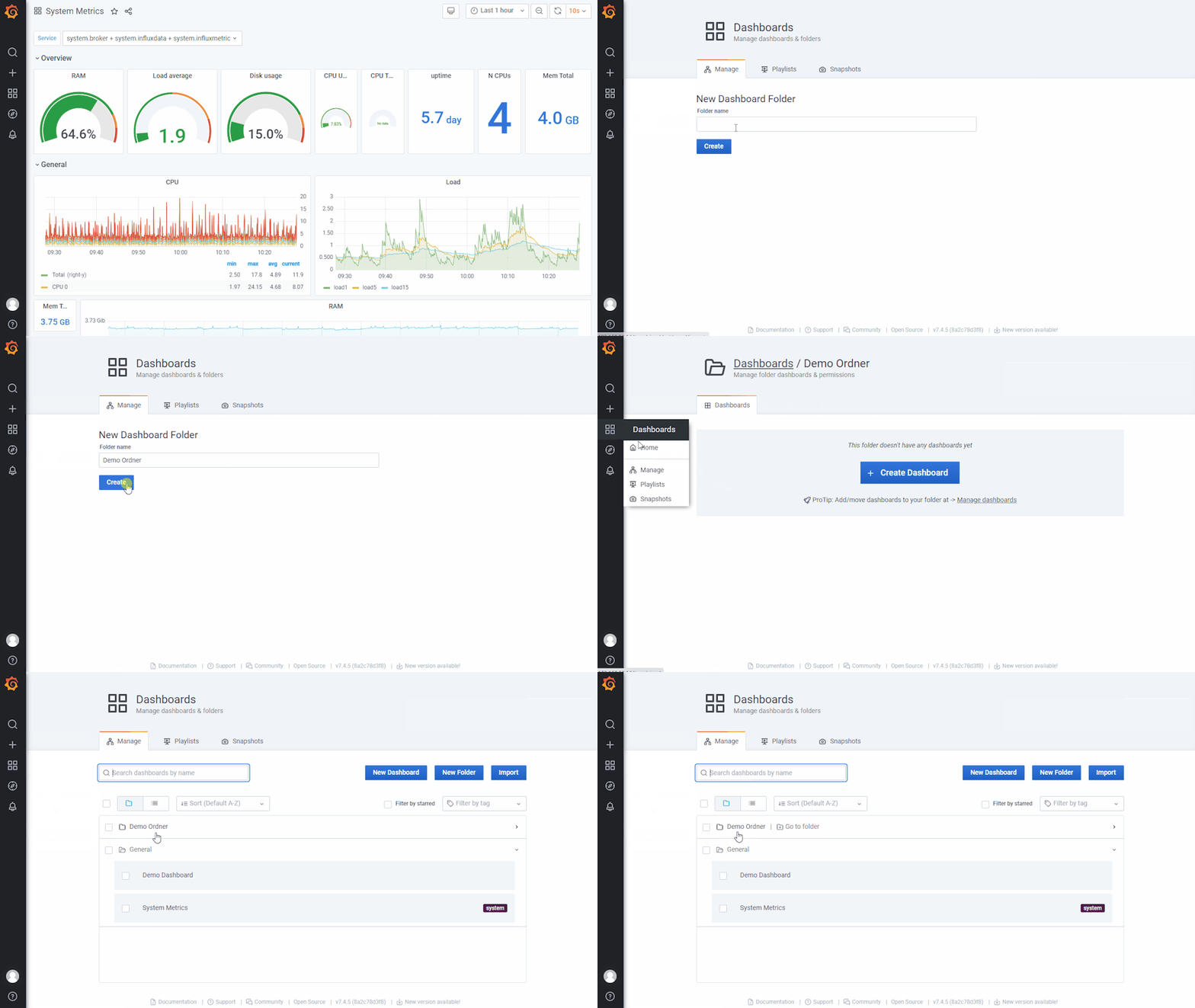
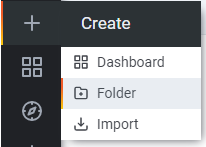
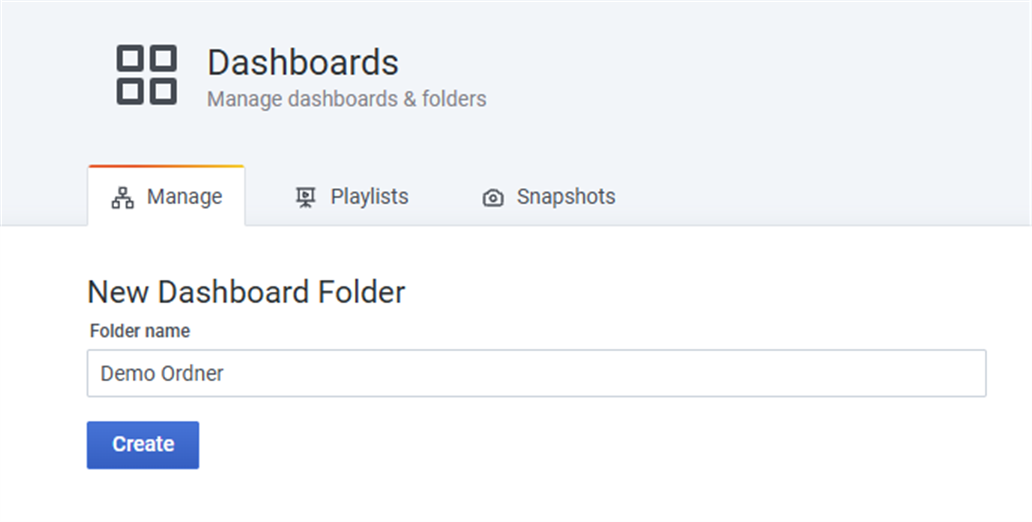
Folders are used to organize dashboards. To create a folder, click the + symbol in the left menu and select Folder. Enter a name and confirm with Create.
Adding a panel
To add a new panel, click the + symbol in the upper right area of the dashboard (to the left of the save icon). Select + Add new panel to open the panel editor.

Selecting a measured variable
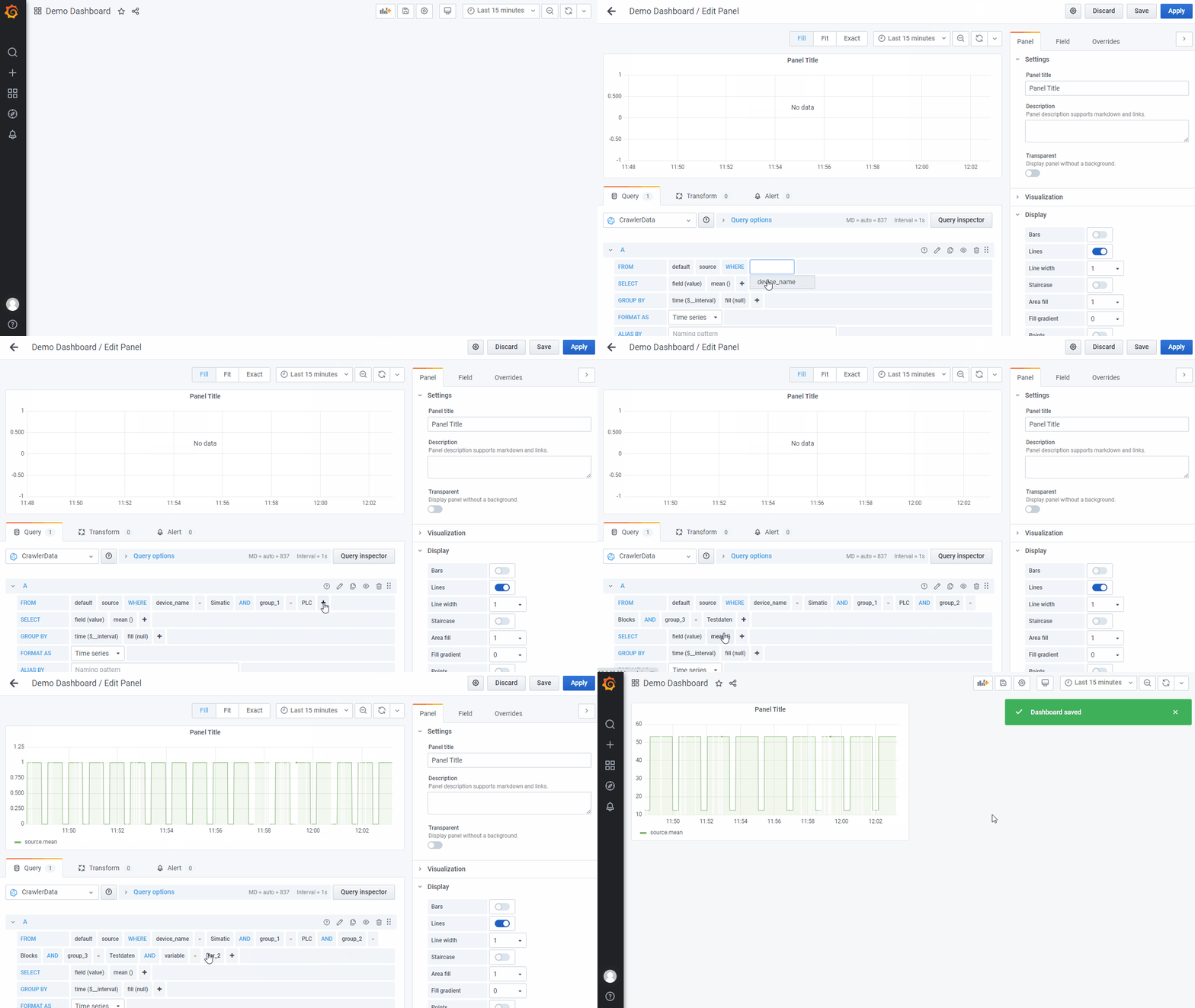
At least one measured variable must be selected for data to appear in a panel. This is done in the lower area of the panel editor, below the display preview.
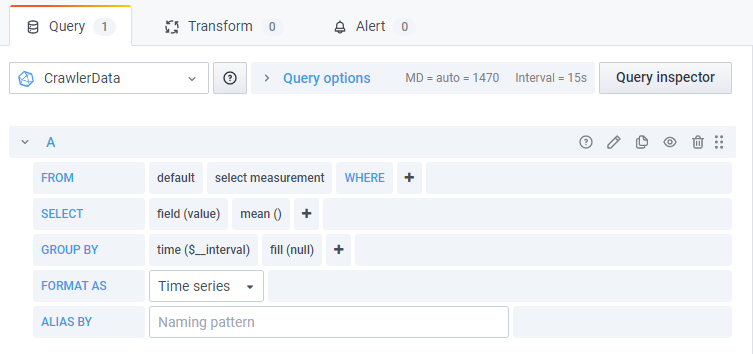
- Select Measurement — select
source. If unavailable, no values have been recorded yet. The source can also be entered manually (note: lowercase). - Select field device — click + next to WHERE, select
device_name, then choose the device. - Select folder — click + again, select
group_*, then choose the folder. Repeat until the target folder is reached. - Select variable — click + again, select
variable, and choose the measured variable from the list.
Removing a tag filter
To remove a folder filter from a query, click the group entry you want to remove and select — remove tag filter — from the dropdown.

Variables of type “String”
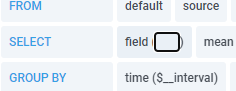
Variables stored as strings on the Edge (e.g. S7_DWORD) require a change to the field value. In the Select area, click on value and enter stringValue (note case sensitivity).
Changing the display type
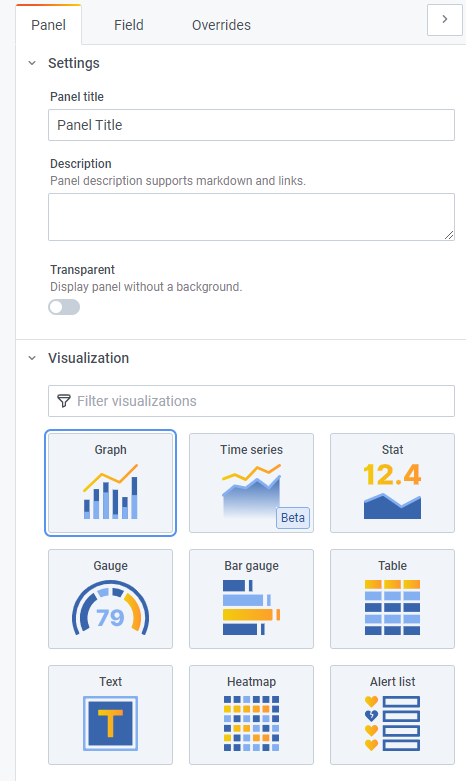
Grafana provides a wide range of visualization types including line and bar charts, single-value displays, gauges, and tables. Display type and all associated settings are configured in the right-hand panel.
For further reference, see the official Grafana documentation and tutorials.
Exporting a dashboard
Open the dashboard to be exported. Click the Share icon in the upper left area (next to the title), select Export, and use Save to file to download the dashboard as a .json file.

Importing a dashboard
Click + in the left menu and select Import. Select the .json file, then adjust the name, folder, and UID as needed. If a dashboard with the same name or UID already exists, those fields must be changed or the existing dashboard can be overwritten.