

Firmware Updates
The Update tab in the device detail panel shows the current firmware version and lets you install a new firmware file.
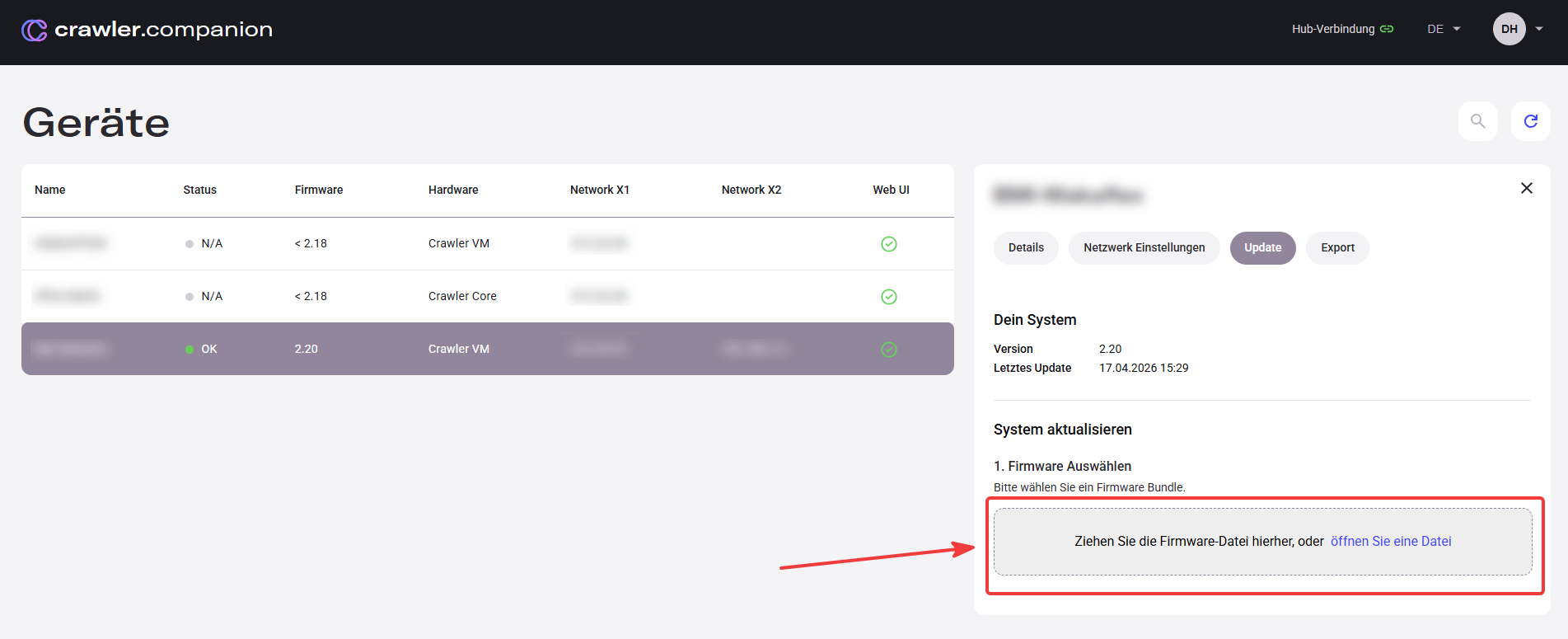
| Field | Description |
|---|---|
| Dein System | Shows the installed firmware version and the date of the last update. |
| System aktualisieren | Drop zone for the firmware file (.zip). Drag the file in or click öffnen Sie eine Datei to open a file dialog. |
| Update starten | Starts the upload and flashing process. A progress bar shows the transfer status. |
For step-by-step instructions see Update Device Firmware.