

Map
The Map plot is used to represent geographical data.
To use the plot, drag and drop a latitude and longitude signal expressed in degrees onto the plot.
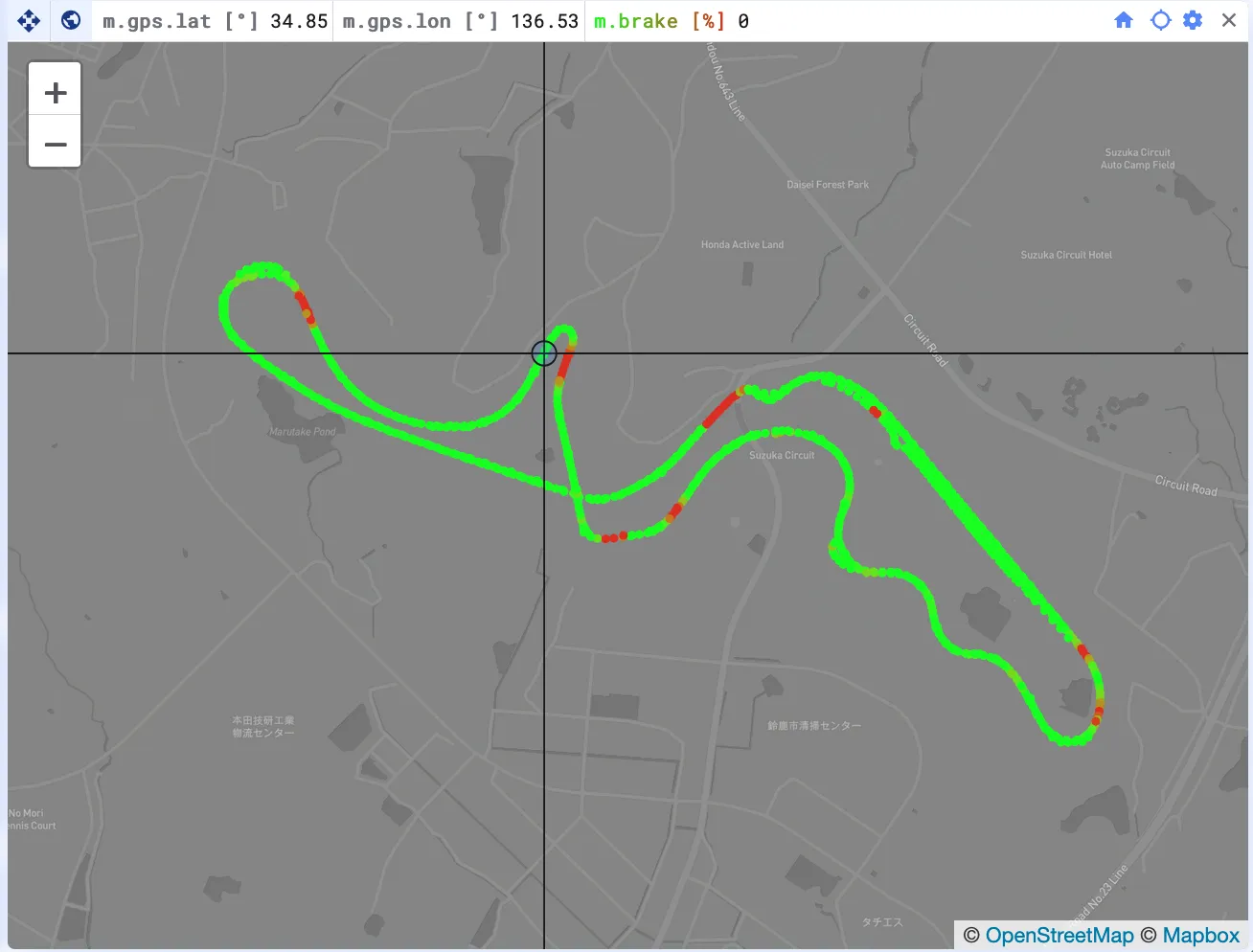
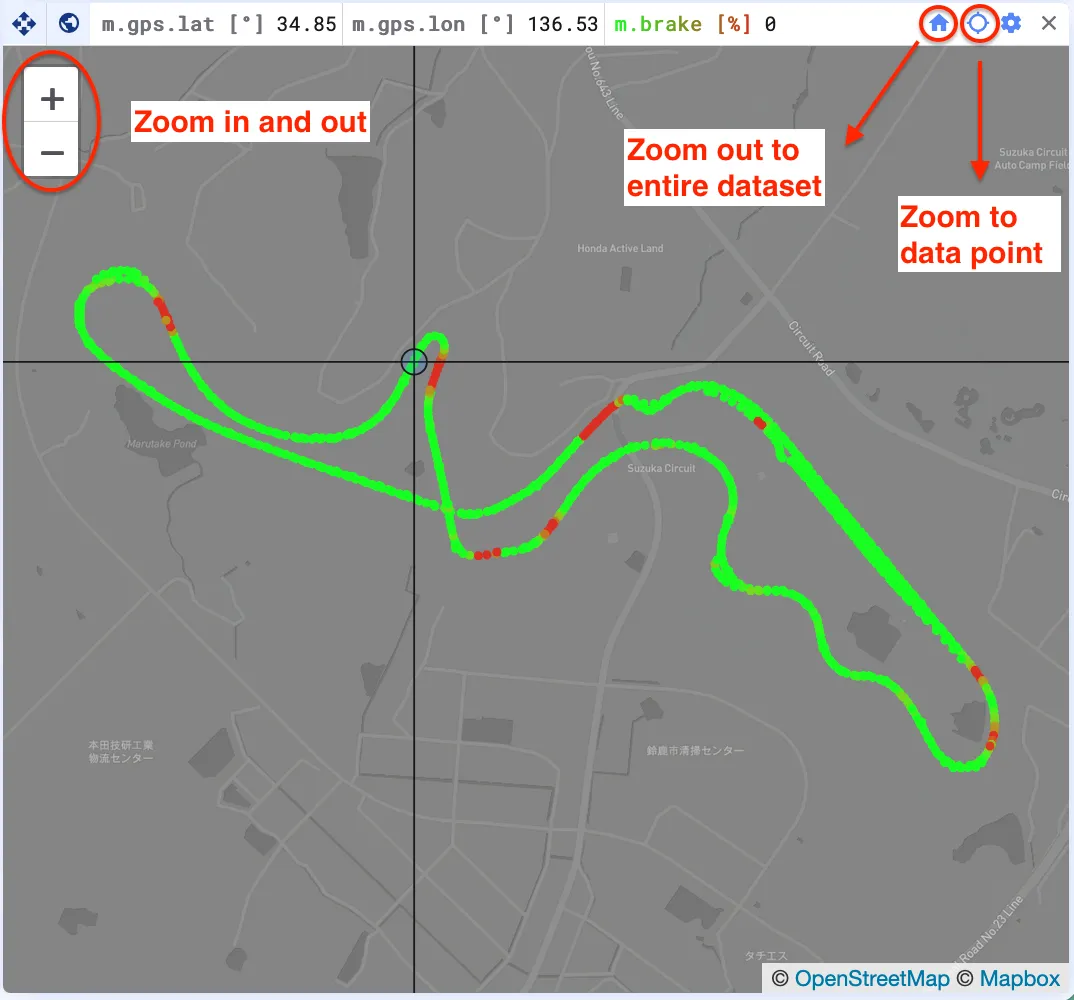
You can zoom and pan the data using the +/- icons or by dragging and scrolling in the plot.
- To zoom out and view the entire dataset, click the house icon at the top-right of the plot.
- To zoom in on the current data point, click the loupe icon, also at the top-right of the plot.
Multiple trajectories
Section titled “Multiple trajectories”A trajectory is the combination of a latitude signal and a longitude signal. You can plot several trajectories on the same map.
This also means that in Overlay mode, you can compare the same trajectory across different data sets.
To add one, click Add another trajectory in the settings. Trajectories can also be deleted, renamed, and hidden from the plot.
When several trajectories are defined, zooming out to the entire data set zooms out far enough for every trajectory to be fully visible.
Per trajectory settings
Section titled “Per trajectory settings”The following settings apply to each trajectory individually.
Latitude and longitude signal
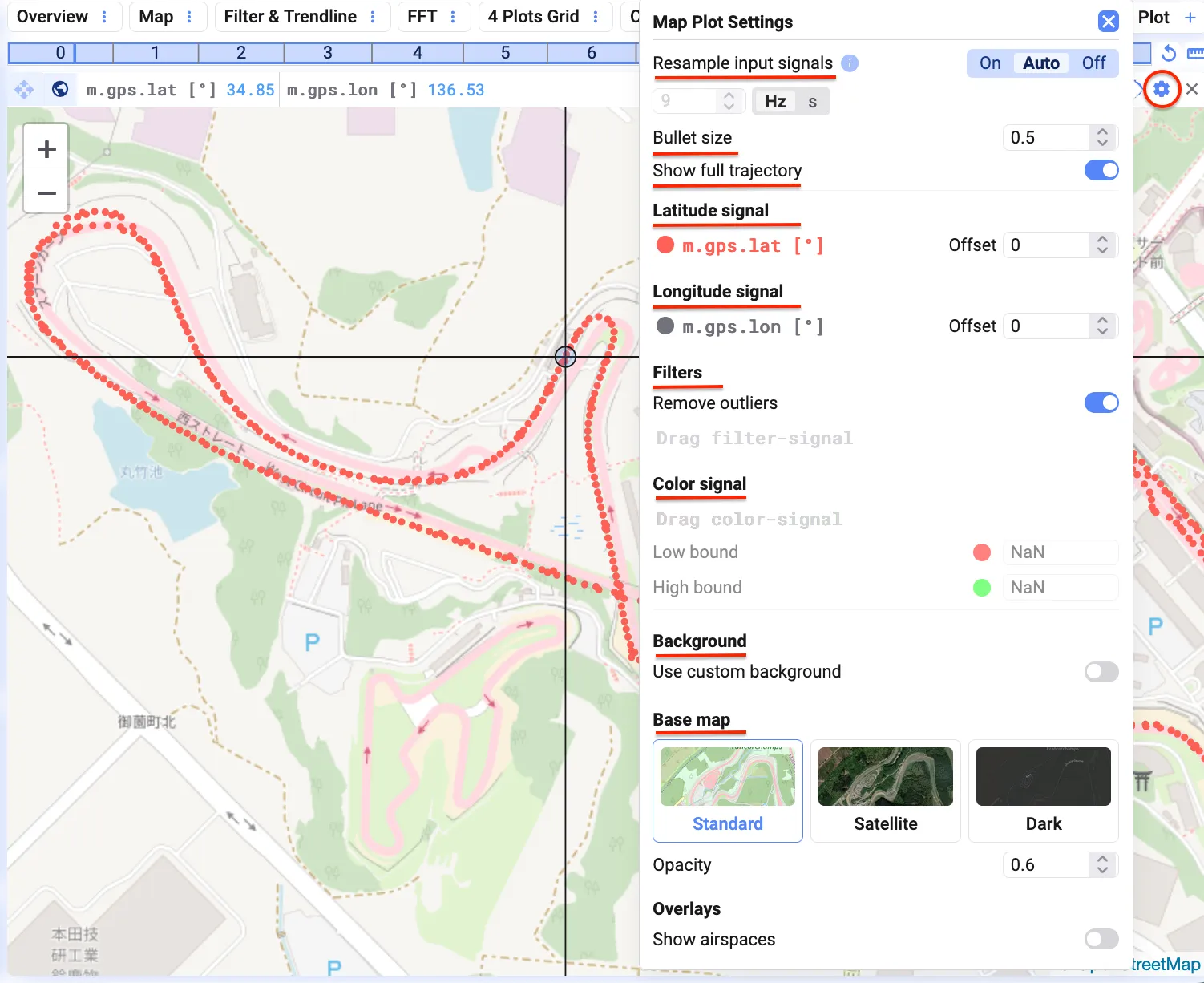
Section titled “Latitude and longitude signal”If the longitude or latitude values don’t align correctly with the map, you can apply an offset to adjust their positioning.
Color signal
Section titled “Color signal”Add a third signal (e.g. motor temperature) and define lower and upper bounds to dynamically color data points based on that signal’s values — adding an extra layer of insight to your visualization.
Filters
Section titled “Filters”To filter out outliers, add a control signal and set an offset value to hide unwanted data points.
Show full trajectory
Section titled “Show full trajectory”Choose whether to display all data points or only the one corresponding to the current cursor position on the timeline.
Resample input signals
Section titled “Resample input signals”Similar to the Scatter plot, you can resample the input signals to align their time bases for consistent analysis. See Resampling for more information.
Bullet size and opacity
Section titled “Bullet size and opacity”Adjust the bullet size to your preferred dimensions, making data points easier to see clearly. Adjusting the opacity makes a signal more or less prominent on the plot.
Legend
Section titled “Legend”Each trajectory appears as a separate entry in the legend.
- Drag and drop signals from the signal list into the legend to update a signal.
- Click a row in the legend to highlight the corresponding trajectory.
- Use the second cursor (Space) to measure differences.
- The legend can sit in the bottom-left or bottom-right corner, span the full width above or below the plot, or be hidden entirely.
Other settings
Section titled “Other settings”Background
Section titled “Background”The default map is OpenStreetMap. You can switch between a standard, satellite, or dark map, and adjust the opacity for better visibility.
You can also add a custom background:
- Click the settings wheel at the top-right.
- Enable “Use Custom Background”.
- Upload your file.
Overlays
Section titled “Overlays”Enhance your map by adding overlays. The Show airspaces option overlays airspace boundaries onto the map for extra context.