

TIA Portal / Field Devices
Select the tab matching the connection type being used.
Absolute addressing is available for S7-300/400 (SIMATIC Manager) and optionally for S7-1200/1500 (TIA Portal).
Finding the slot and rack number
The slot number and rack number required when adding a SIMATIC device to the Edge can be found in the hardware configuration of the project. Open the hardware configuration in TIA Portal and locate the CPU or communication processor in the rack view. The rack number corresponds to the label of the profile rail (Profilschiene) shown in the rack view — in the example below it is Profilschiene_0.
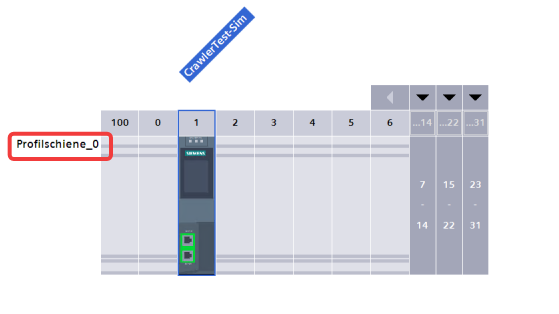
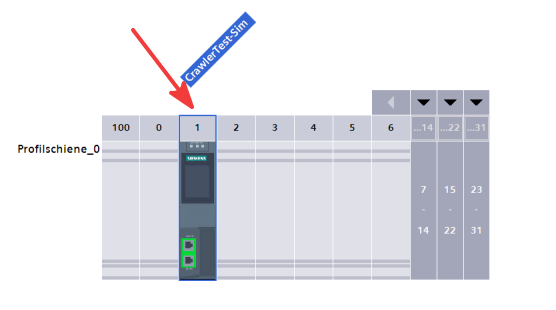
The slot number is the position of the module in the rack, as shown below.
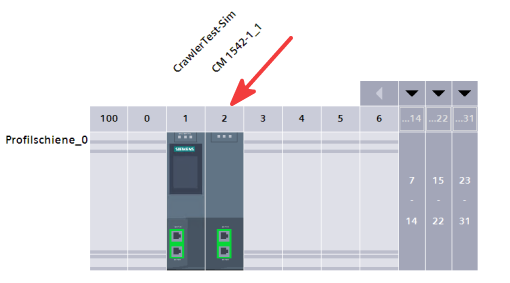
If an additional communication processor is installed, enter its slot number — not the CPU slot. In the example below, a communication processor (CM 1542-1_1) is installed at slot 2; since the Edge is physically connected to this processor, slot 2 is the value to enter.
Enabling PUT/GET communication (S7-1200 / S7-1500 only)
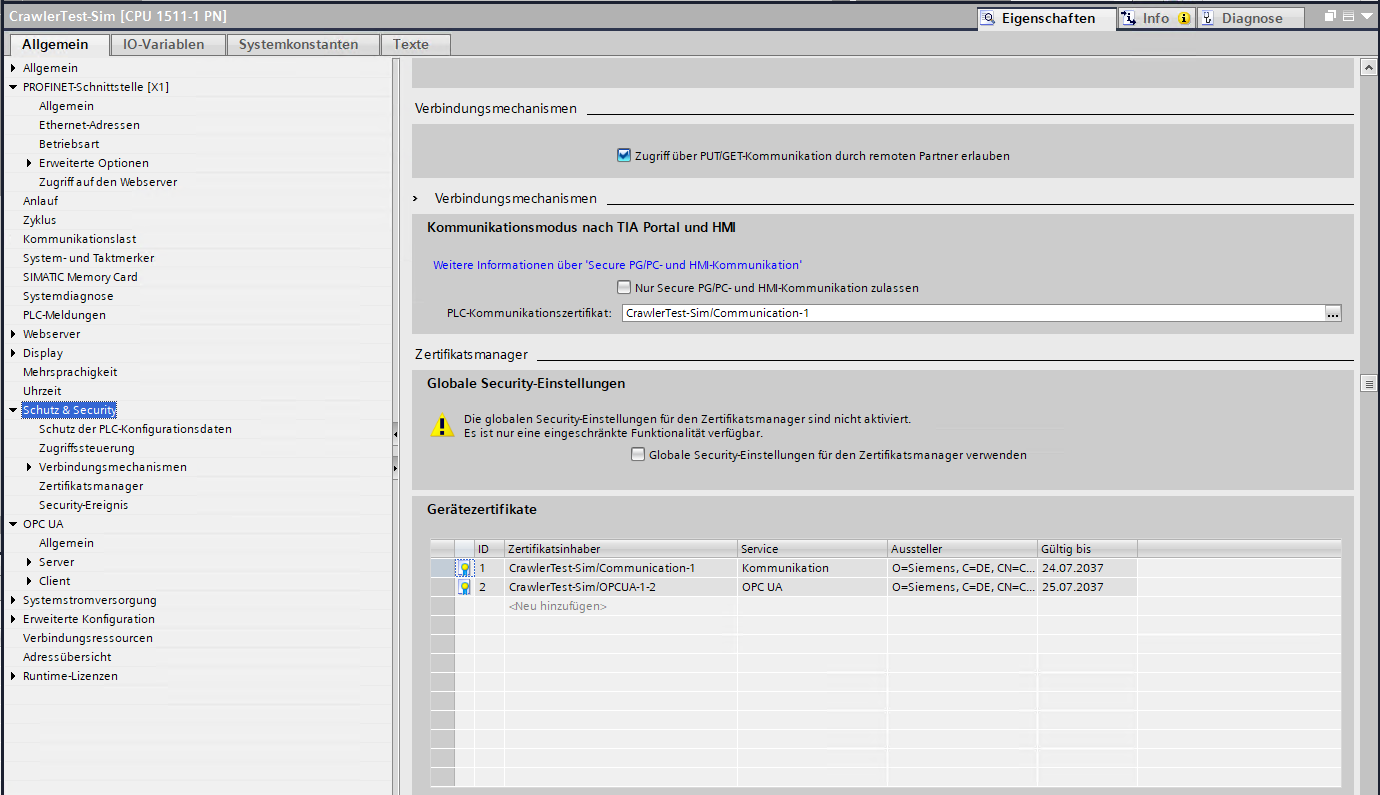
When using absolute addressing with an S7-1200 or S7-1500, PUT/GET communication must be enabled in TIA Portal. Open the PLC properties and navigate to Protection & Security → Connection mechanisms. Enable Permit access with PUT/GET communication from remote partner.
Data block attributes (TIA Portal)
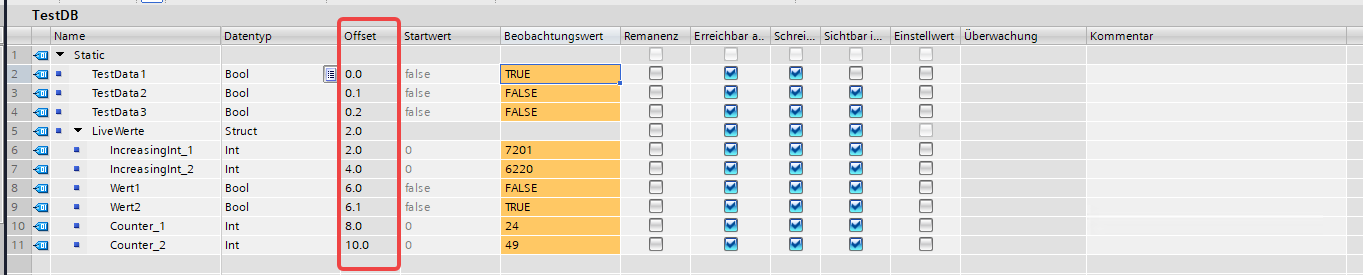
Open the data block properties in TIA Portal and go to Attributes. Optimized block access must be disabled — this ensures each variable gets a fixed byte offset that can be used as the address in the Edge.
With optimized access disabled, each variable is assigned a fixed byte offset visible in the data block view, which is entered as the address in the Edge (e.g. DB10.DBX0.0).
Data block attributes (SIMATIC Manager)
Open the data block in SIMATIC Manager and go to Attributes. The Optimierter Bausteinzugriff (Optimized block access) checkbox must be enabled — this is required for the Edge to access the data block’s variables via absolute addressing.

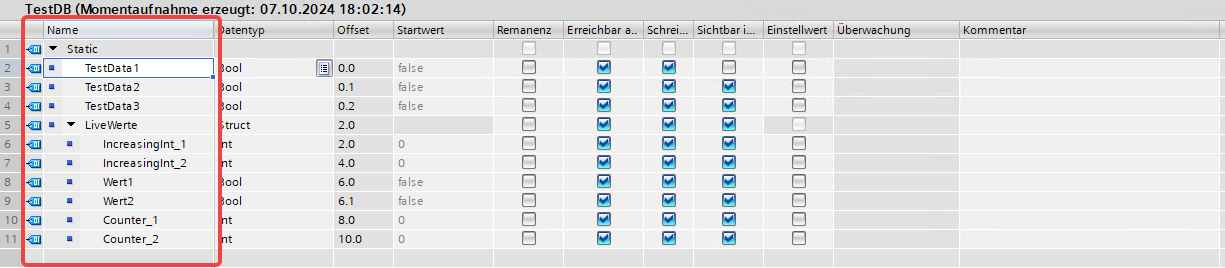
Symbolic addressing is available for S7-1200 and S7-1500 controllers. The Edge reads variable names and data block structures directly from the PLC — no manual address lookup is required.
The Edge reflects the variable structure exactly as defined in the data block, including nested structures (e.g. LiveWerte.IncreasingInt_1).
Configure access protection in the Security tab.
For OPC UA connections, the OPC UA server must be enabled and configured in the PLC properties under OPC UA.
Enabling the server and configuring the port
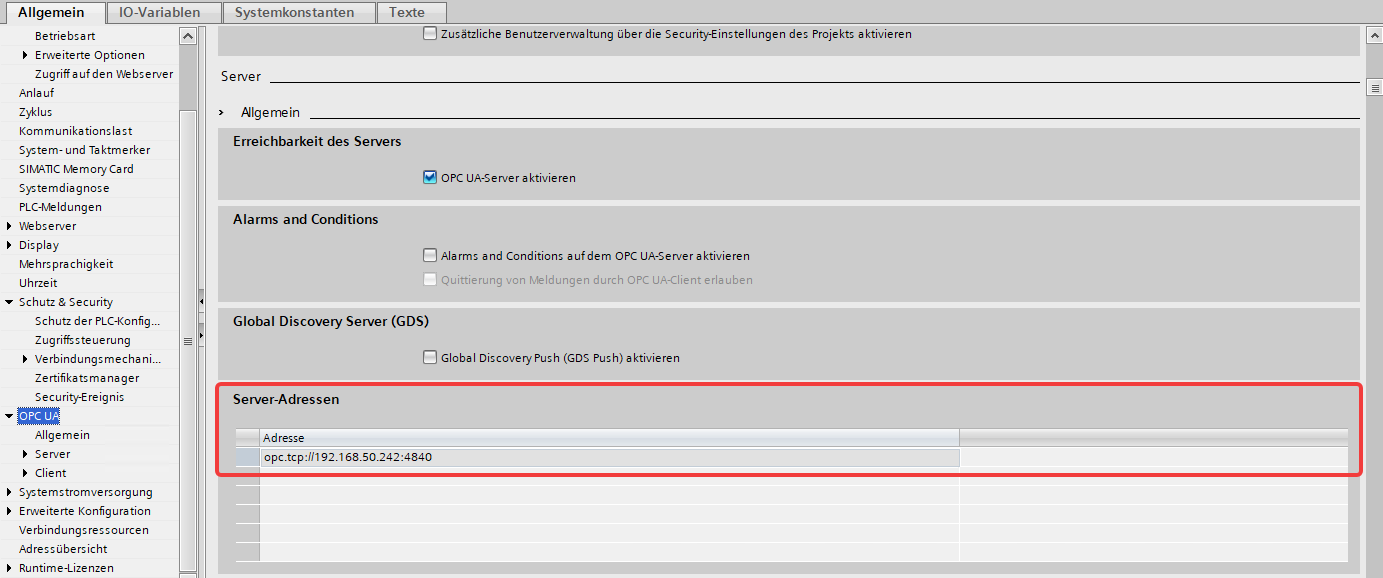
Enable the OPC UA server. The General access checkbox must be enabled for the server to be reachable — this applies regardless of whether anonymous or authenticated access is used. The default port is 4840 and is shown under Server Addresses; it can be changed there if needed.
Sampling interval
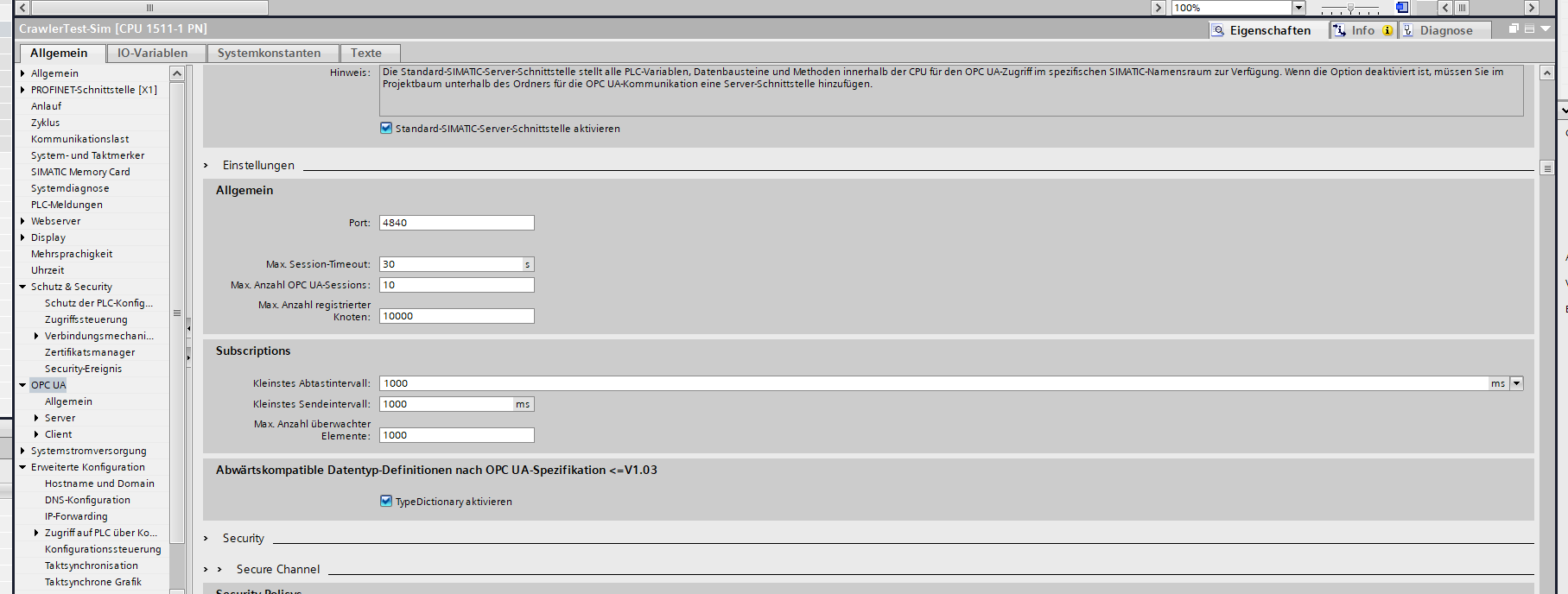
The Minimum sampling interval under OPC UA → General → Subscriptions defines how fast OPC UA variables can be updated at most. If the value is set to 1000 ms, the Edge cannot poll the variables faster than every 1000 ms — the value should therefore match the desired polling frequency.
License and variable limits
An OPC UA license must be entered in TIA Portal for the OPC UA server to function. The required license type is shown under Runtime Licenses → OPC UA. Depending on the license tier, the number of variables that can be configured is limited — refer to the Siemens documentation for the exact limits: S7-1200 · S7-1500.

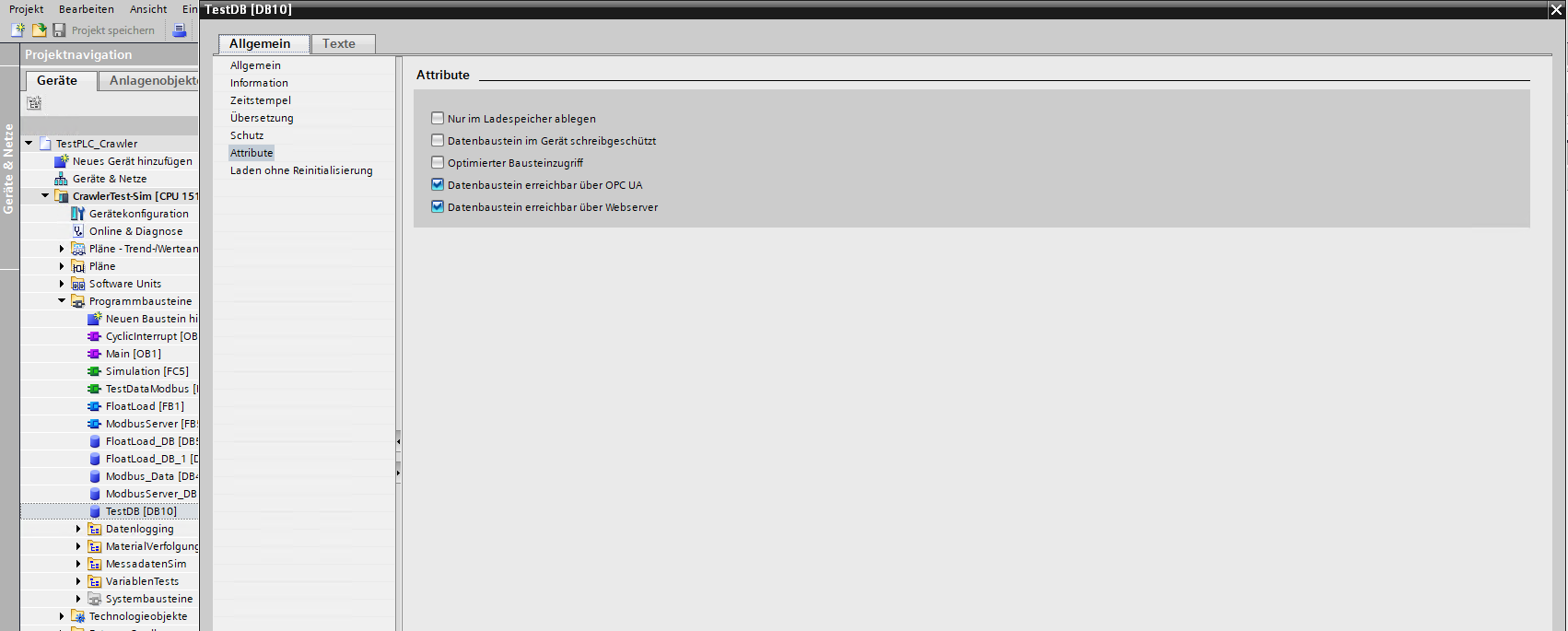
Data block accessible via OPC UA
For a data block to be readable via OPC UA, the Data block accessible via OPC UA checkbox must be enabled in the data block attributes. Open the data block in TIA Portal and go to Attributes.
User management (password authentication)
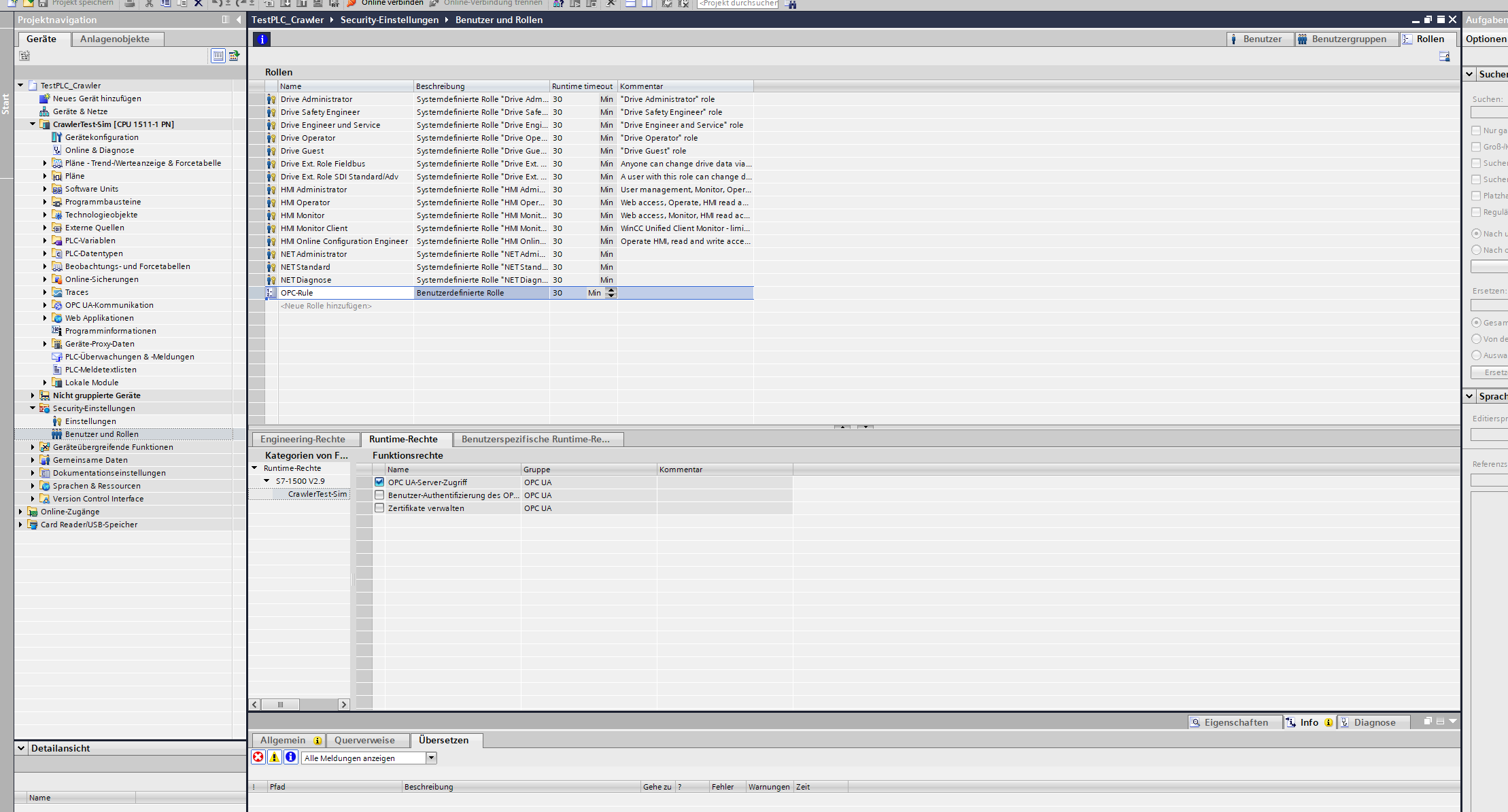
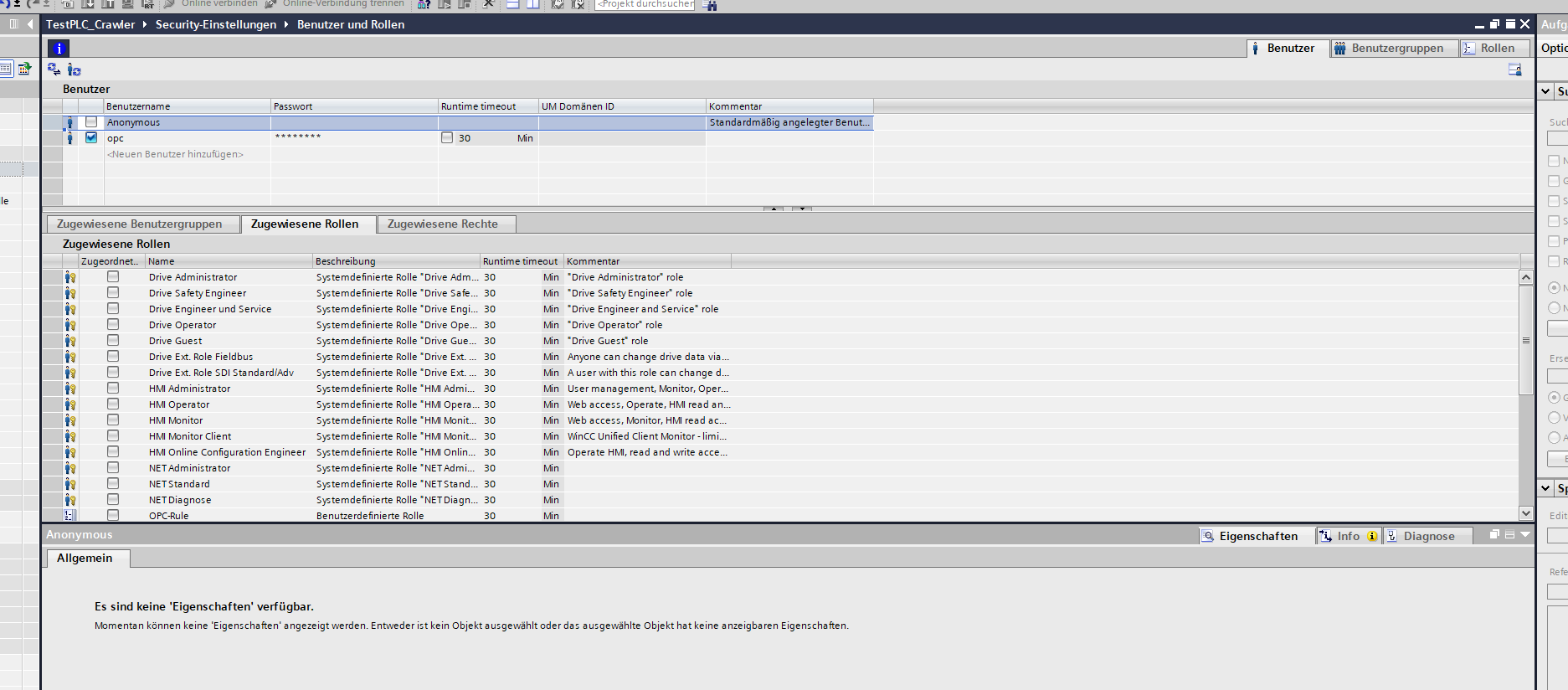
To connect the Edge with username and password, a user and role must be set up under Security settings → Users and roles.
- Under Roles, create the OPC role and assign it the OPC UA server access right.
- Under Users, create a new user, set a password, and assign the OPC role. Disable or remove the Anonymous user — only then is password protection enforced.
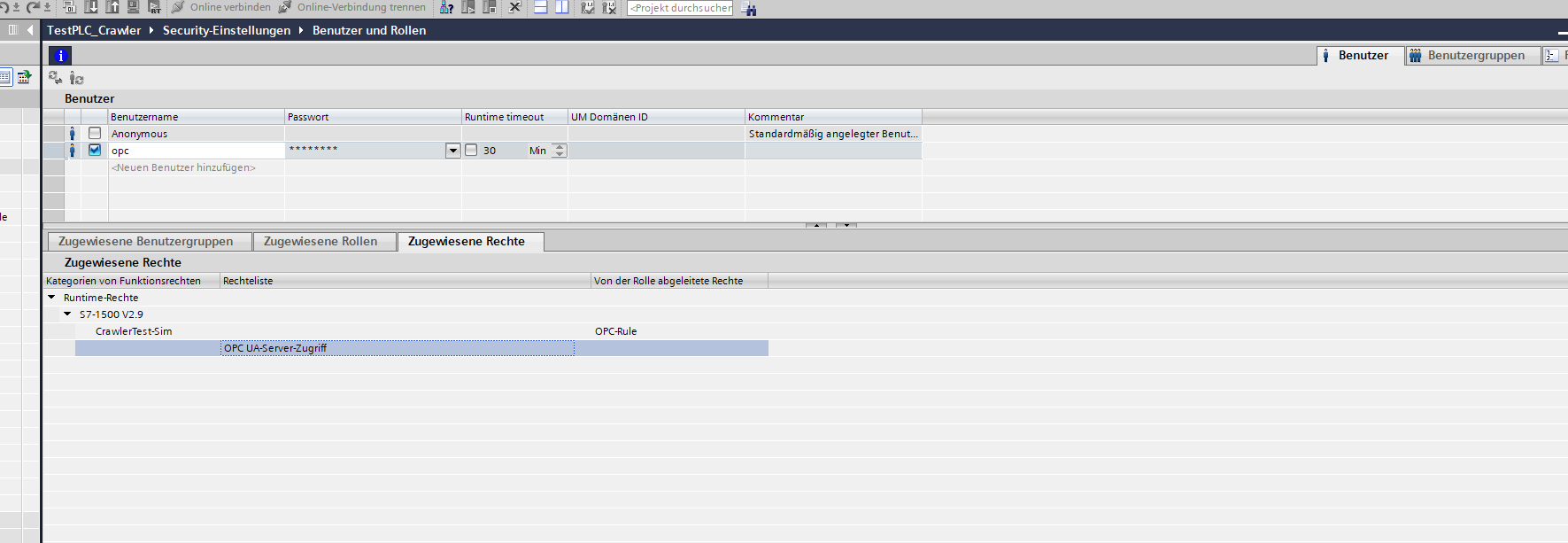
- Compile and download the updated PLC configuration.
The credentials of this user are then entered in the Edge Secured device connection field.
Access protection (symbolic addressing)
Access protection is configured in TIA Portal under Properties → Protection & Security → Access control. If the controller is set to Full access (no protection), no password is required — the secured connection toggle in the Edge does not need to be enabled in this case.
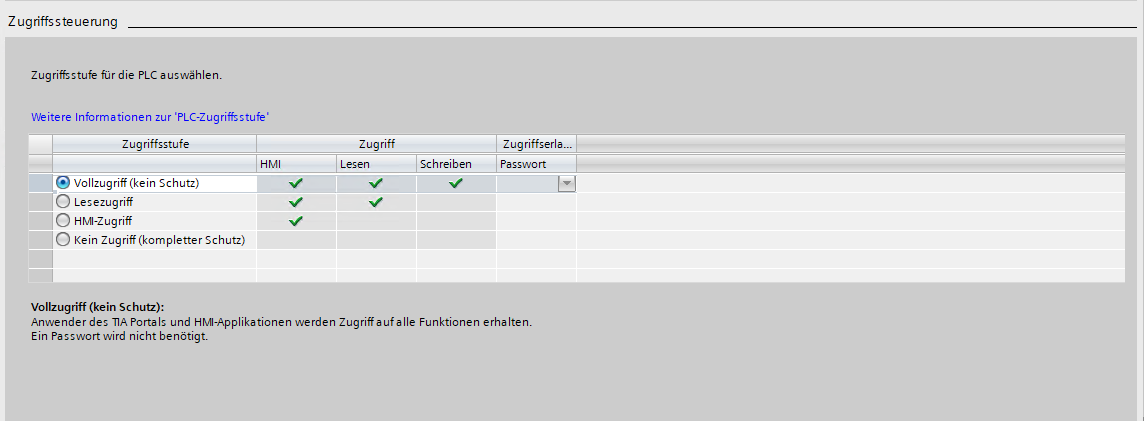
To secure the connection with a password, select one of the following protection levels instead:
- Read access — read-only; sufficient for the Edge to retrieve data
- HMI access — slightly broader permissions; can also be used
Then enter a password for the selected level, compile and download the updated PLC configuration. This password is entered in the Edge Secured device connection field.
Security policies (OPC UA)
For OPC UA connections with username/password, a security policy must be enabled under OPC UA → Server → Secure Channel. At minimum Basic256Sha256 — Sign & Encrypt is recommended.
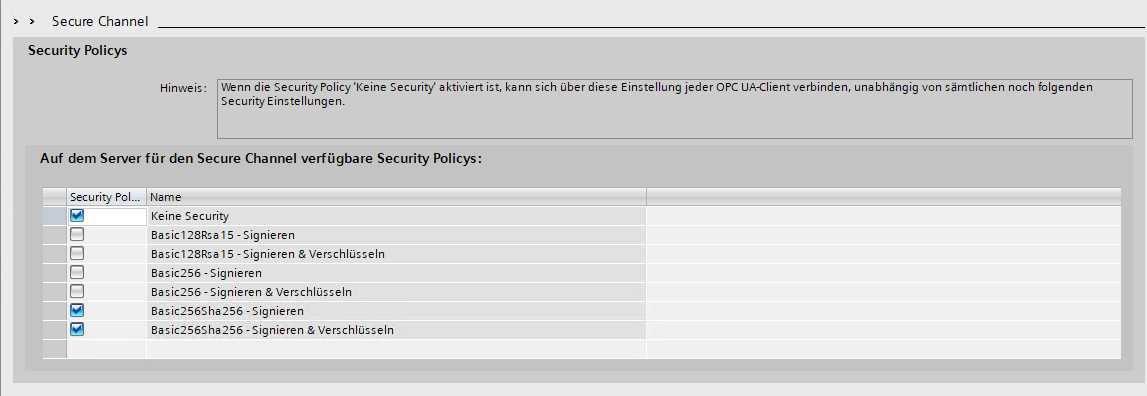
Under Authentication, also enable the Username and password option, then compile and download the updated PLC configuration.
Anonymous access and password protection (OPC UA)
By default, the Anonymous user is active in the OPC UA server — connections without credentials are accepted. As long as Anonymous is active, any configured password has no effect because the server still allows anonymous connections.
To enforce password protection, Anonymous must be disabled or removed. Only then is the OPC UA server accessible exclusively with username and password. The HMI Operator role can be used as an example — this is the legacy name for the PLC user.