

Backup & Restore
Backup & Restore lets you save the Edge configuration and restore it on the same or a different device. The backup feature is available under Settings → Backup.
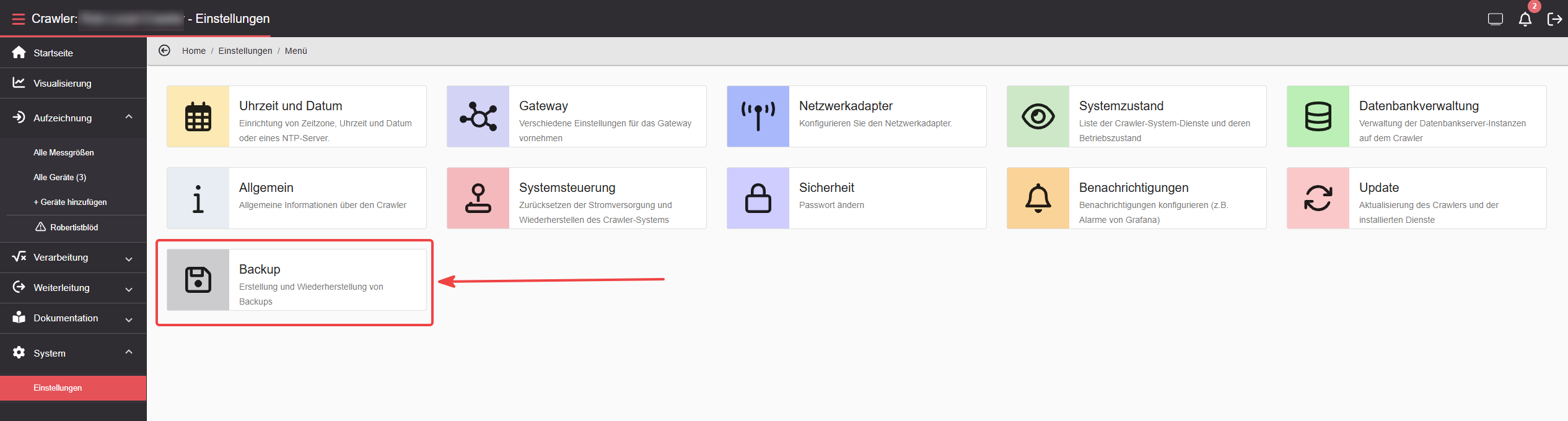
Creating a backup
Section titled “Creating a backup”The Configuration backup section shows information about the most recent backup: retention period, date of last backup, and file size. Use Download backup to download the most recent backup directly.
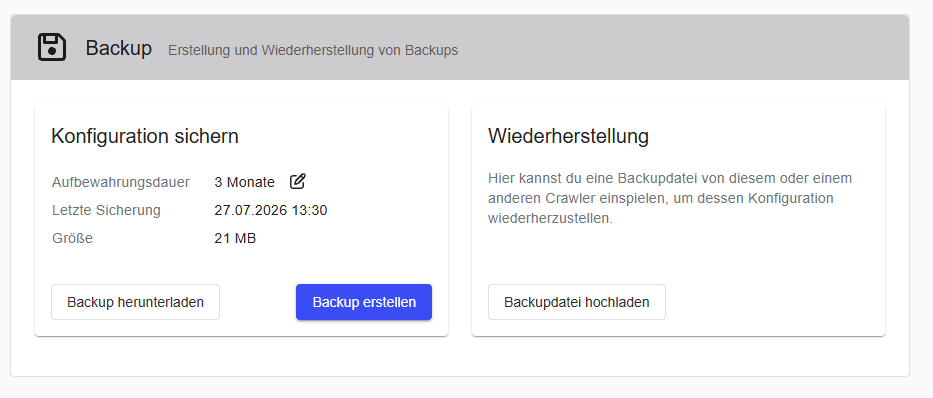
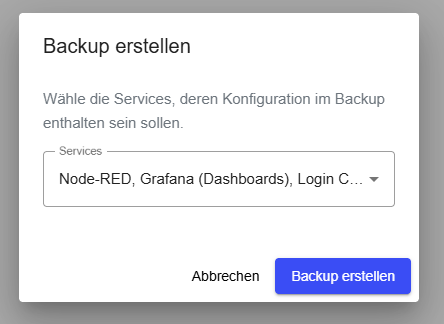
Click Create backup to generate a new backup. In the dialog, select the services to include in the backup, then click Create backup again.
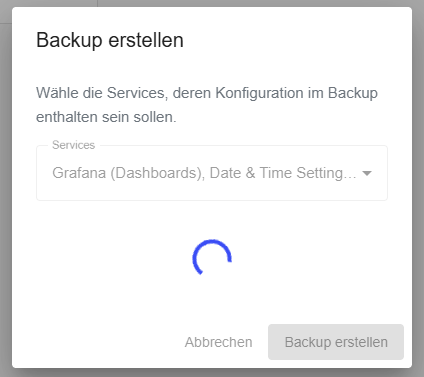
The backup is being created — this may take a moment.
A confirmation message appears when the backup is complete.

The backup can then be saved locally using Download backup.
Restoring a configuration
Section titled “Restoring a configuration”Restoring on a running Edge
Section titled “Restoring on a running Edge”On the Backup page, under Restore, click Upload backup file and select the backup file to restore. After uploading, the services included in the backup are displayed. All included services will overwrite the existing configuration on the device.
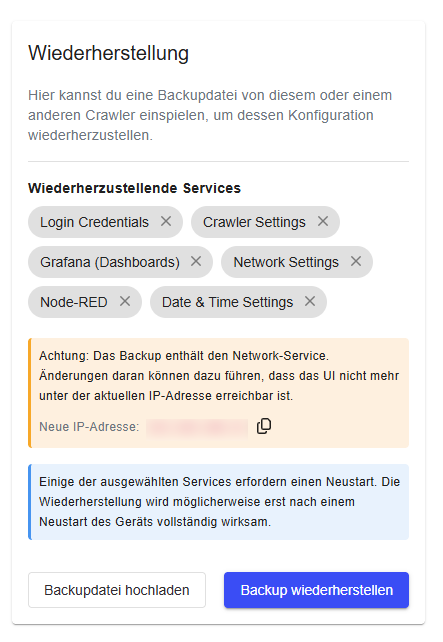
Click Restore backup. Some services require a restart — the restore will only take full effect after the Edge has restarted.

Restoring on a factory-reset Edge
Section titled “Restoring on a factory-reset Edge”After a factory reset, the Edge starts with the setup wizard. A configuration can be applied directly from here without completing the full setup.
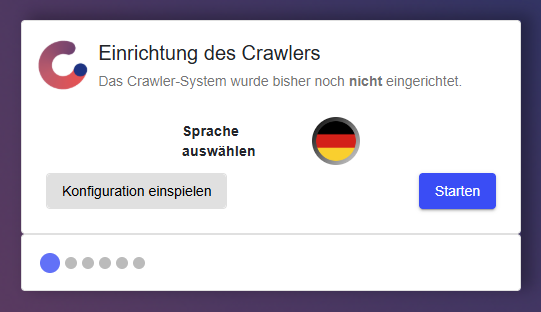
Click Apply configuration, then select Upload backup file.
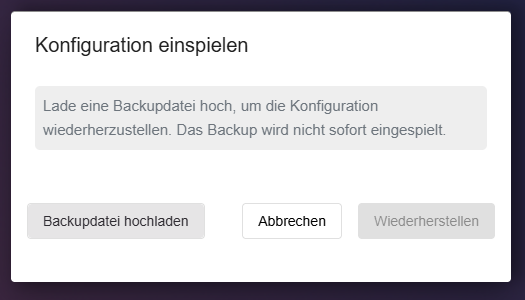
After uploading, the services to be restored are displayed. All included services will overwrite the existing configuration on the device. If the backup includes the Network service, an additional warning with the new IP address is shown.
Click Restore to apply the configuration.