Set Up Material Tracking & Runs
The measurement page of a device (Recording → Devices → [Device]) includes the Materialverfolgung and Runs tabs.
Material Tracking provides end-to-end traceability of workpieces through defined zones and stations in a manufacturing process.
-
Create a process definition
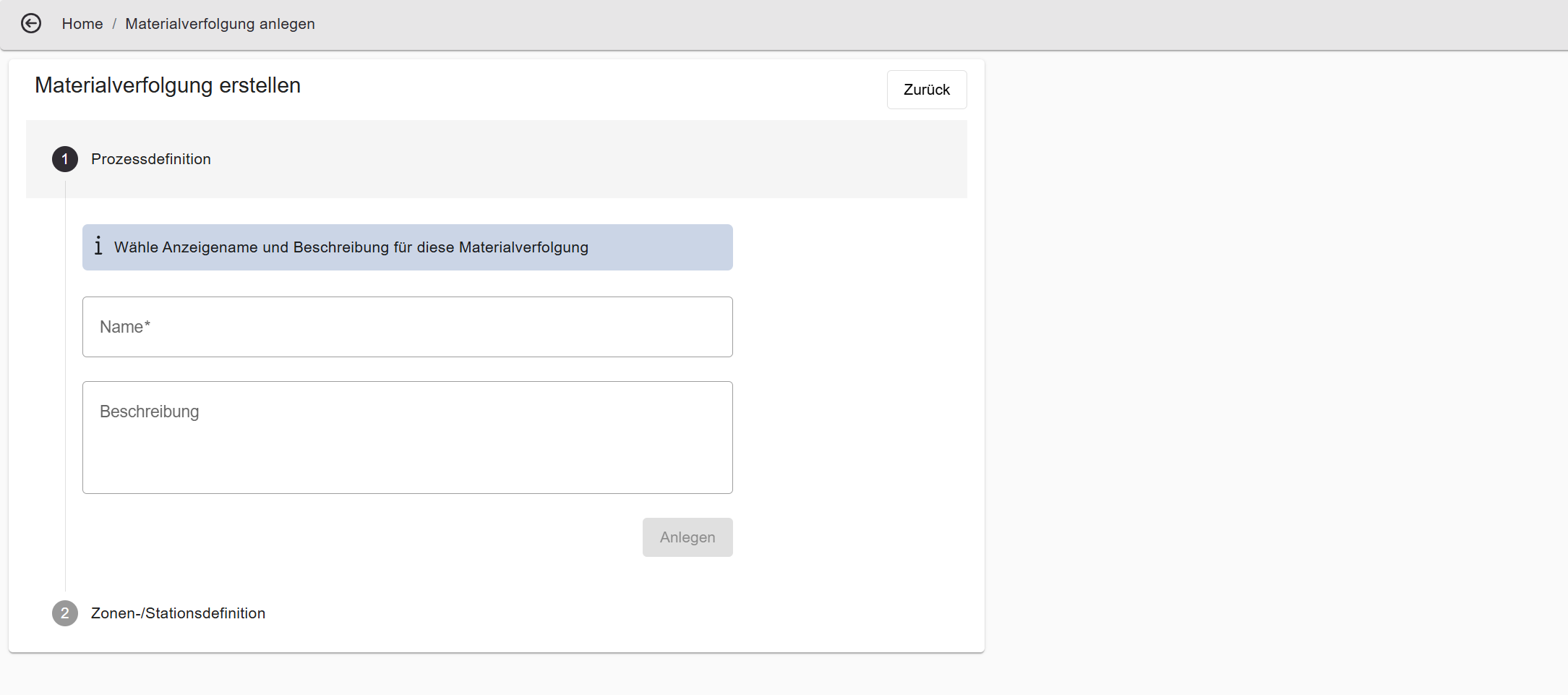
In the Materialverfolgung tab, click + Neue Prozessdefinition. Enter a unique name — the description is optional. Click Create.
-
Name the first zone/station
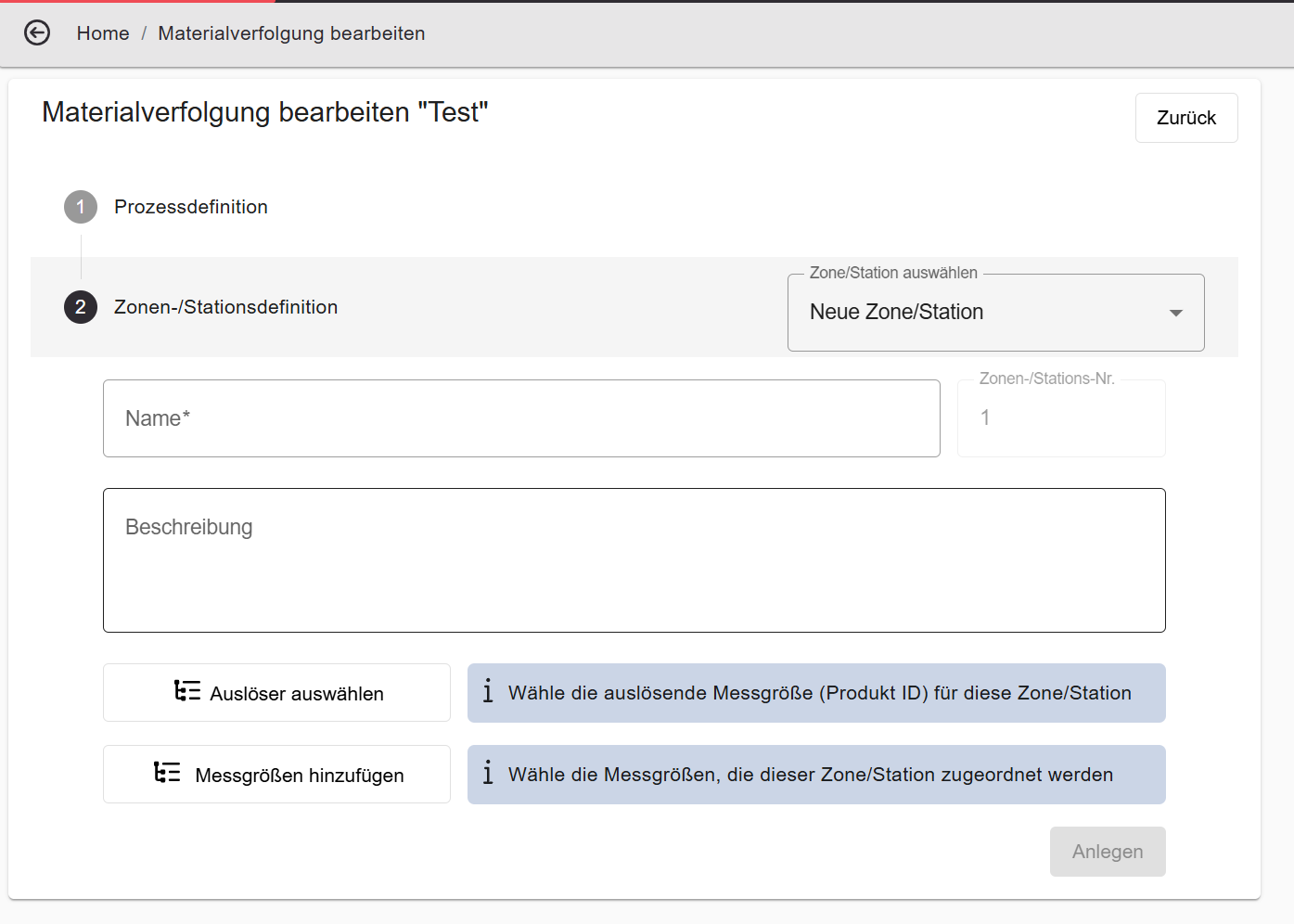
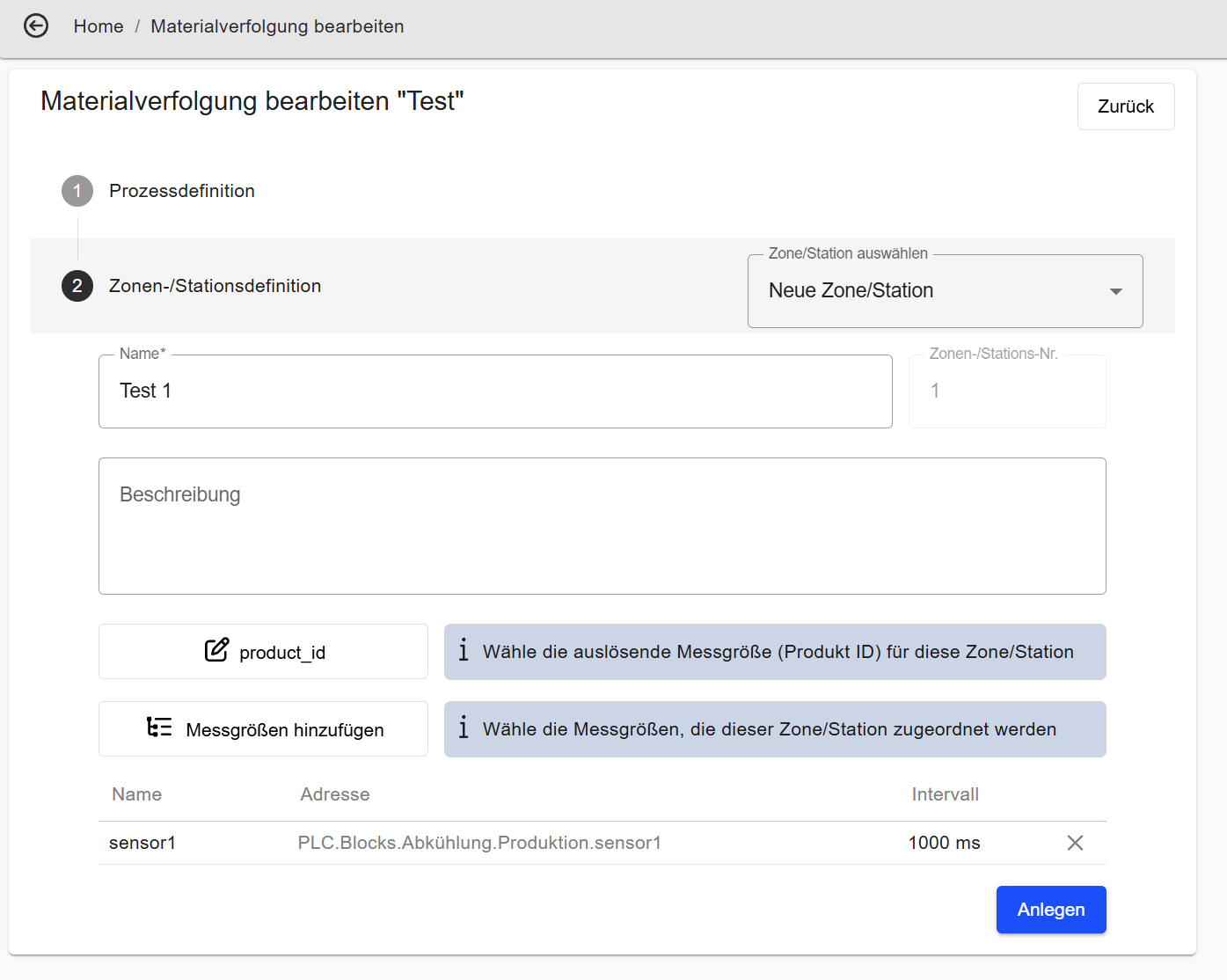
Step 2 opens automatically after creating the process definition. Enter a unique name for the first zone/station. The zone/station number is assigned automatically.
-
Select a trigger
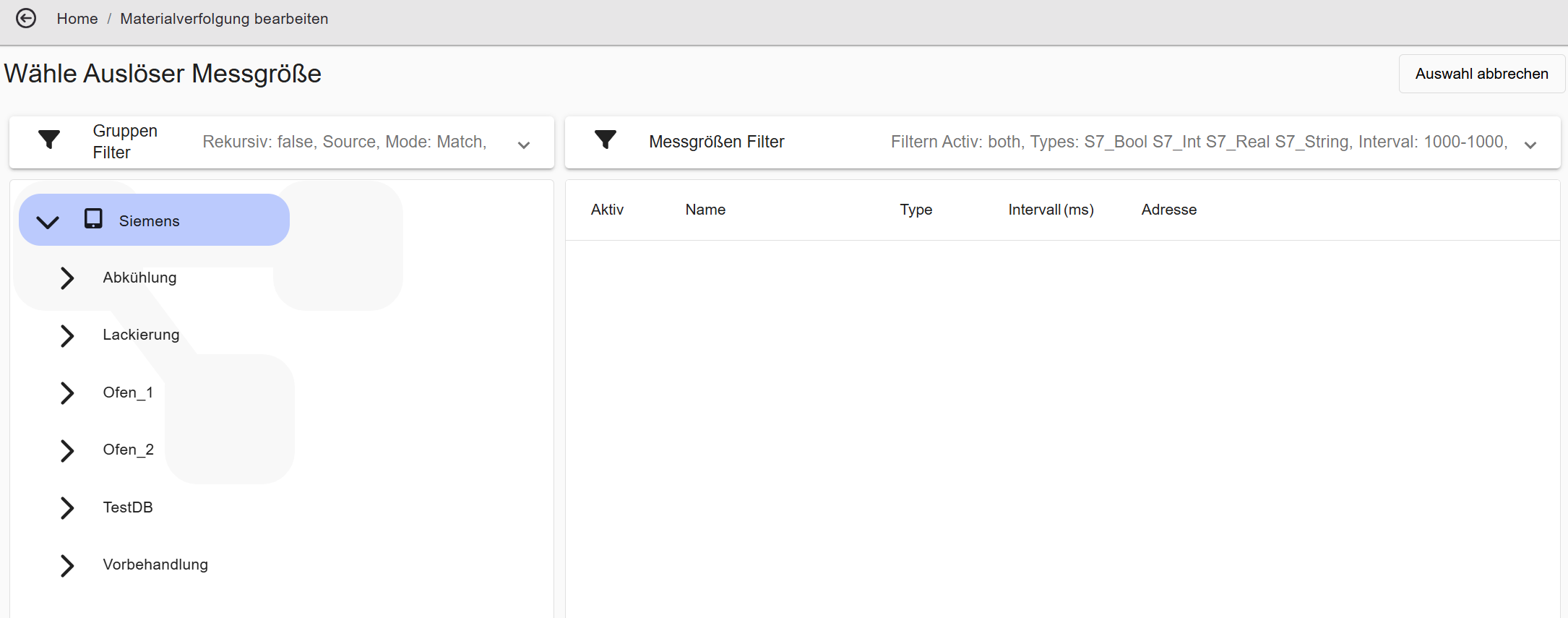
Click Select trigger. In the variable browser, select the variable whose value change signals a workpiece entering this zone/station.
-
Add measurements
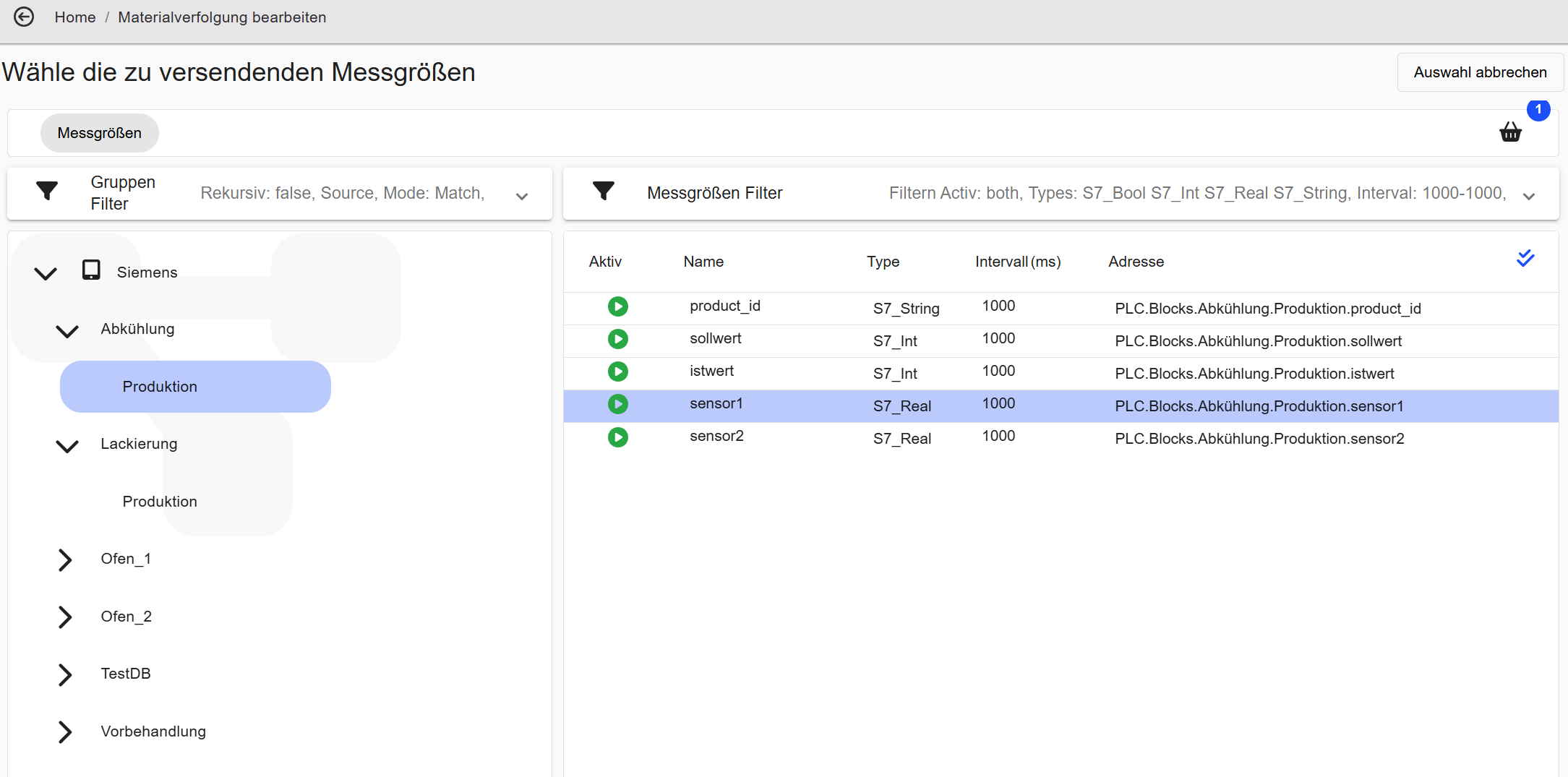
Click Add measurements and select all variables whose values should be recorded for workpieces at this station.
-
Save the zone/station
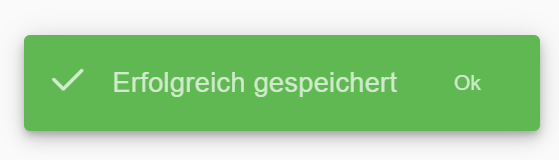
Click Create. A green confirmation message briefly appears.
To add more zones/stations, click + New Zone/Station and repeat steps 2–4. Mark the final station with Is last station.
-
View recordings
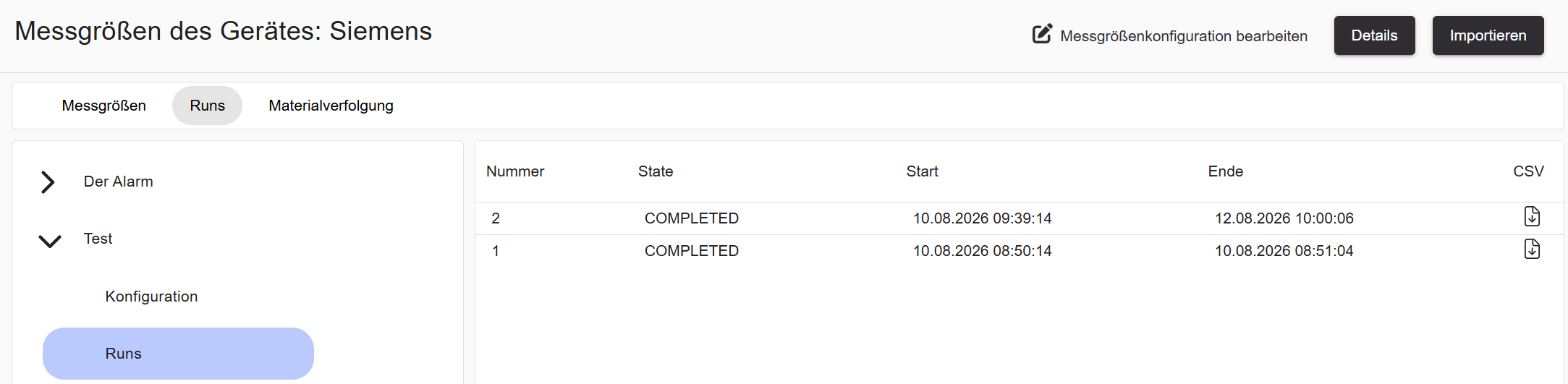
In the sidebar, click Aufzeichnungen under the process definition. While a workpiece is still being processed, the status shows as RUNNING.
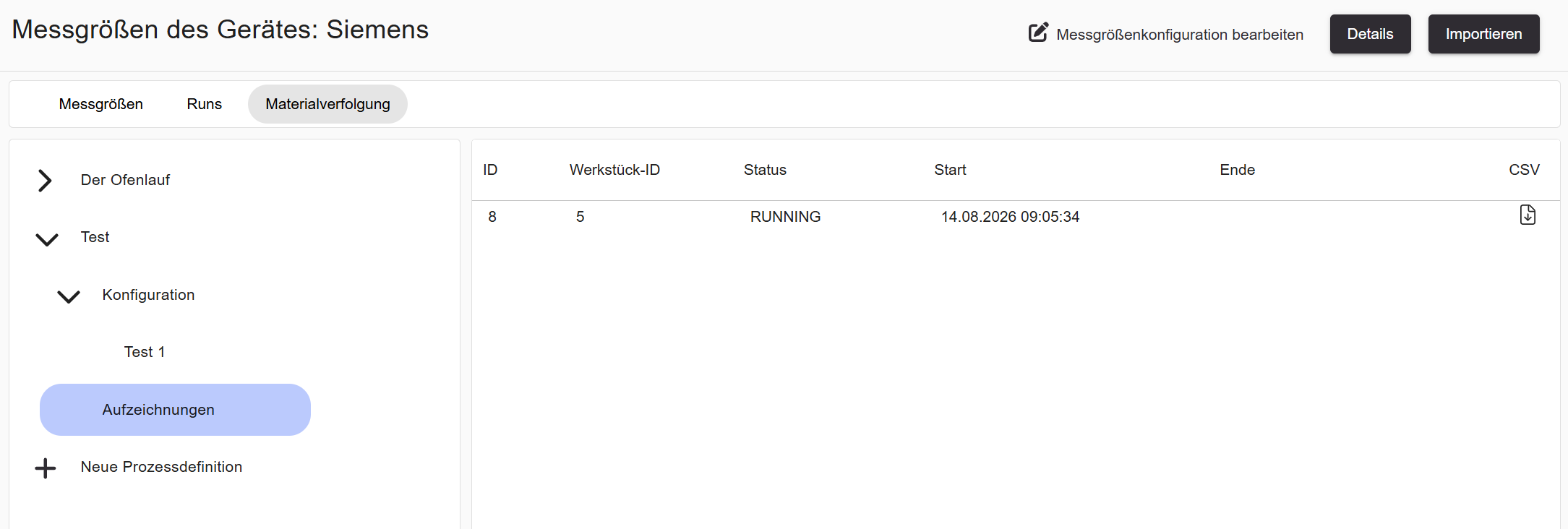
Once the workpiece has passed through the last station (exit gate), the status changes to COMPLETED.
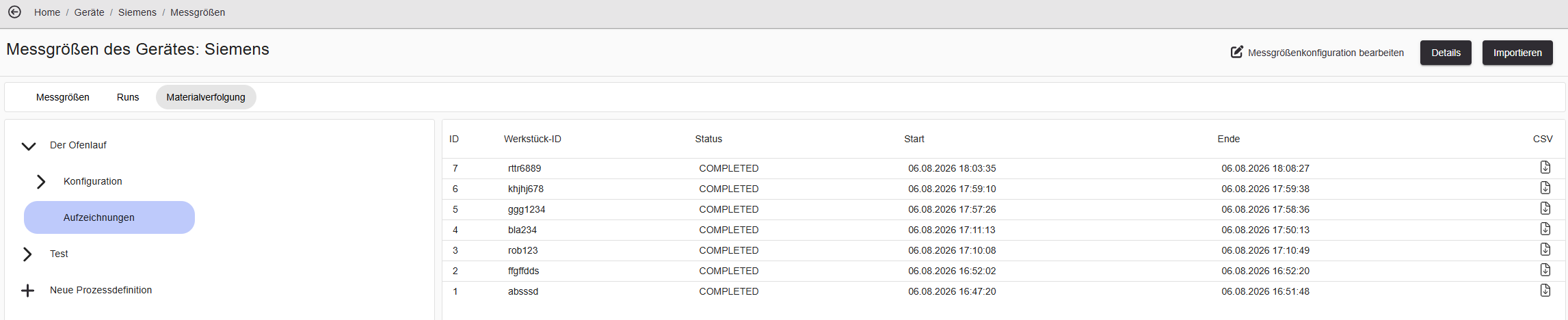
Individual recordings can be downloaded via the CSV icon. For a full field reference, see the UI Reference.
Runs enable measurement-based or time-based recording of variable values. A run is bounded by a start condition and a stop condition.
-
Create a run
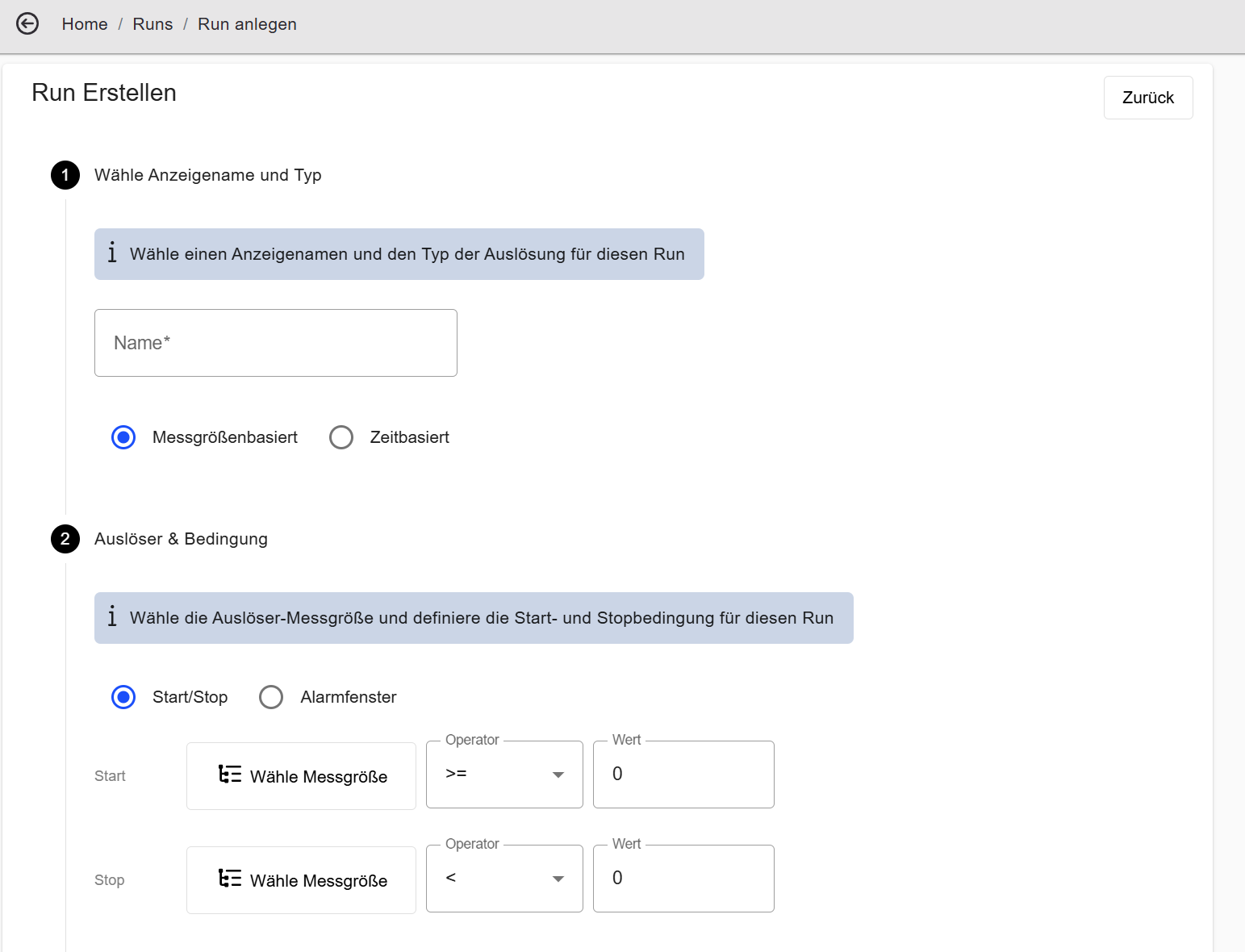
In the Runs tab, click + Run Erstellen. Enter a unique name and select the type: Messgrößenbasiert (measurement-based) or Zeitbasiert (time-based).
Under Auslöser & Bedingung, select the variable, operator, and threshold value for both the start and stop conditions.
-
Select measurements
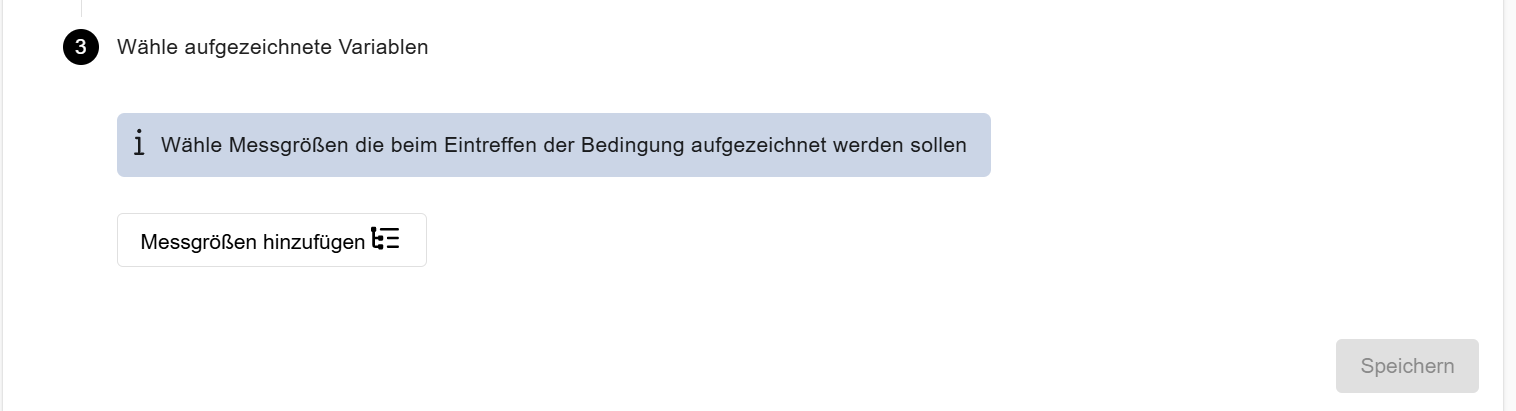
In the third step, click Messgrößen hinzufügen and select all variables to be recorded during the run.
-
Save and activate the run
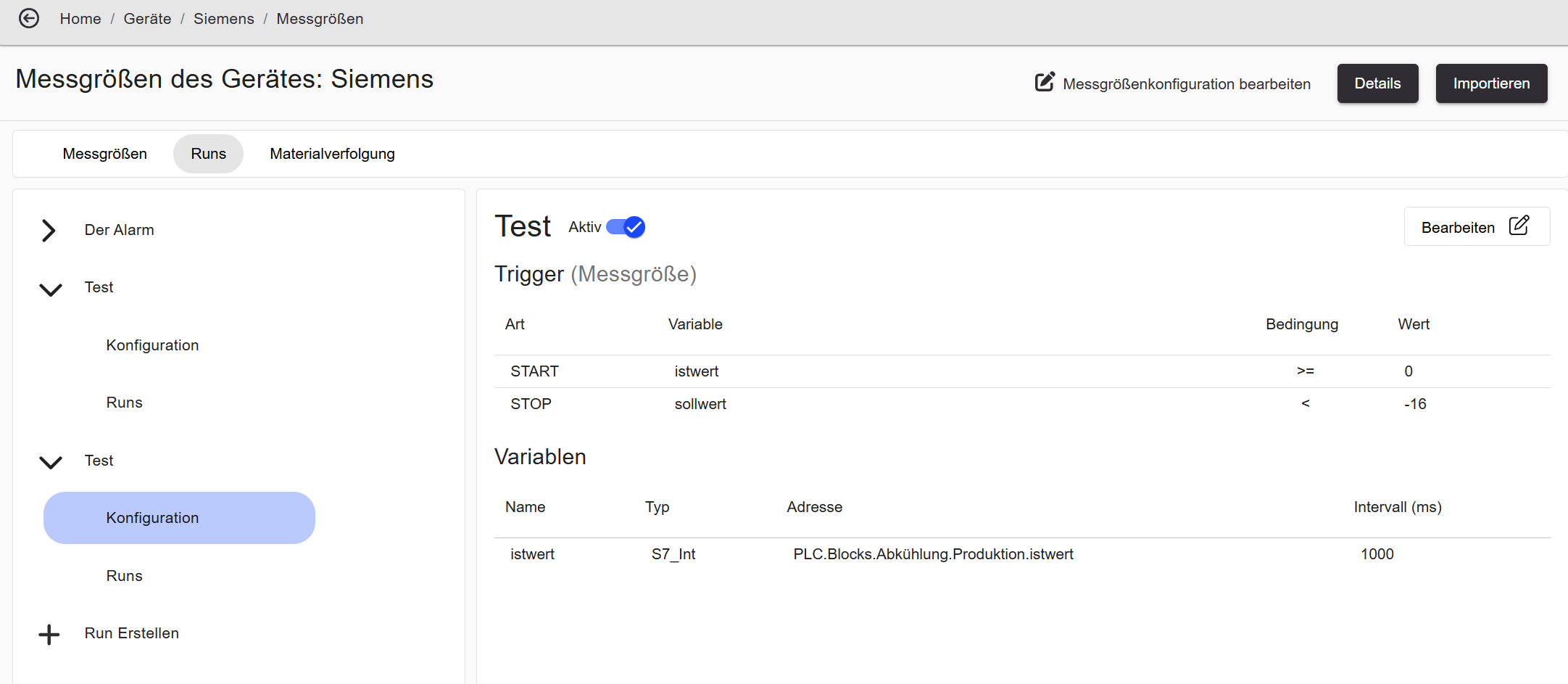
Click Save. Select the run in the sidebar and enable it using the Active toggle — only active runs record data.
-
View recordings
Click Runs under the run entry in the sidebar to see all recordings. Individual recordings can be downloaded via the CSV icon.