Limits and Stacking
Tweak the exact layout of your plot. These settings need Axis mode set to Advanced in the plot settings (see Axes).
Limits
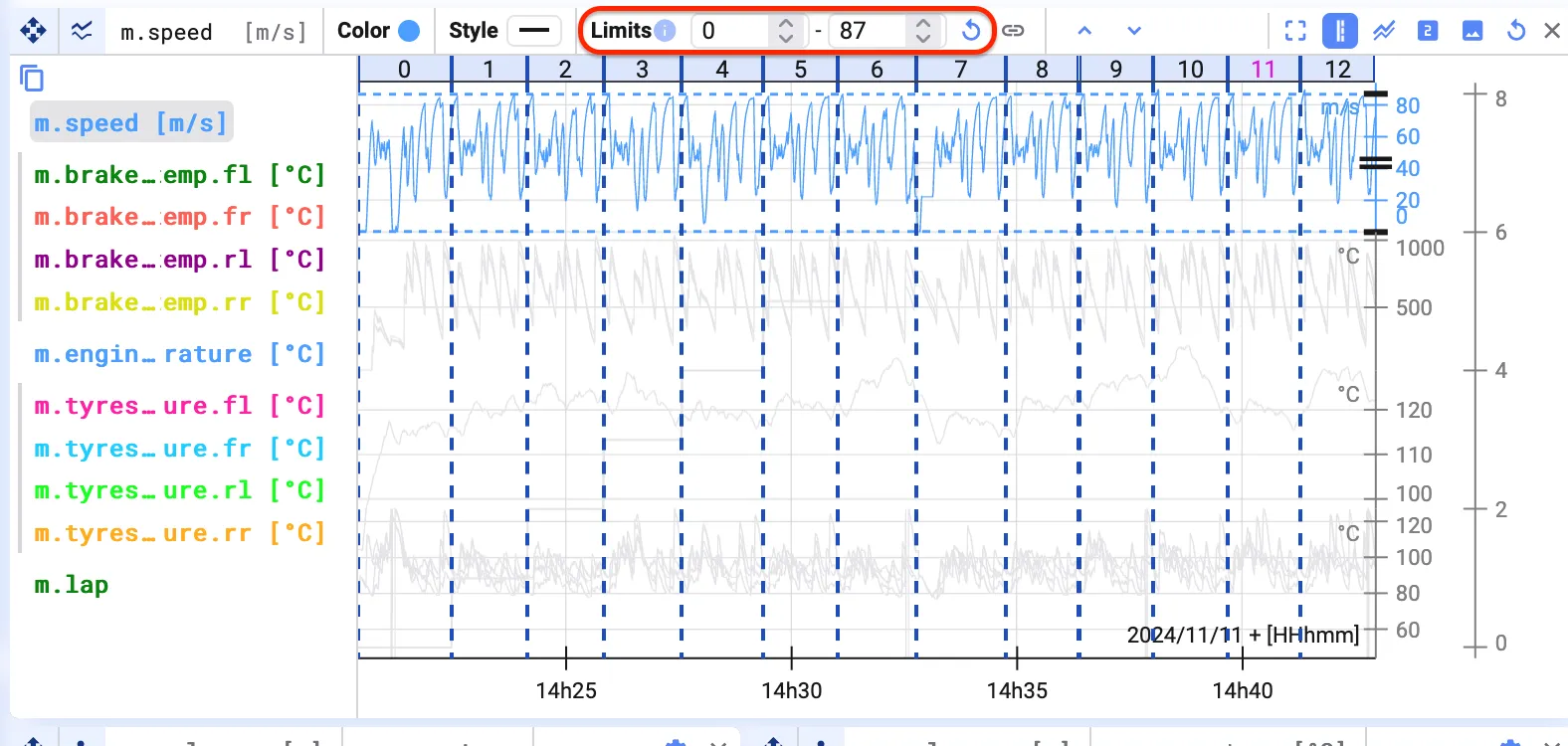
Section titled “Limits”Each signal group has limits, which set the vertical scaling of the signals and the y-axis within that group. To set the limits manually, set Axis mode to Advanced and switch off Autoscale axes.
Stacking
Section titled “Stacking”Each signal group also has a position on a plot, which you can change.

If you select one signal or a signal group, you can see drag handles on the axis. These allow you to change the position of your signal. Playing with positions allows you to make visually clean plots.

By default, in Time Series plots, all signals and signal groups added to a plot are added with their limits aligned to the top and bottom of the plot. This means the graphs are stacked over one another.
If you want to automatically stack the graphs on top of each other, click the Stack all signals button in the top bar.
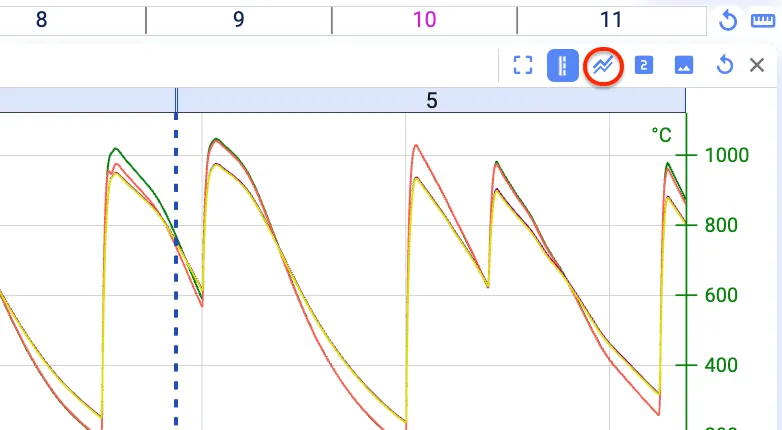
After clicking the Stack all signals button, the signals are stacked over one another in the plot.
Linking limits
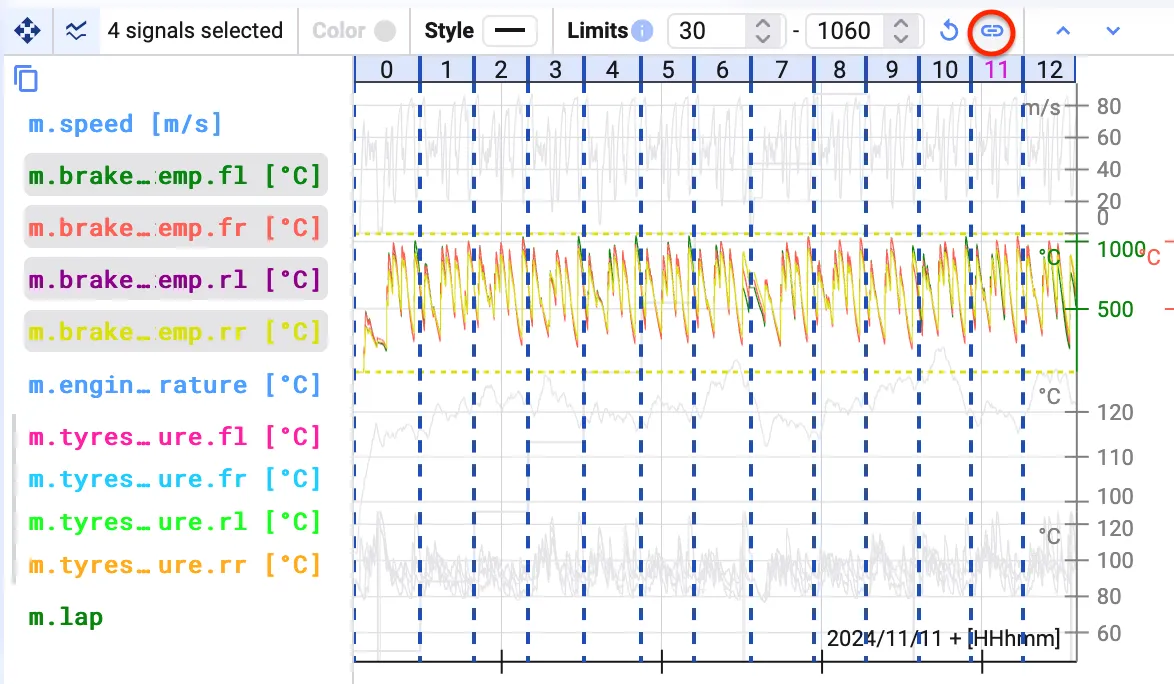
Section titled “Linking limits”Link multiple signals if you want their limits and positions to always be the same. This turns these signals into a signal group (see Signal Settings).
Linked signals share the same y-axis. Select multiple signals (ctrl/cmd + left mouse click) and click the link button.