

Backup & Restore
Crawler.Companion lets you back up and restore both measurement data and device configuration directly from the interface. The backup feature is available under the Backup tab in the device detail panel.
Click a device in the device list to open the detail panel. Select the Backup tab and make sure the Messdaten sub-tab is active.
Back up all data
Section titled “Back up all data”Click Backup starten. The backup includes all recorded measurement data for the Crawler.
Back up a specific time range
Section titled “Back up a specific time range”Enable the Nach Zeitraum filtern toggle. Von (from) and Bis (to) date/time fields appear.
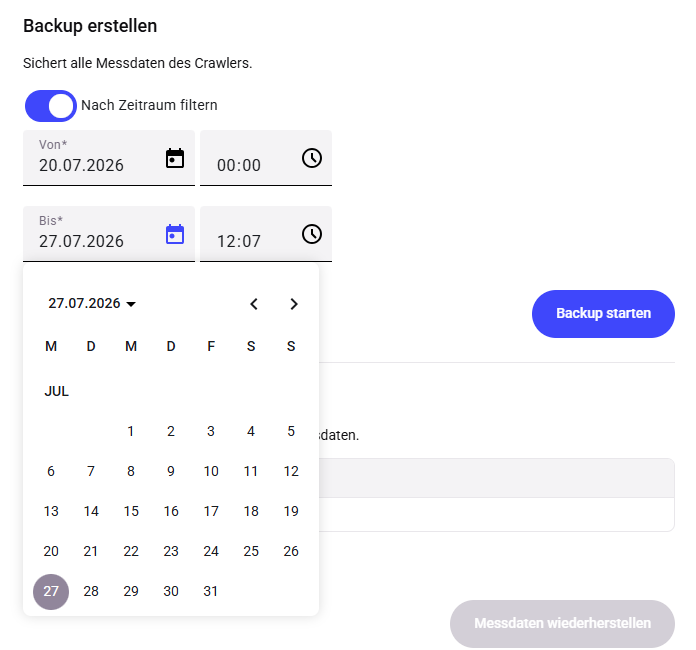
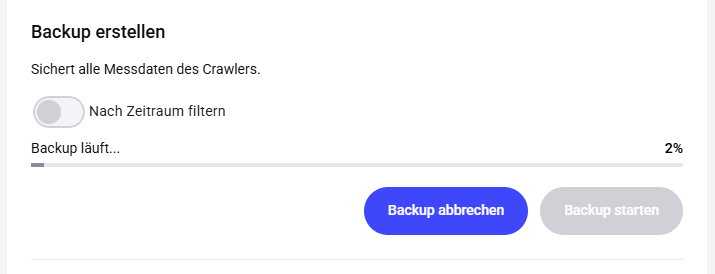
Enter the desired time range and click Backup starten. A progress bar shows the status.
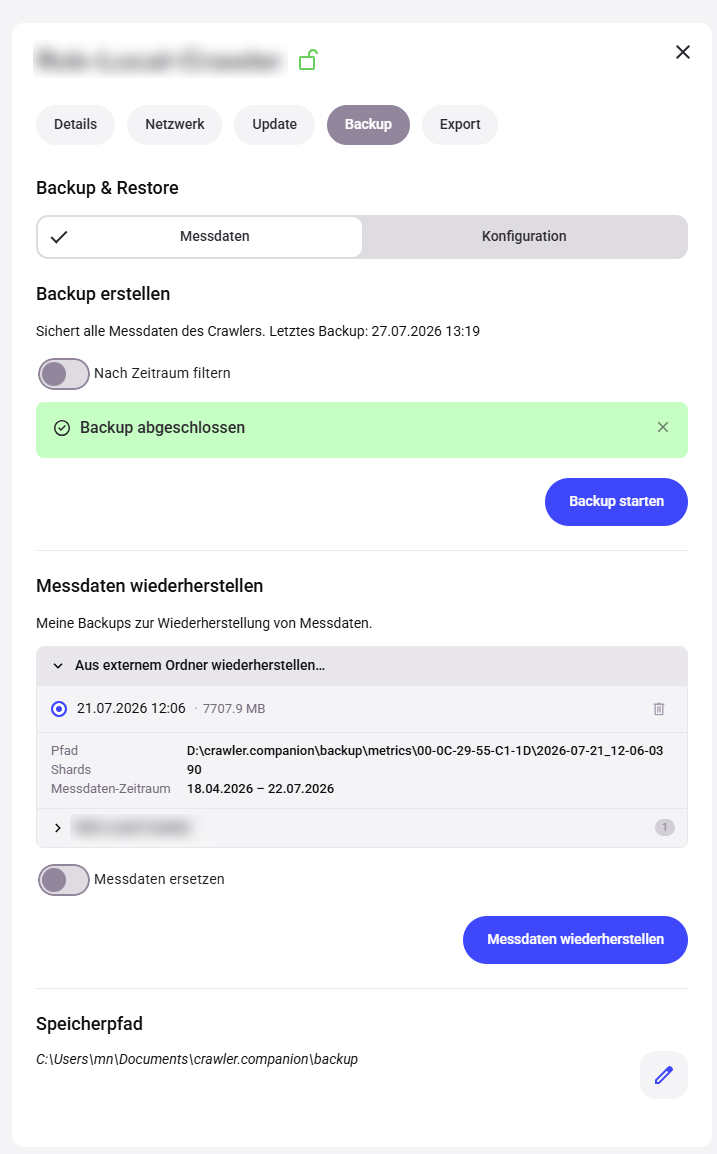
A green confirmation message appears when the backup is complete. The backup file is saved in the configured storage path.
Click a device in the device list to open the detail panel. Select the Backup tab and make sure the Messdaten sub-tab is active.
Under Messdaten wiederherstellen, expand the Aus externem Ordner wiederherstellen… section. Available backups are listed — each entry shows date, size, path, shards, and measurement data time range.
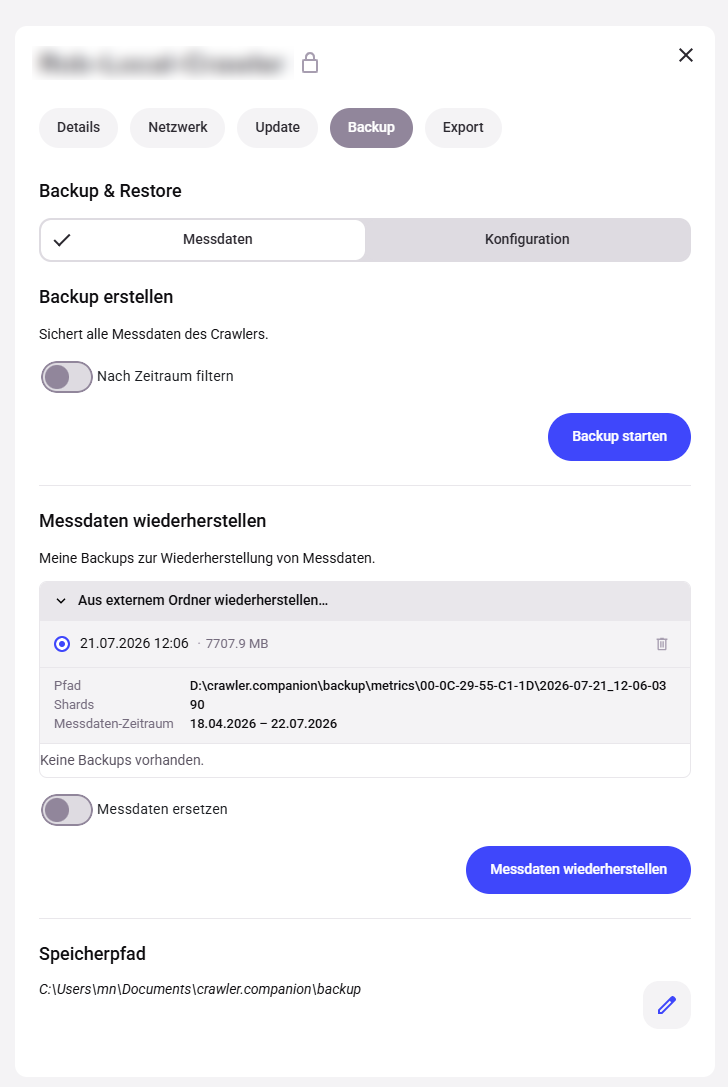
Click the desired backup to select it (a blue dot appears). Optionally enable the Messdaten ersetzen toggle if existing measurement data for the same time range should be overwritten.
Click Messdaten wiederherstellen to start the restore.
Click a device in the device list to open the detail panel. Select the Backup tab and activate the Konfiguration sub-tab.
Under Konfiguration sichern, check the components to include in the backup. Optionally add a comment to describe the backup.
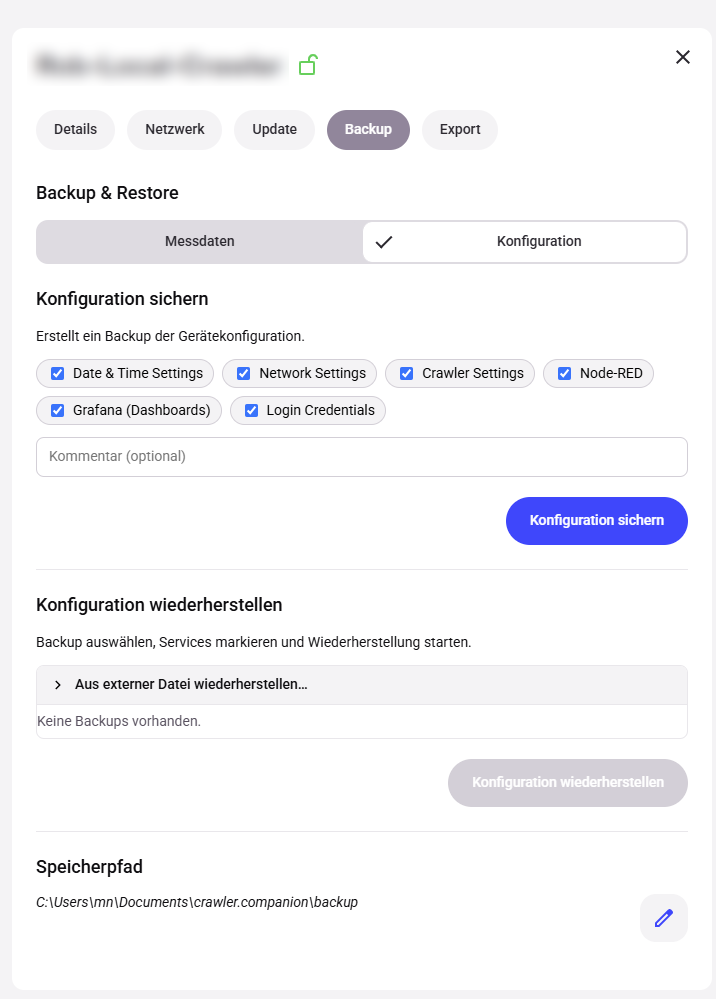
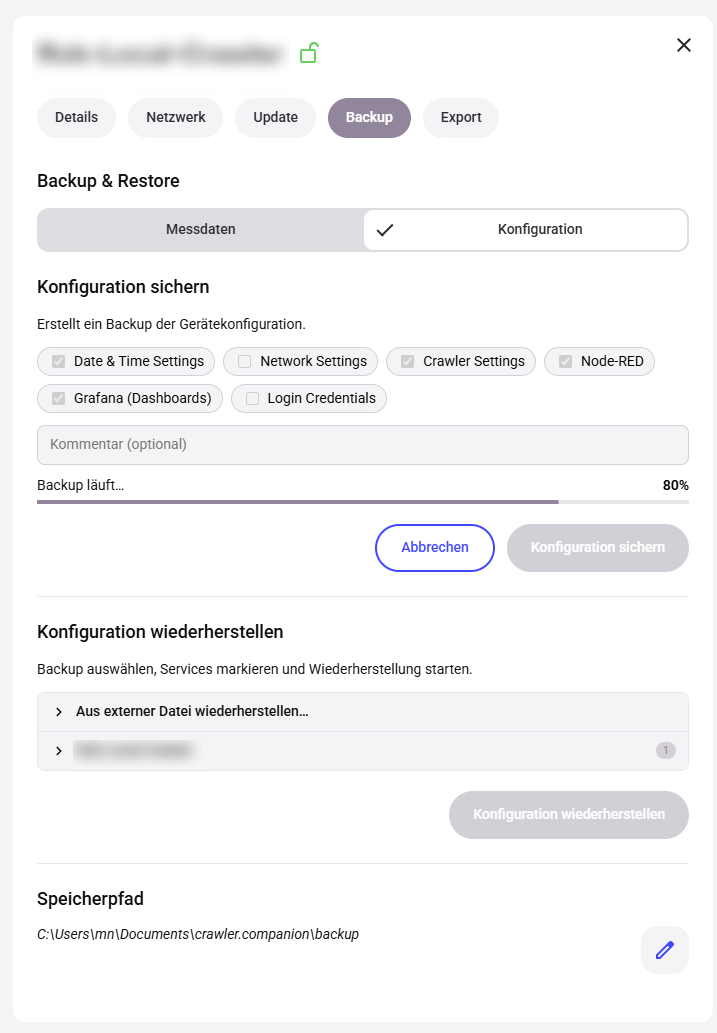
Click Konfiguration sichern. A progress bar shows the status.
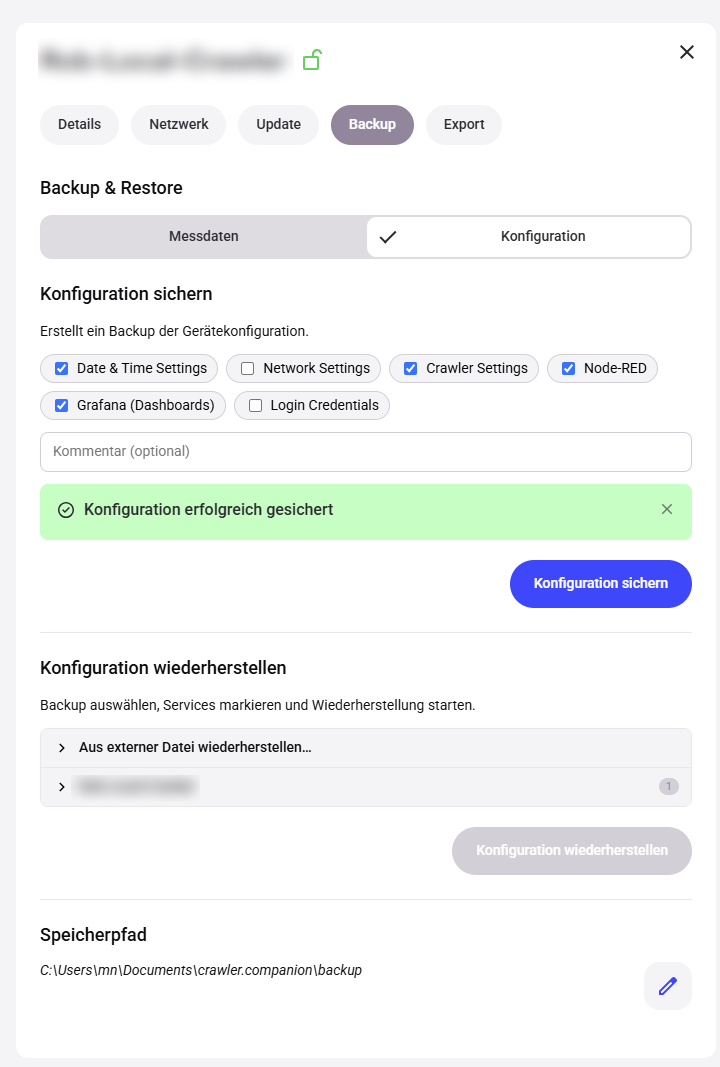
A green confirmation message appears when the backup is complete. The backup file is saved in the configured storage path.
Click a device in the device list to open the detail panel. Select the Backup tab and activate the Konfiguration sub-tab.
Under Konfiguration wiederherstellen, select a backup to restore:
- From existing device backups: Backups found in the storage path for this device are listed directly. Click a backup to select it.
- From an external file: Expand the Aus externer Datei wiederherstellen… section and upload the backup file.
Click Konfiguration wiederherstellen to start the restore.