

Update Device Firmware
Crawler.Companion lets you update the firmware of connected Edge devices directly — without needing access to the device’s web interface.
-
Download the firmware file
Get the firmware file (
.zip) from Hub — see Download Edge Firmware. -
Select a device
Click on the device you want to update in the device list.
-
Open the Update tab
In the detail panel, click the Update tab. The current firmware version and the date of the last update are shown under Dein System.
-
Select the firmware file
Under System aktualisieren, drag the firmware file (
.zip) into the drop zone, or click öffnen Sie eine Datei and select the file.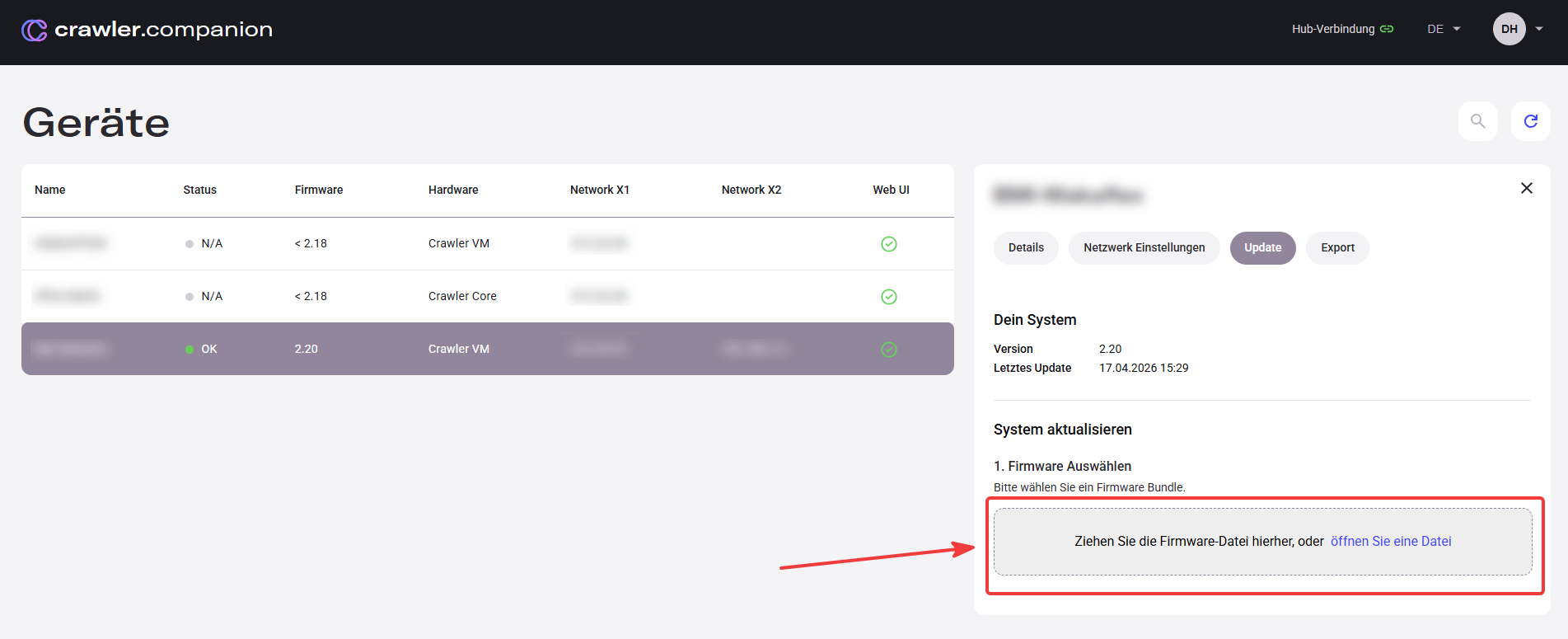
-
Start the update
Click Update starten. A progress bar shows the transfer status.
-
Wait for the restart
The device restarts automatically once the update is complete. It reappears in the device list after a few seconds with the updated firmware version.
Do not close Crawler.Companion and do not disconnect the device from the network during the update. An interrupted update can leave the device in an unusable state.
Firmware updates are currently sequential only. You cannot skip versions — each update must be installed in order. For example, to reach version 2.22 from 2.18, you must install 2.19 → 2.20 → 2.21 → 2.22 in sequence.