

Quickstart
Get up and running with Deepview in minutes.
Deepview opens directly from Crawler.Companion — as long as you are signed in to your Hub account there (see Login to Hub), no separate Deepview login is required. Export a time range or a run from an Edge device and select Deepview as the export format. See Export Data for the full walkthrough.
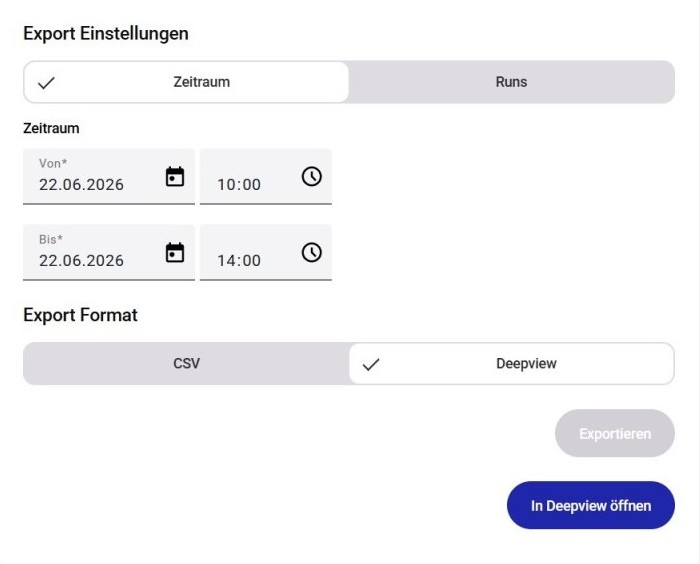
Once the export finishes, click In Deepview öffnen to open the data directly in your browser.
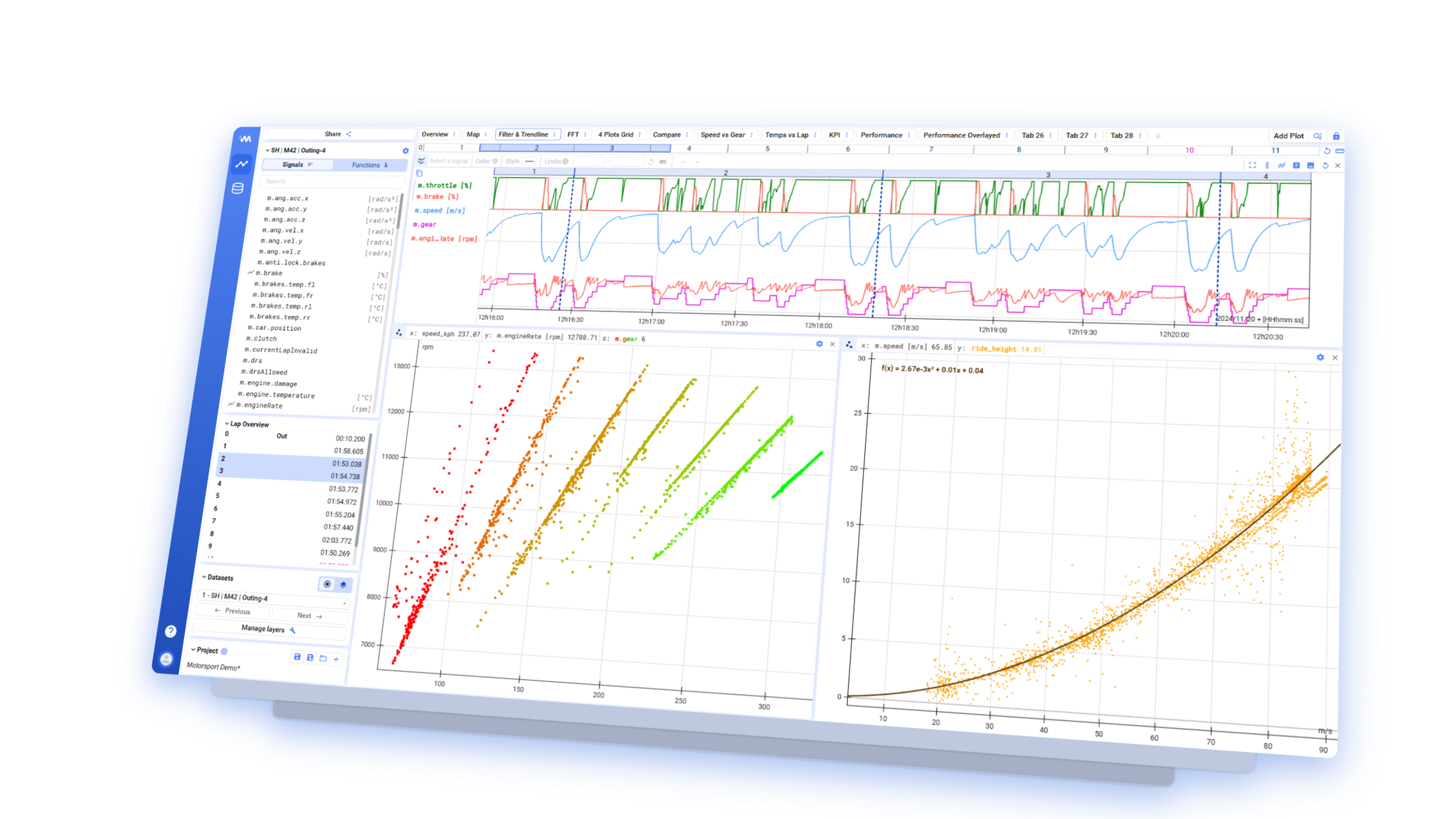
Deepview opens with your exported data already loaded. Signals appear as plots in the main workspace, with the Signal List on the left showing every signal available in the data set.
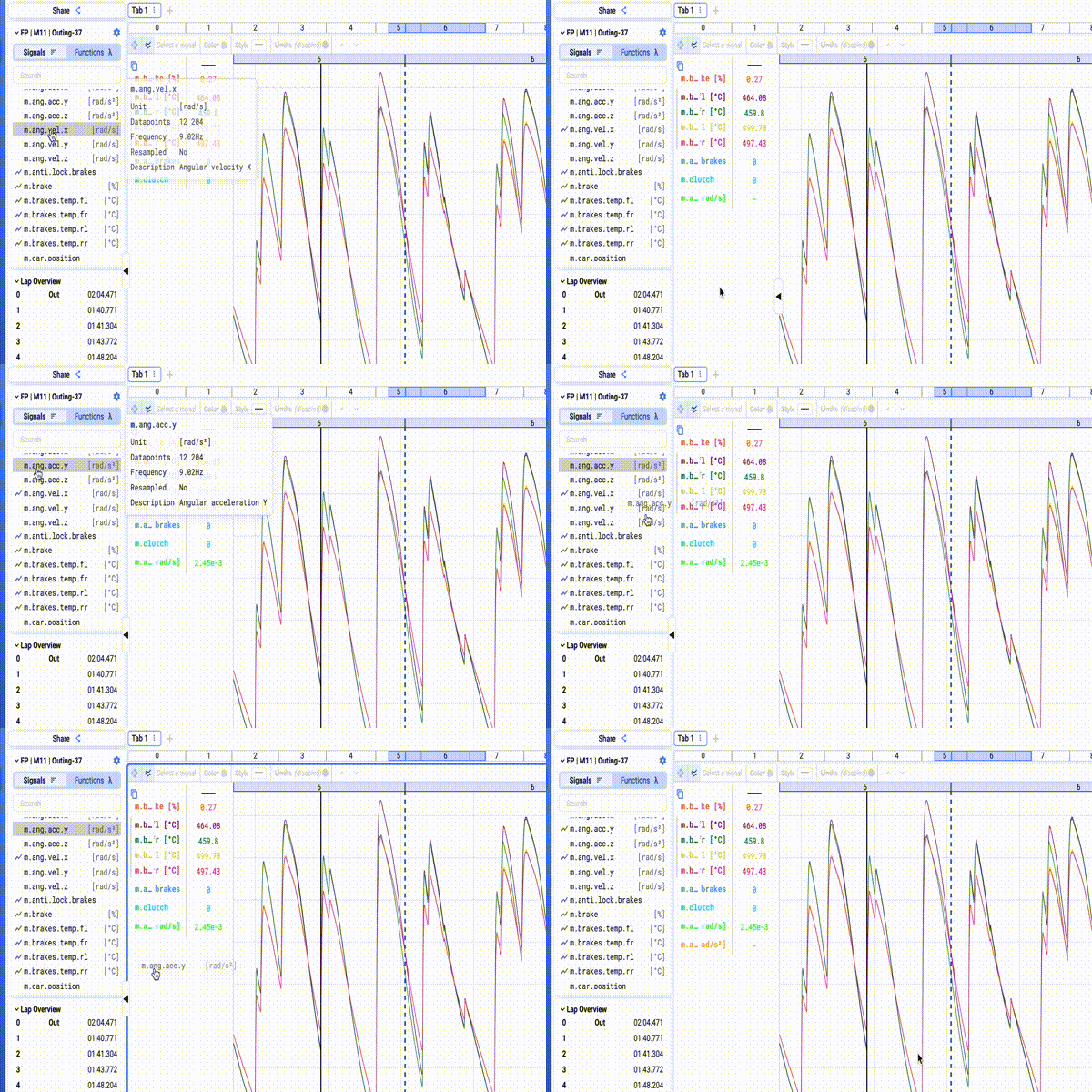
Double-click a signal in the Signal List, or drag and drop it onto a plot, to visualize it.
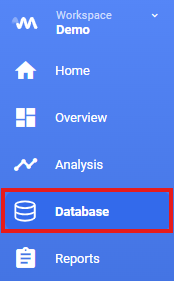
To explore other recordings, click the Database icon in the left navigation bar. It lists every data set available to you, and lets you search and filter by time range or metadata.
For a full overview of all guides, visit the Analysis section.