Add Data Sets
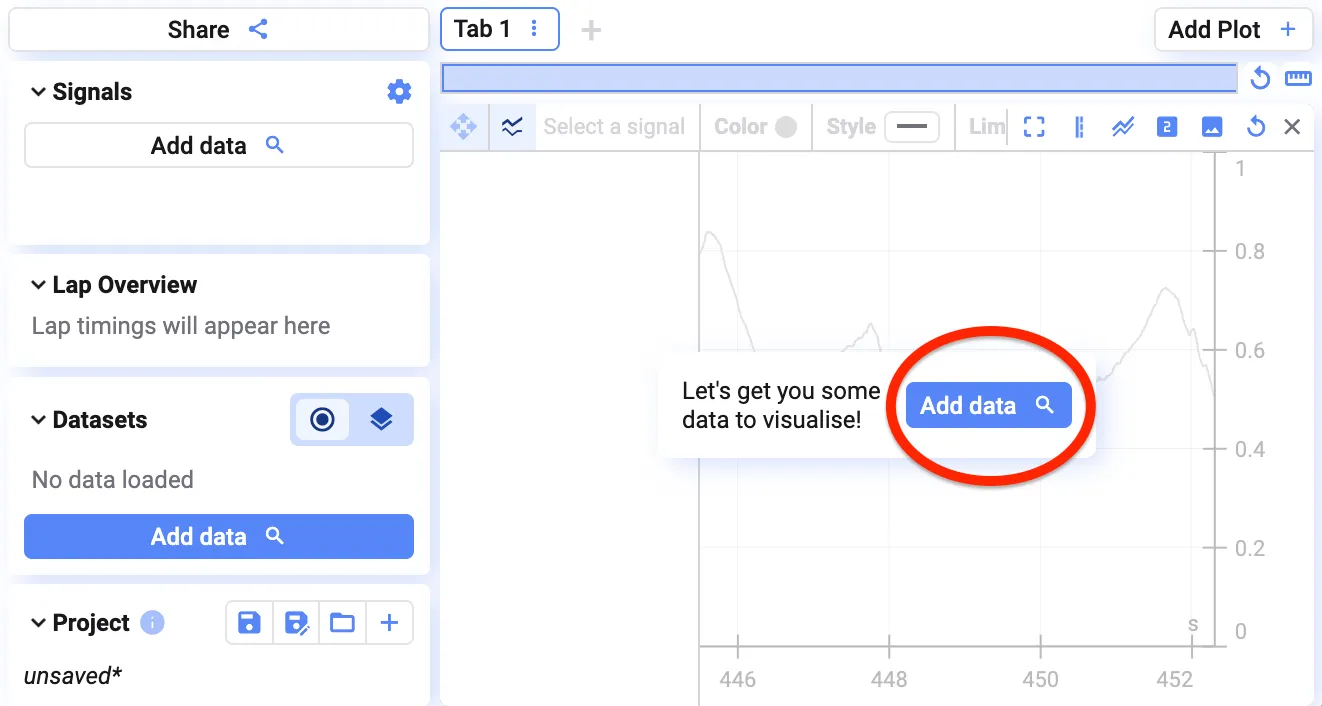
Add data to an empty project
Section titled “Add data to an empty project”Click Add data, then find and select the data you want in the data library — see Selecting Data.
Add more data to a project that already has data

Section titled “Add more data to a project that already has data”- Go to the data library
- Find and select the data you want to load
- Click Visualise in the bottom-right corner
Switch between loaded data sets
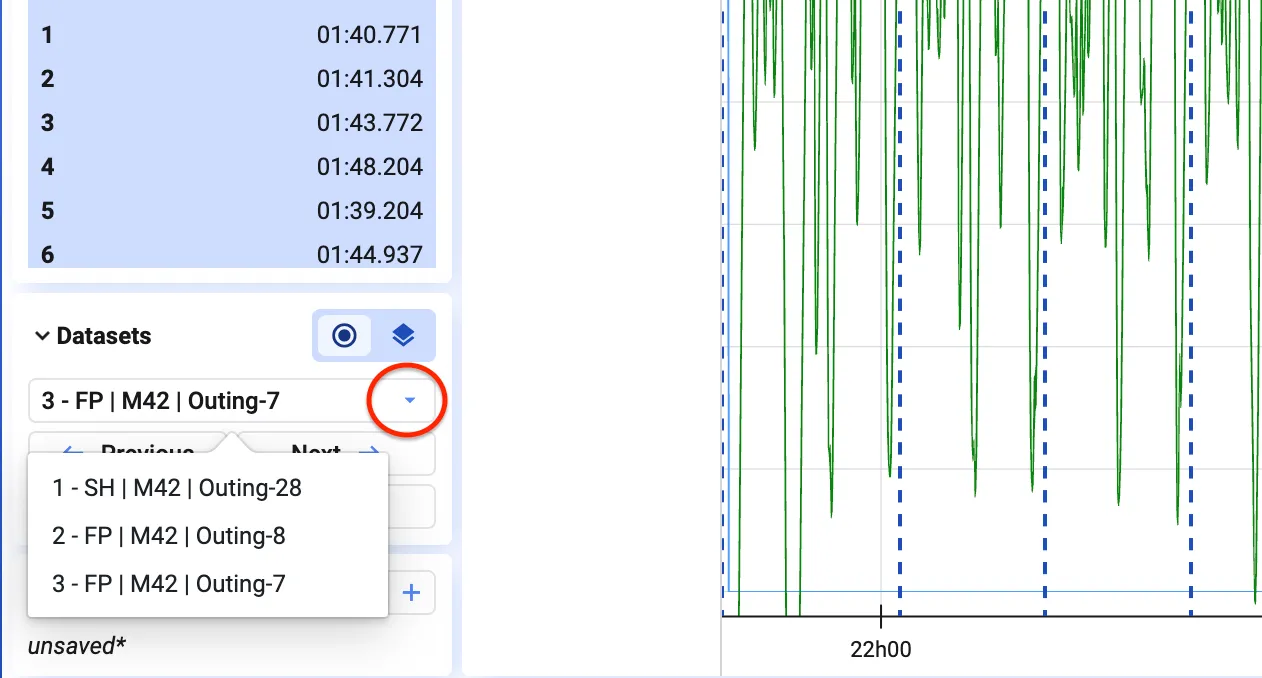
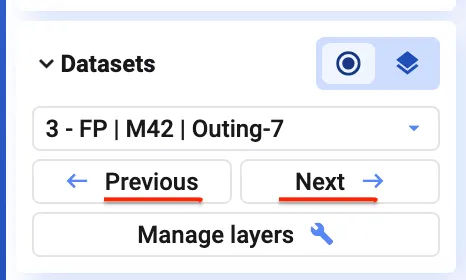
Section titled “Switch between loaded data sets”The bottom-left of the screen shows which data set is currently loaded. Click the dropdown to switch to a different one, or use the left/right arrows in the same panel.
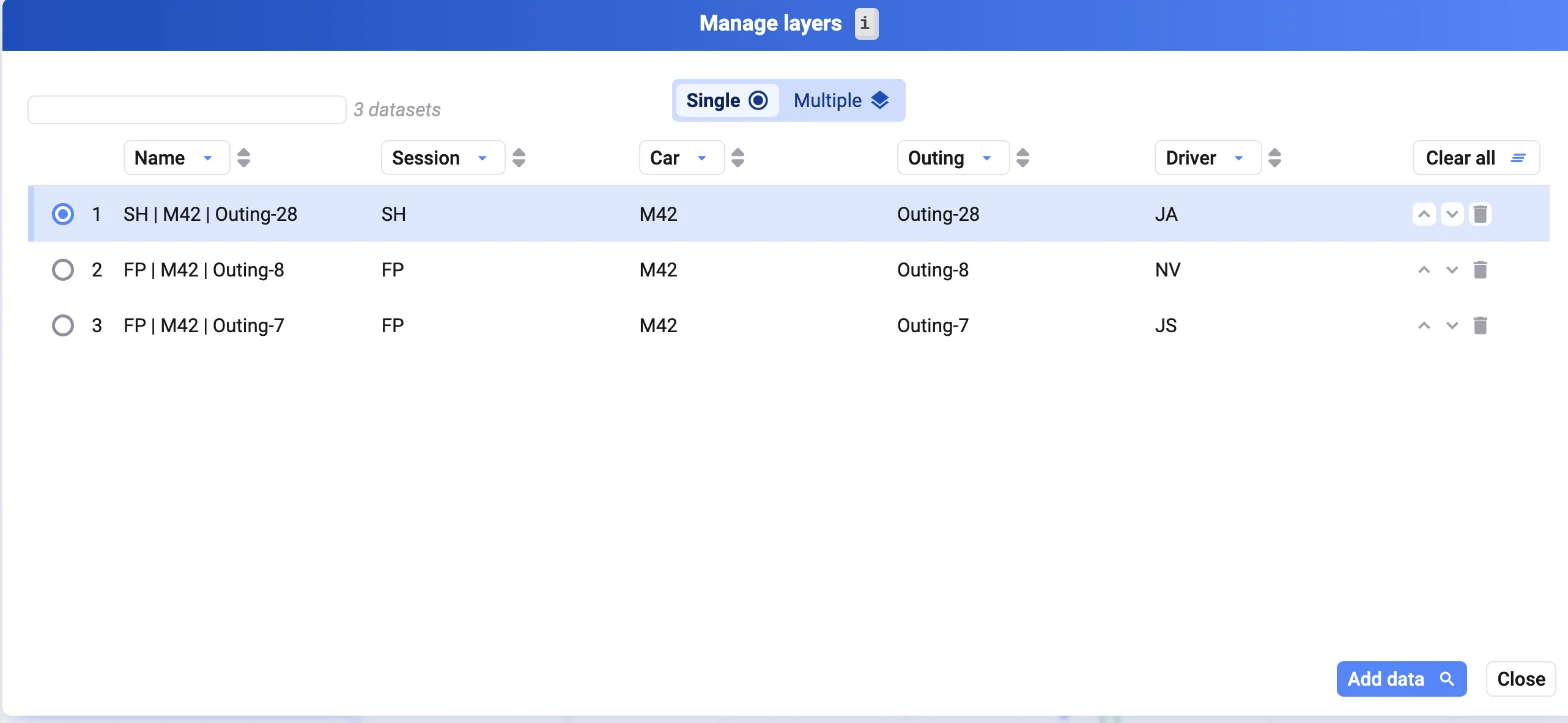
Press i (or click Manage layers) to open the Manage layers dialog. From there you can:
- Select which loaded data set to visualize
- Change the order of the data sets
- Add more data
- Remove a data set you’ve loaded
Remove a data set
Section titled “Remove a data set”In the Manage layers dialog, click the trash icon next to a data set to remove it from the project.