Merge
If a recording is split across multiple data sets, Merge combines them so all their signals are available together in one data set.
Enable merge
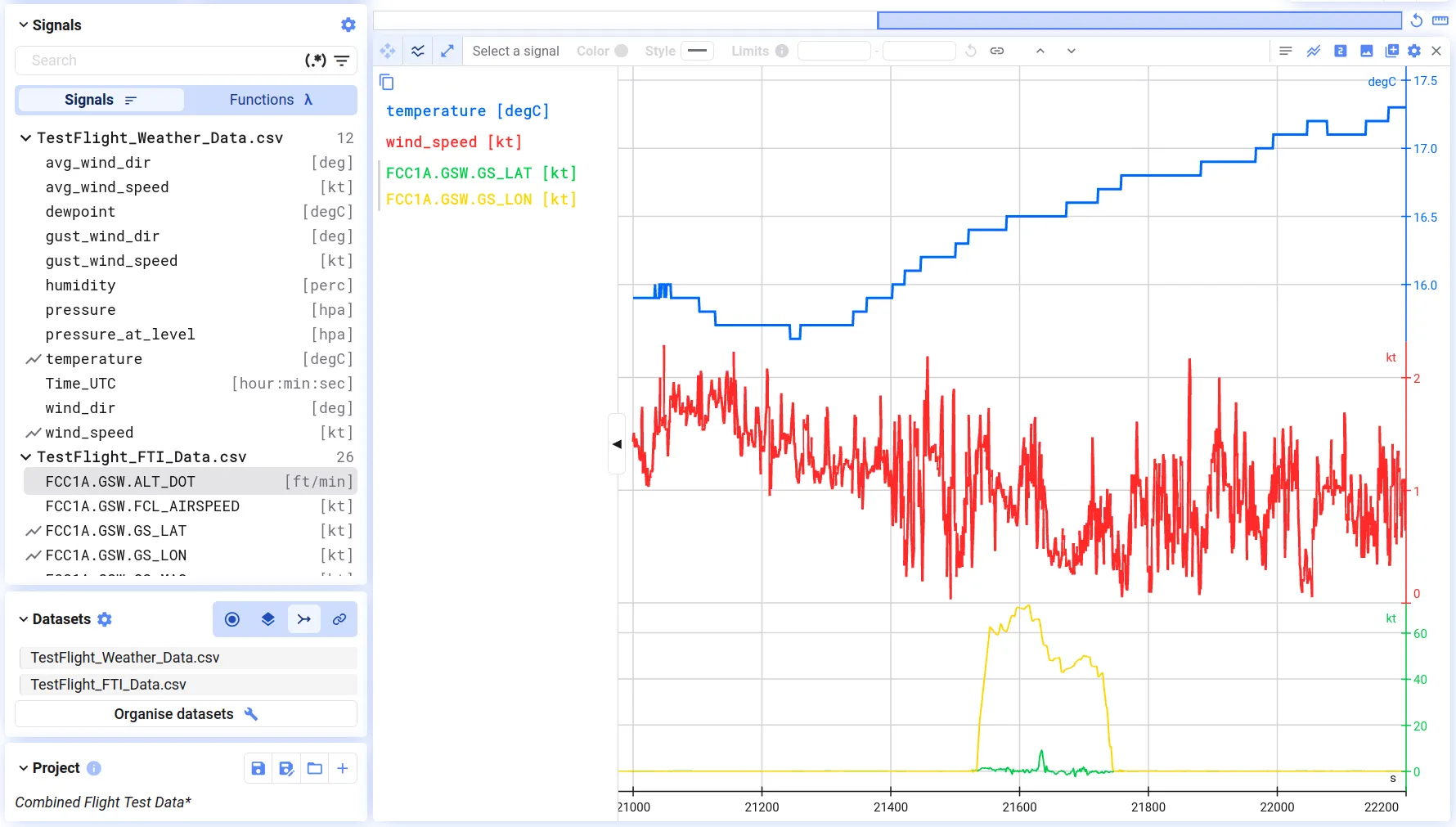
Section titled “Enable merge”Choose Merge in the dialog when visualizing multiple data sets, or switch to it at any time from the Datasets dialog (bottom-left of the tab). The signal list then shows the signals of all merged data sets together, grouped per data set.
Select which data sets to merge
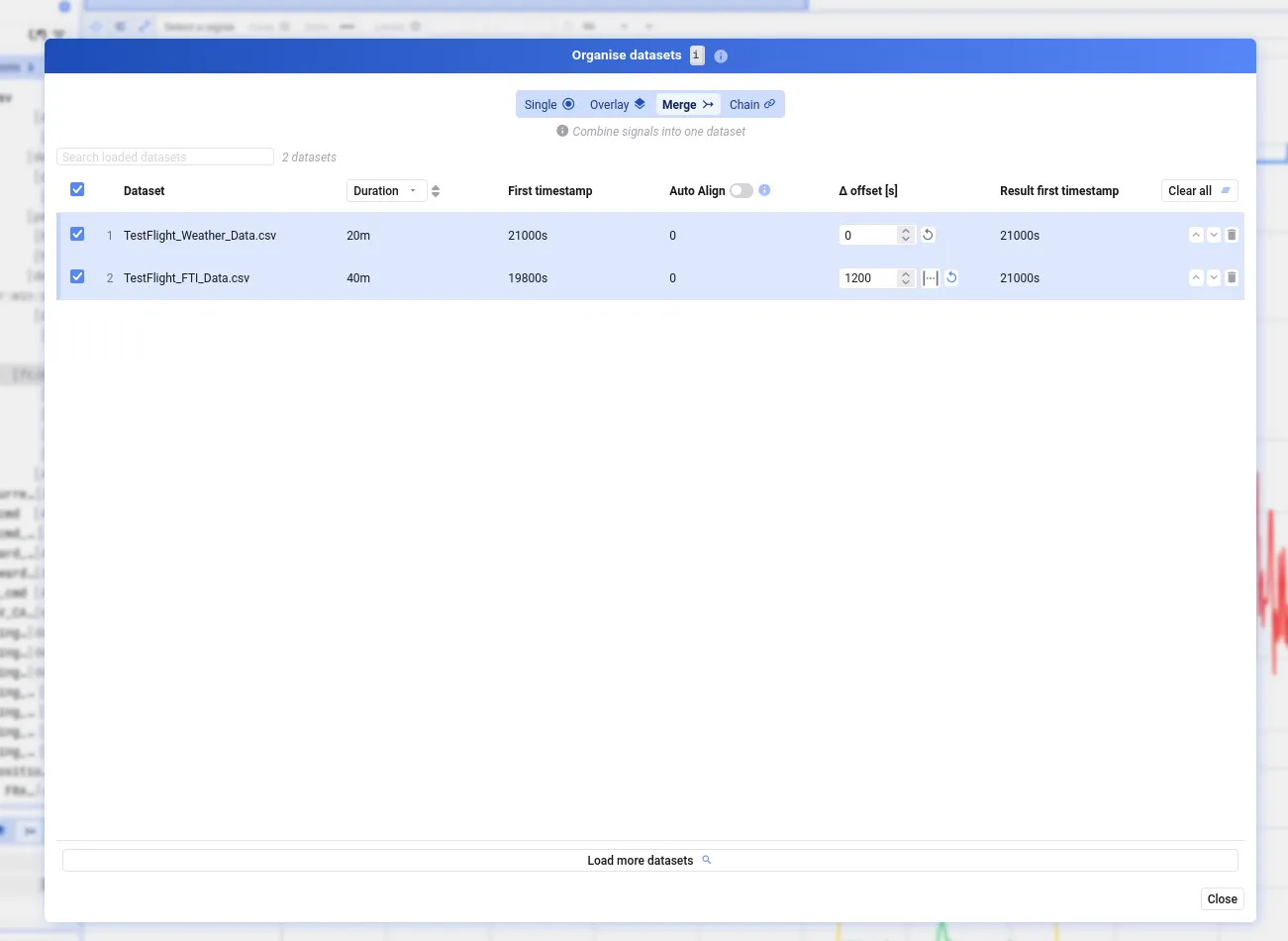
Section titled “Select which data sets to merge”Open Organise datasets (button in the Datasets dialog, or press i). In Merge mode, each data set has a checkbox — tick or untick to include or exclude it, or use the header checkbox to select/deselect all at once.
If multiple data sets contain a signal with the same name, only the signal from the first data set is kept.
Align merged data sets
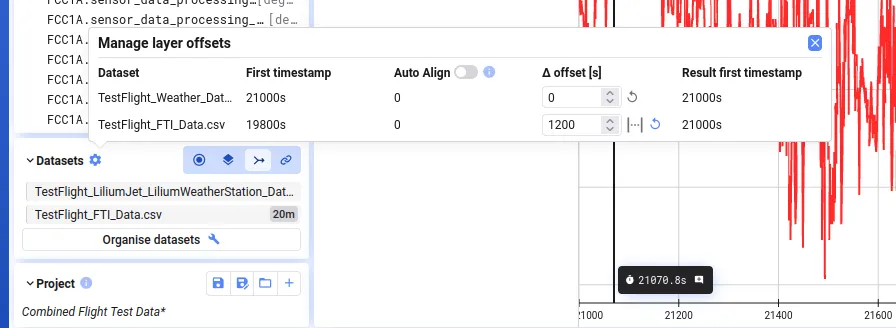
Section titled “Align merged data sets”- First timestamp — the original start time of the data set
- Auto-align — automatically offsets relative-time data sets so they line up with absolute-time data sets
- Delta offset — additional offset in seconds to shift a data set earlier or later; you can also use the distance between two cursors to set this visually
- Result first timestamp — the start time of the data set after all offsets are applied
Set offsets via the gear button next to Datasets, or in the Organise datasets dialog.