Adding a Field Device
Field devices are the industrial controllers, sensors, and gateways from which the Edge reads process data. Before a device’s variables can be configured for recording, the device must be added to the Edge and a successful connection must be established. The Edge supports three connection protocols: Modbus TCP, OPC UA, and Siemens SIMATIC (S7) — select the tab for the relevant protocol below.
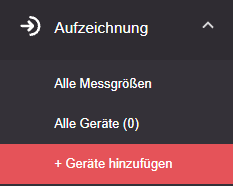
In the main menu, navigate to Data Recording and click + Add devices.
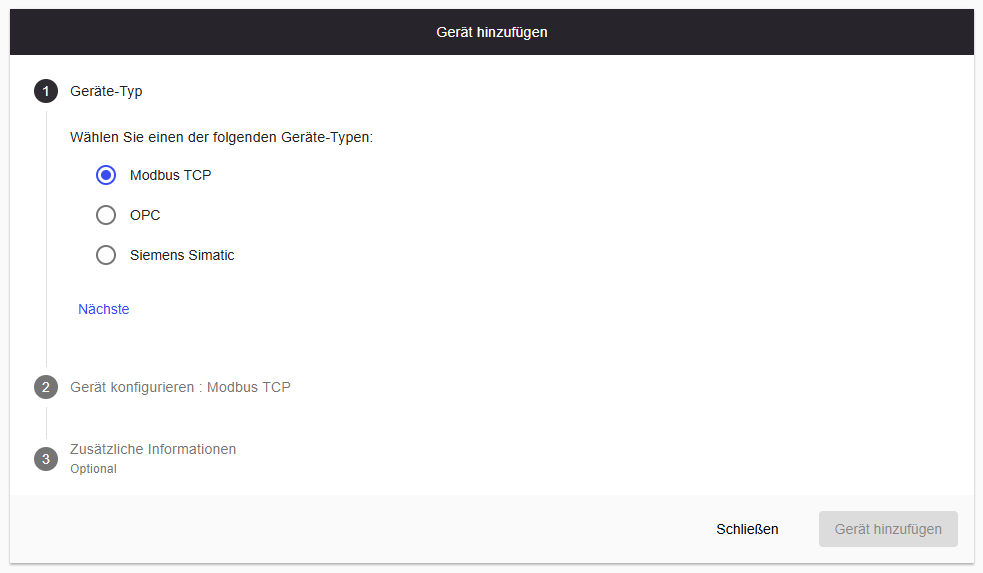
Select one of the following device types to see the setup steps.
Select Modbus TCP and click Next.
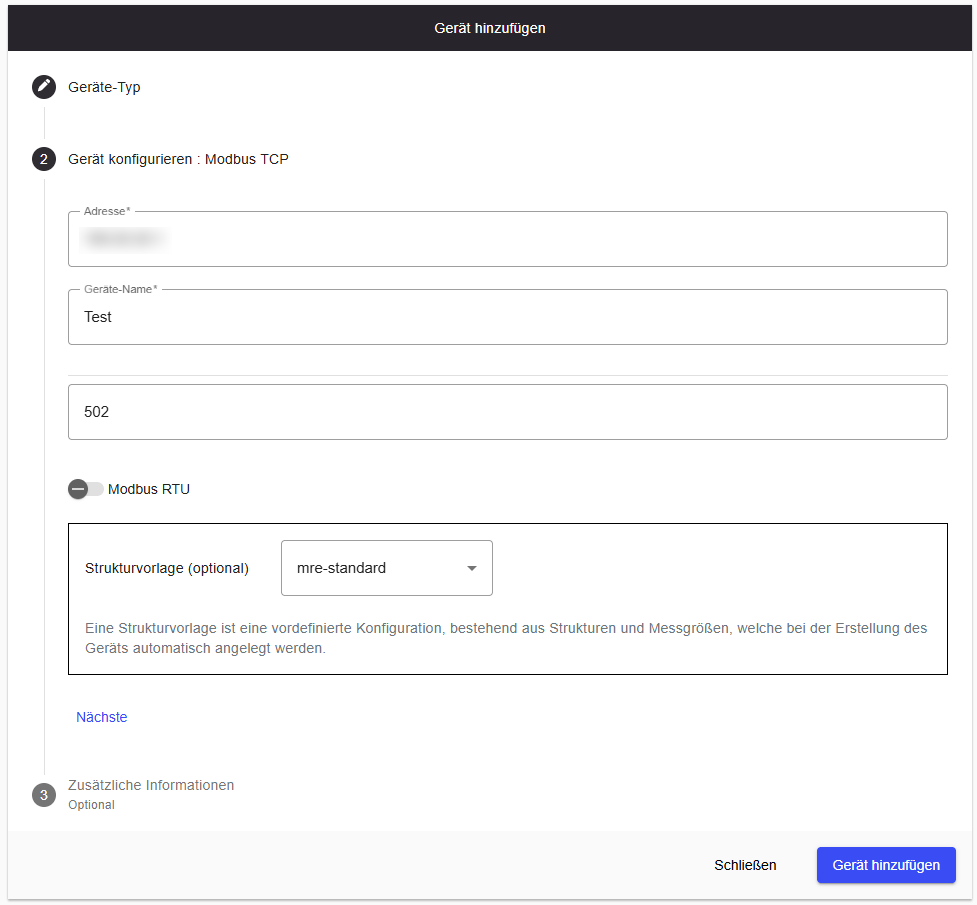
Enter the connection details:
- Address — IP address of the Modbus device
- Device name — used to identify the device within the Edge
- Port — default is 502
- Modbus RTU — enable if the field device uses the Modbus RTU protocol. Modbus RTU is the older Modbus variant and uses a master/slave architecture — the Edge acts as the Modbus Master and polls the connected field devices (slaves). When enabled, an additional Slave ID field appears to identify the target device on the bus.
With Modbus RTU enabled, a Slave ID field appears:
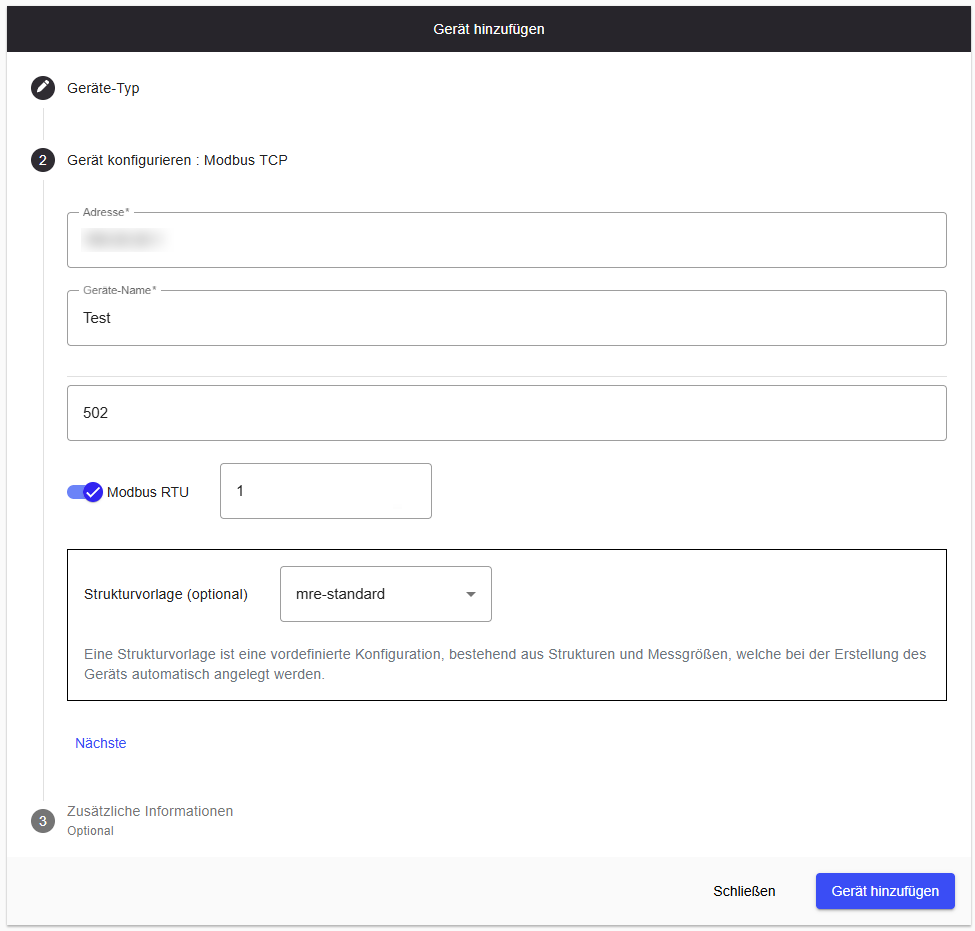
Optionally, a template can be selected. Templates contain a predefined list of variables for common device models and are applied automatically when the device is created, eliminating the need to add variables individually. If no suitable template is available, variables can be added manually or imported via CSV after device creation. See Setting Up Data Recording for import instructions.
Optional metadata can be added as tags in the next step.
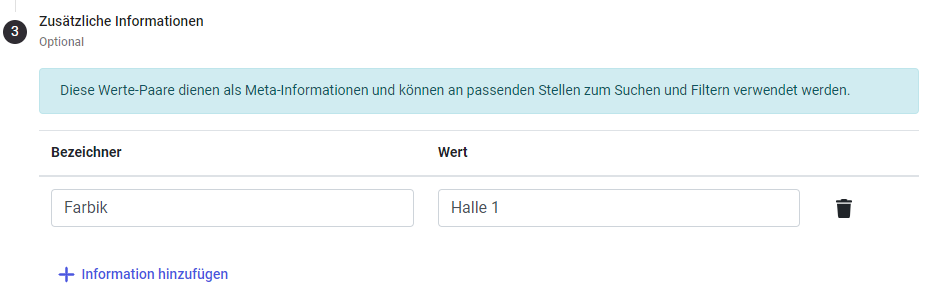
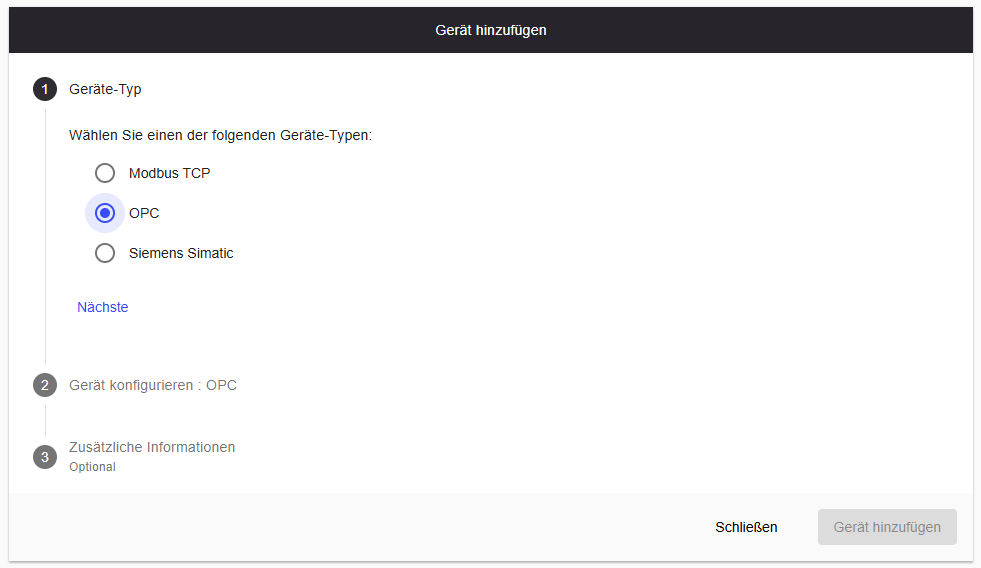
Select OPC and click Next.
Enter the connection details:
- Address — IP address or hostname of the OPC server
- Device name — used to identify the device within the Edge
- Port — default is 4840; the actual port is configurable in TIA Portal under the OPC UA server settings (Server Addresses) and may differ
- Secured device connection — enable if the OPC server requires authentication. When enabled, Username and Password fields appear.
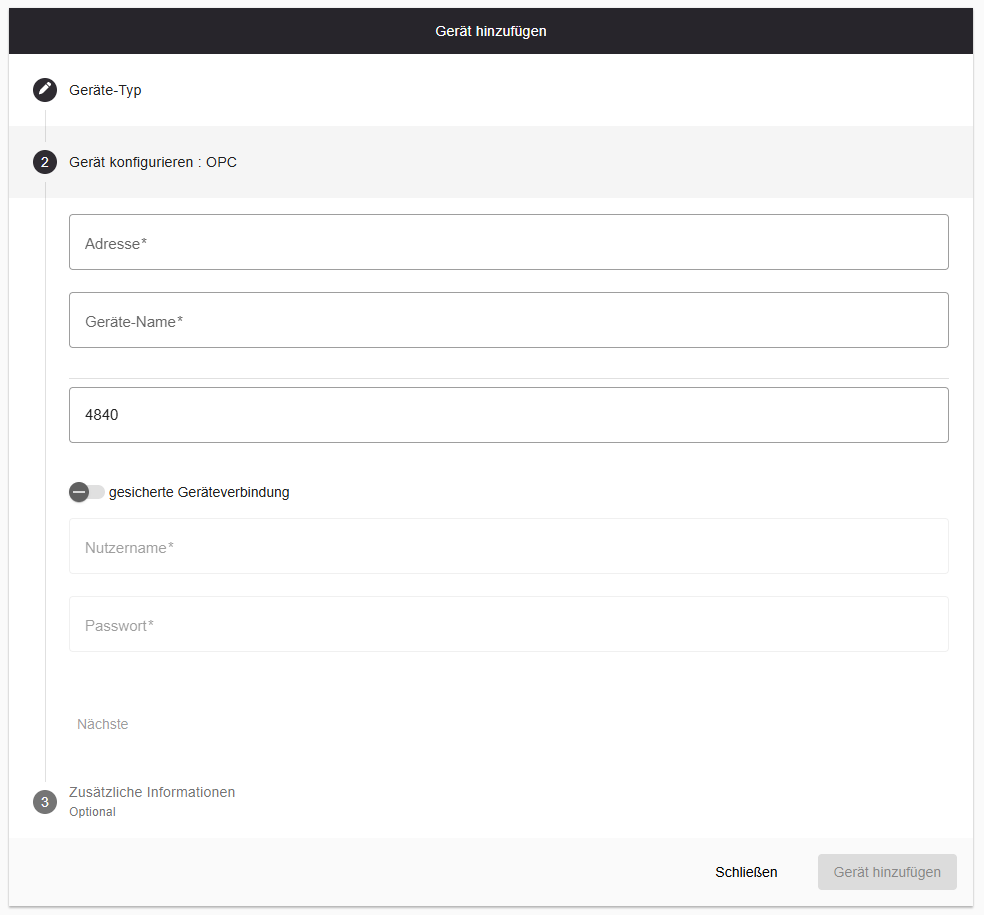
Variables can be imported directly from the device or via CSV. See Setting Up Data Recording for import instructions.
Optional metadata can be added as tags in the next step.
Select Siemens SIMATIC and click Next.
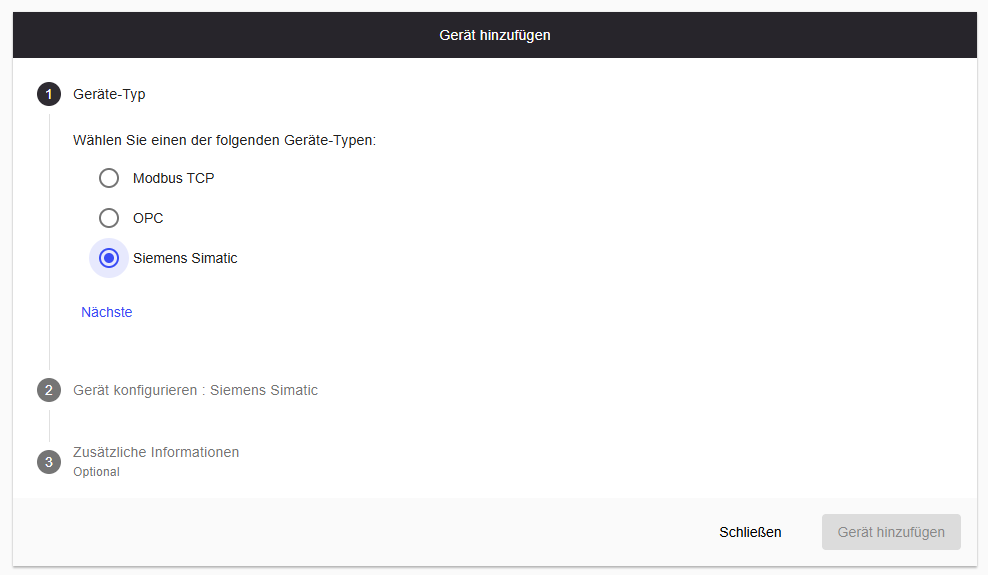
Enable Symbolic addressing. Symbolic addressing is supported for S7-1200 and S7-1500 and allows the Edge to read variable names and data block structures directly from the PLC — no manual address lookup required.
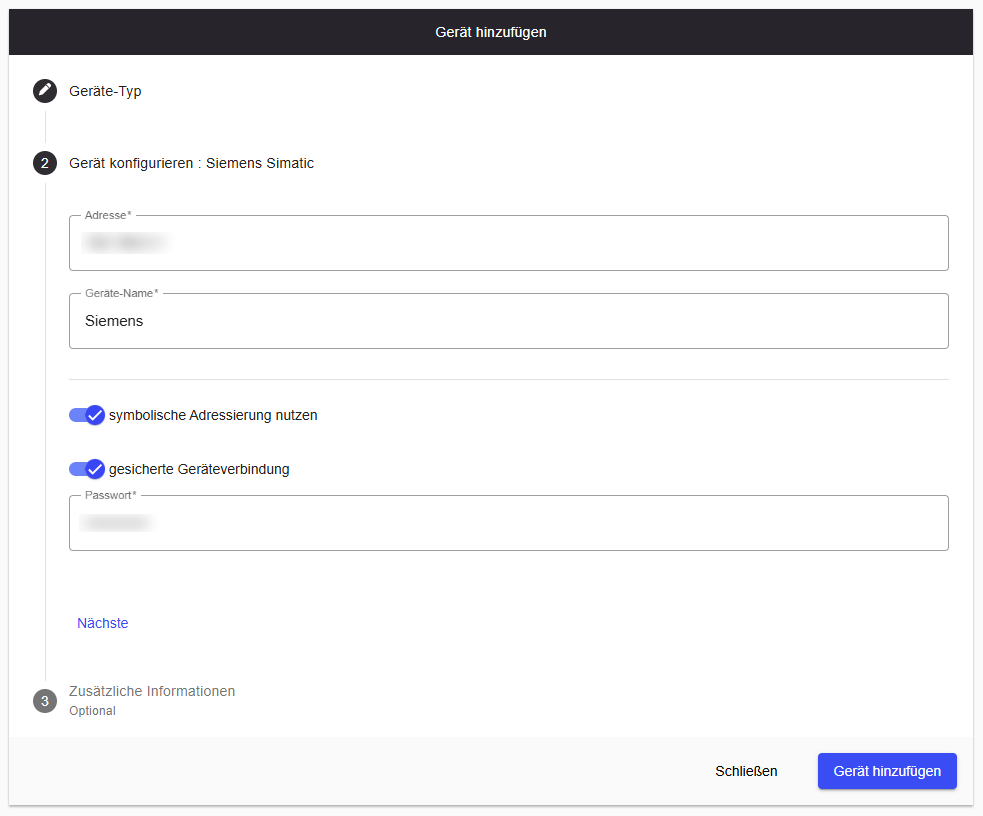
Enter the connection details:
- Address — IP address of the SIMATIC controller
- Device name — used to identify the device within the Edge
- Symbolic addressing — enabled
- Secured device connection — enable if the PLC has access protection configured. A Password field appears when enabled. See the Secured Connection tab for PLC-side setup instructions.
TIA Portal reference
Variables are read directly from the PLC. They can be imported using the device import or via CSV. See Setting Up Data Recording for import instructions.
Optional metadata can be added as tags in the next step.
Select Siemens SIMATIC and click Next.
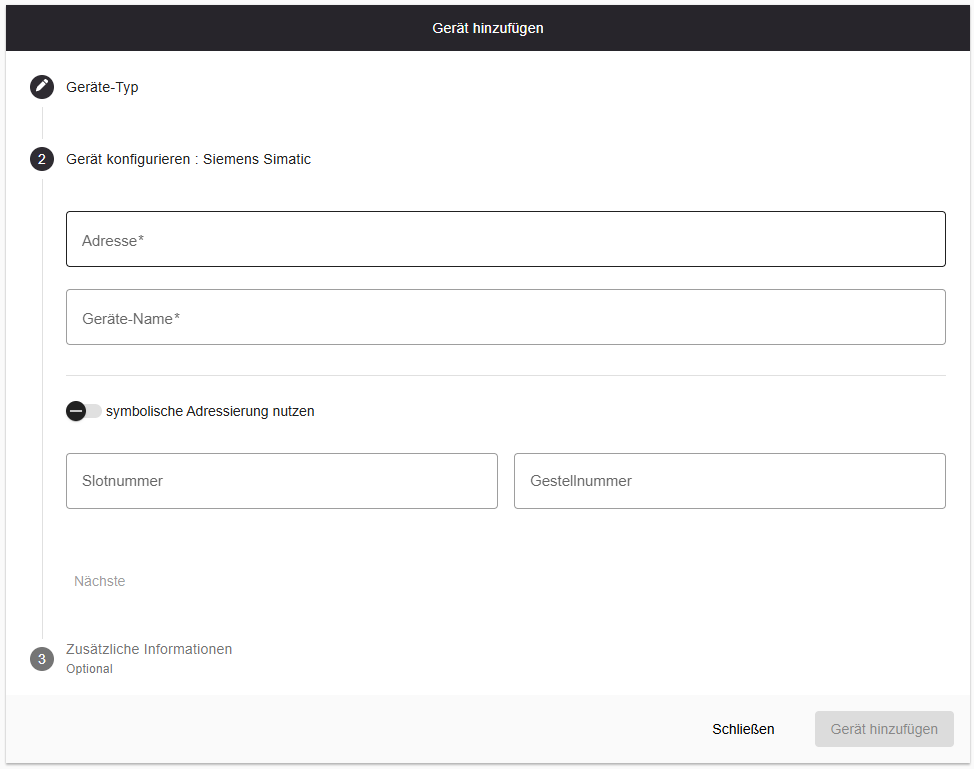
Disable Symbolic addressing. The fields Slot number and Rack number appear. Absolute addressing is used for S7-300 and S7-400 controllers, which do not support symbolic addressing. It can also be used with S7-1200 and S7-1500 if symbolic addressing is not required.
Enter the connection details:
- Address — IP address of the SIMATIC controller
- Device name — used to identify the device within the Edge
- Symbolic addressing — disabled
- Slot number — the position of the CPU or communication processor within the rack (profile rail). This is not always 2 — if an additional communication processor is installed, enter the slot number of the processor that is physically connected to the Edge, not the CPU itself. The correct slot can be found in the hardware configuration in TIA Portal or SIMATIC Manager.
- Rack number — the rack (profile rail / Profilschiene) in which the CPU is installed. In 95% of cases this is 0 — the main rack. In redundant CPU configurations, use the rack number of the currently active CPU.
Finding slot and rack number
The slot and rack number can be found in the hardware configuration of the project. Open the hardware configuration in TIA Portal (or SIMATIC Manager for S7-300/400 projects) and locate the CPU or communication processor in the rack view. For step-by-step instructions, see TIA Portal & SIMATIC Manager.
For TIA Portal-specific configuration required for absolute addressing (enabling PUT/GET communication, disabling optimized block access), see TIA Portal.
Variables can be added manually or imported via CSV. See Setting Up Data Recording for import instructions.
Optional metadata can be added as tags in the next step.
All three device types support a secured connection with password protection. If the field device requires a password, enable the Secured device connection toggle in step 2 of the add-device wizard and enter the password.

OPC UA — Configuring username/password authentication in TIA Portal
If the OPC UA server in TIA Portal requires authentication, the following must be configured on the controller side:
- In TIA Portal, open the PLC and navigate to Properties → OPC UA → Server.
- Enable the OPC UA server if it is not already active.
- Under Security, enable a security policy — at minimum Basic256Sha256 with mode Sign & Encrypt is recommended.
- Under Authentication, enable the Username and password option.
- Add a user: under User management, create a new entry with a username and password. These credentials are entered in the Edge Secured device connection fields.
- Compile and download the updated PLC configuration.
Configuring access protection in TIA Portal — SIMATIC Symbolic (S7-1200 / S7-1500)
For SIMATIC controllers using symbolic addressing, access protection is managed through the access level settings in TIA Portal. The Edge authenticates using the password assigned to the configured access level.
- In TIA Portal, open the PLC and navigate to Properties → Protection & Security → Access level.
- Select the protection level — Read access permits read-only access and is sufficient for the Edge to retrieve data. HMI access grants slightly broader permissions and can also be used.
- Enter a password for the selected access level. This is the password that will be entered in the Edge Secured device connection field.
- Compile and download the updated PLC configuration.
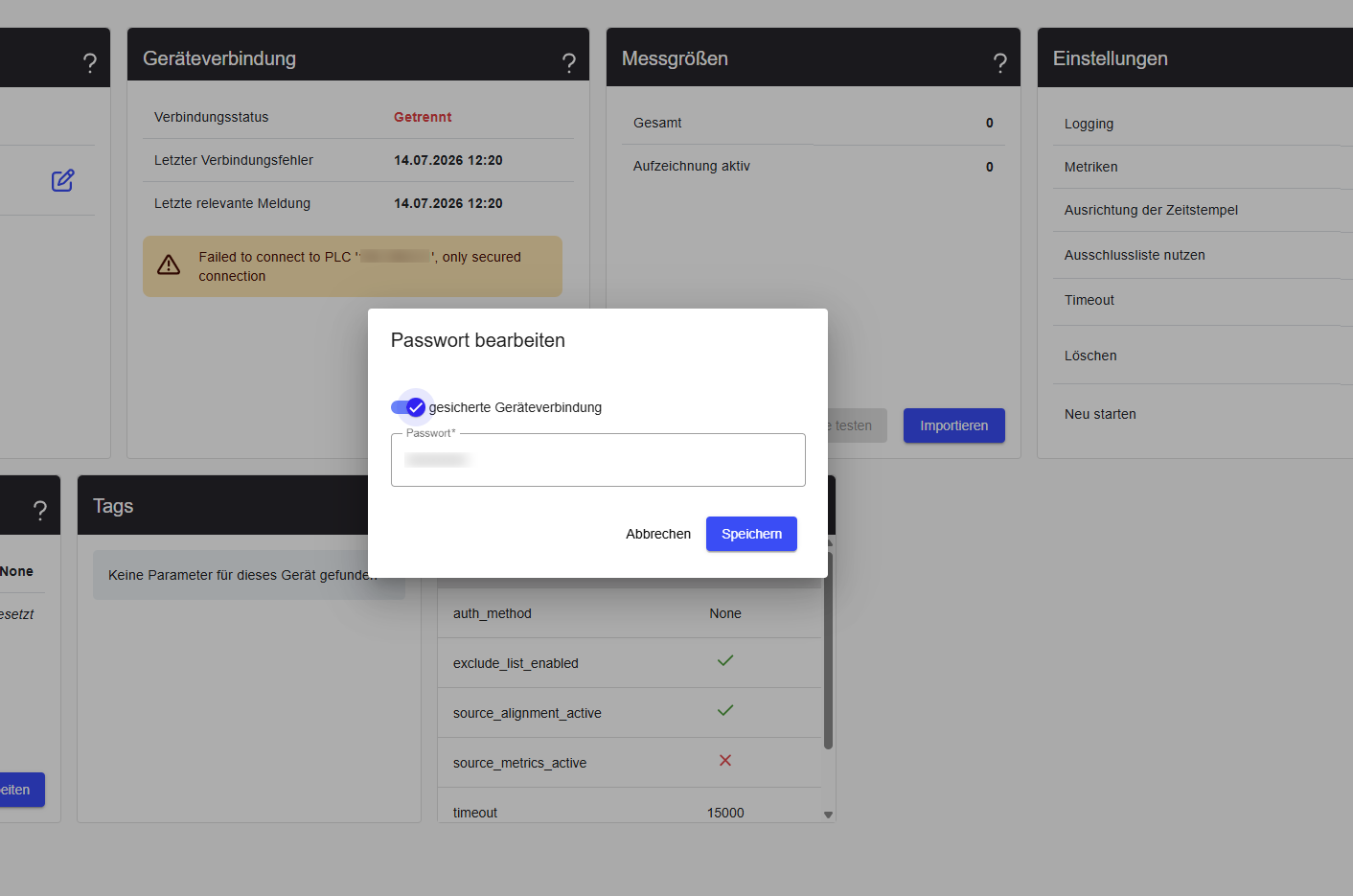
If the connection fails with “only secured connection”
This error means the device has access protection enabled, but Secured device connection was not activated when the device was added.
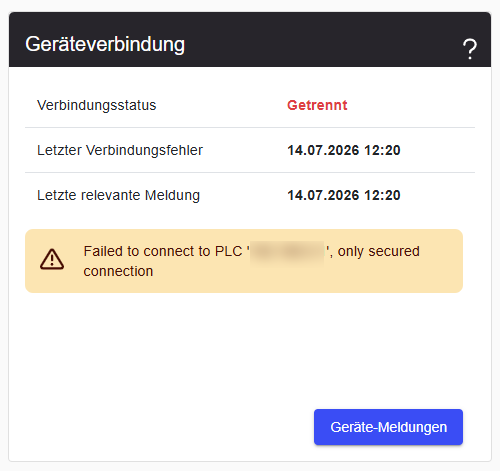
To fix this, open the device page and click Edit password in the Security section.
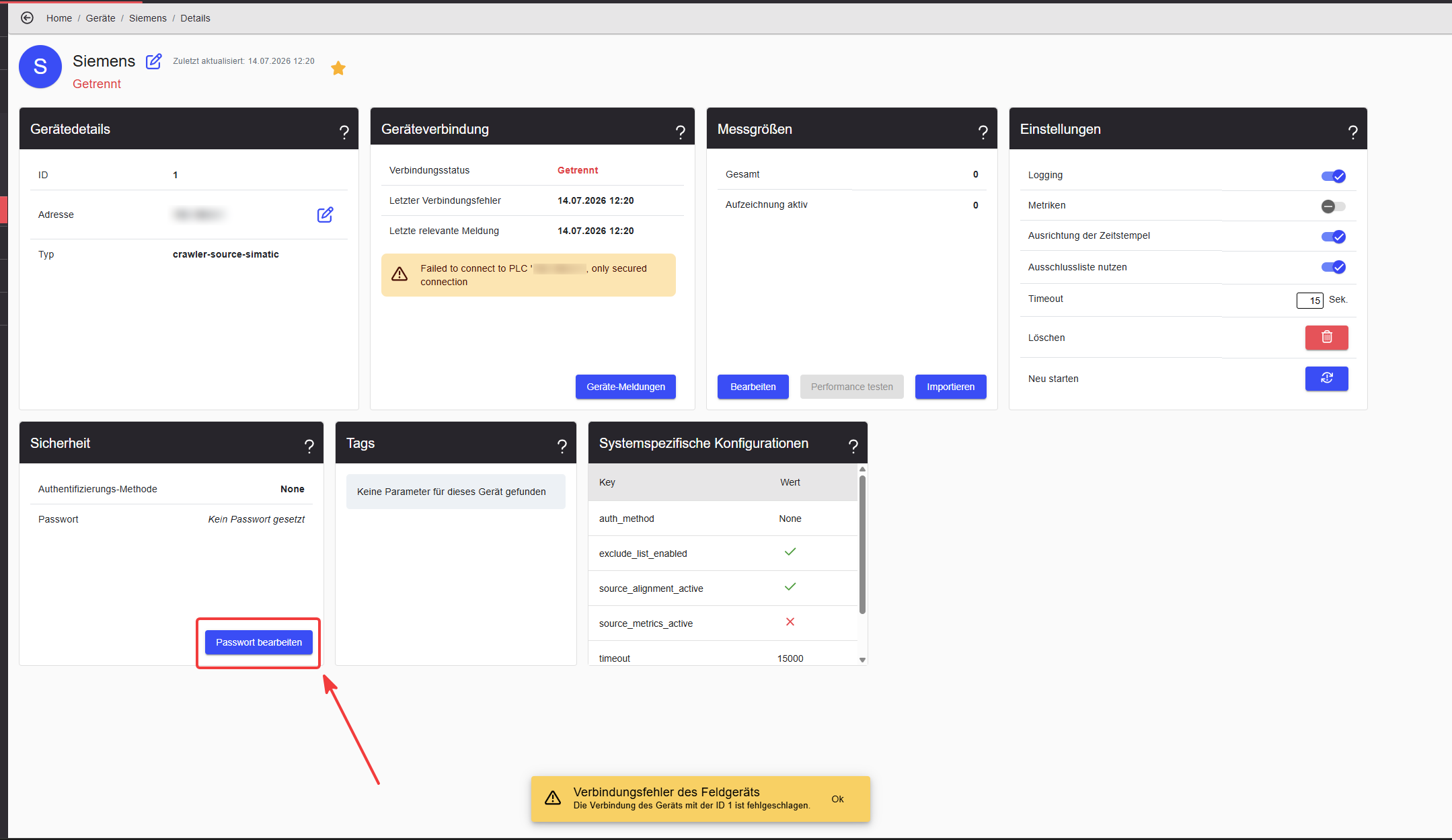
Enable the Secured device connection toggle and enter the password, then click Save.